
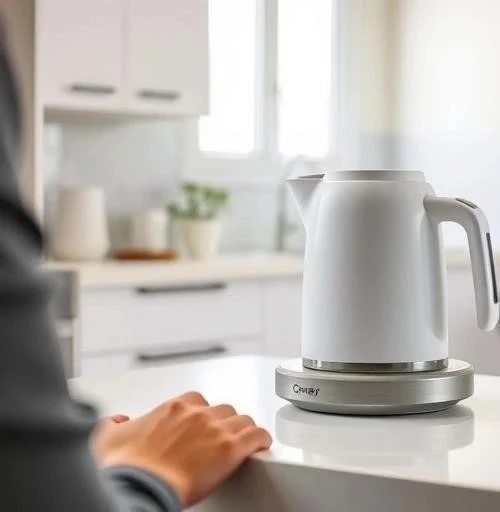
Whether you can start a Xiaomi kettle from your phone depends on its exact model. The word “smart” does not necessarily mean that a kettle can be switched on remotely. Some Xiaomi kettles connect to the Xiaomi Home app for temperature settings and keep-warm controls, while others offer only local Bluetooth functions—or no app control at all. On many models, the app cannot start the heating cycle from a distance, even after the kettle has been paired successfully.
This guide explains how to check your kettle, connect it to the app, use any remote features it supports, and troubleshoot common connection problems. It also covers an important safety point: do not try to bypass the kettle’s protections or leave a heating appliance running unattended.
First, check what your kettle can actually do
Find the model name and number on the label, usually on the underside of the kettle or its base, or on the packaging and receipt. Xiaomi has sold several kettles under similar names, and functions vary by model and market. Check the product manual or the official specifications for that exact model. Look for explicit support for Xiaomi Home, Wi-Fi, remote control, scheduling, boiling, temperature selection, and keep-warm functions.
Do not assume that Bluetooth means internet access. A Bluetooth kettle may communicate with a phone only when the phone is nearby. It may let you choose a target temperature or adjust keep-warm settings, but that does not necessarily allow you to start boiling while away from home. Wi-Fi support can enable communication over the internet, but it still does not guarantee that the app is permitted to start heating.
Some kettles are designed to start only when a person presses the physical button. This is a deliberate safety limitation, not necessarily a fault or a setup problem. If the app shows temperature information but has no start or boil control, the model may not support remote activation.
Connect a compatible kettle to Xiaomi Home
- Install the app. Download Xiaomi Home (also called Mi Home in some regions) from your phone’s official app store. Sign in to your Xiaomi account and grant the permissions the app requests for device discovery. Bluetooth devices may require Bluetooth and nearby-device permissions; some phones also ask for location permission during discovery.
- Choose the correct region. In the app’s profile or settings, select the region where the kettle was sold or where its manual says it should be used. Available products and functions can differ by region. If the kettle does not appear in the device list, verify the region before trying repeated resets.
- Prepare the kettle. Put it on its base and connect the base to a suitable power outlet. Make sure the kettle is empty or filled only as directed by its manual. Do not fill above the maximum line. Keep the base and electrical connections dry.
- Add the device. In Xiaomi Home, tap the plus sign or “Add device.” Search for the exact model or allow the app to scan for nearby devices. Follow the on-screen instructions; If asked to press a button or reset the kettle, use only the procedure described in its manual.
- Complete pairing. Keep the phone close to the kettle during setup. For a Wi-Fi model, connect it to the network type and band specified in the manual; many smart-home devices require 2.4 GHz Wi-Fi. Enter the correct network password and wait for the app to confirm that setup is complete.
- Test the available controls nearby. Open the kettle’s device page and check which functions are actually shown. Depending on the model, these may include a temperature target, keep-warm duration, current status, or a heating control. Do not infer that a missing control can be enabled by changing unrelated app settings.
How to use remote controls, if your model supports them
If the device page provides a remote heating or boil command, follow the app’s prompts rather than relying on a generic sequence. Before sending a command, check that the kettle is upright on its base, contains enough clean water, is below the maximum fill line, and has no visible damage. Make sure the lid is closed as instructed by the manufacturer and that the spout is not blocked.
Select the desired temperature or heating mode, then use the app’s start control only if the model provides one. Wait for the status to update. A command may take time to reach the kettle, particularly if the internet connection is slow. If the app reports that the kettle is offline, do not keep sending commands. Check the connection and the kettle in person before trying again.
For a Bluetooth-only model, keep your phone within Bluetooth range and follow the instructions shown in the app. Bluetooth range is affected by walls, appliances, and interference. A Bluetooth connection usually does not let you control the kettle from outside the home. If your phone is away, the app may be unable to communicate with it even though the kettle is powered.
When the app cannot start boiling
If the kettle pairs but offers no “Boil,” “Start,” or equivalent control, it probably does not support remote start. Check the manual and the official specifications for the exact model before troubleshooting further. App pairing alone is not proof that every function can be controlled remotely. Temperature selection and keep-warm settings are different from starting a heating cycle.
If the manual confirms that remote start is supported but the control is unavailable, check that the app and kettle firmware are up to date, the correct account and region are selected, and the device is online. Close and reopen the app, restart the phone, and power-cycle the kettle only as directed by the manufacturer. If you remove and re-add the device, note that this can erase its saved settings. Avoid a factory reset unless the manual recommends it.
Also check basic conditions: the kettle must be seated properly on its base, the base must have power, the lid must be closed if required, and the kettle must not be in an error or protection state. A kettle that has overheated, run dry, or detected a problem may refuse to heat. Let it cool and follow the manual. Do not try to defeat a dry-boil cut-off, lid interlock, or other safety feature.
Can a smart plug turn a Xiaomi kettle on?
A smart plug is not a reliable way to add remote start. Many kettles use a physical switch that must be pressed after power is restored. If the switch returns to the off position, restoring electricity through a smart plug will not start the kettle. Even if a particular appliance appears to resume heating when power returns, that behaviour should not be treated as a supported or safe control method unless the kettle manufacturer explicitly approves it.
Do not use a smart plug to bypass the kettle’s controls, and do not leave a kettle heating unattended. A kettle draws substantial electrical power. Any plug or outlet used with an appliance must be rated for the kettle’s load and used in accordance with both manufacturers’ instructions. If you want a kettle that can be started remotely, choose a model whose official documentation clearly confirms that feature and explains its safeguards.
Common problems and practical fixes
- The kettle is not found: Confirm that it is an app-compatible model, select the correct region, enable the required phone permissions, and move the phone close to the kettle. Put the kettle into pairing mode only as described in its manual.
- Pairing fails on Wi-Fi: Check the network password and the required Wi-Fi band. Move the kettle or router to improve signal, and temporarily avoid complex network configurations if the manual identifies them as incompatible.
- The app says “offline”: Check that the kettle has power and that the home network is working. Reopen Xiaomi Home and allow time for the status to refresh. A Bluetooth model may simply be outside the phone’s range.
- Controls appear but do not work: Check the water level, lid, base connection, and any warning indicators. Let the kettle cool if it has recently boiled. Follow the model’s instructions rather than repeatedly sending commands.
- The model is missing from the app: Verify the full model number and sales region. Some products have similar names but different connectivity. Contact Xiaomi support or the seller if the official documentation says the model is compatible.
Safety checklist
- Use the kettle on a stable, dry surface and keep water away from the base, plug, and socket.
- Fill it with water before heating, observe the minimum and maximum marks, and never heat it empty.
- Keep the lid and spout clear, and do not operate a damaged kettle or cable.
- Do not leave boiling water unattended or use unofficial modifications to enable remote activation.
- Use only the controls and operating conditions approved in the manual for your exact model.
Bottom line
To control a Xiaomi kettle from your phone, first identify the exact model and confirm that its official documentation supports the function you want. Pair compatible devices through Xiaomi Home and use the controls shown for that model. If the app offers temperature or keep-warm settings but no remote start, the kettle may not be designed to begin boiling remotely. In that case, there is no safe app setting that can turn a local-only kettle into a remotely operated one; use its physical controls or choose a model explicitly made for remote operation.

9 Comments. Оставить новый
A practical, safety-conscious guide. I’m glad it warns readers not to bypass protections or leave a heating appliance unattended.
This is a clear explanation of what “smart” can mean in practice. Temperature adjustments and keep-warm controls don’t necessarily include remote boiling.
I appreciate the safety emphasis. A kettle that requires someone to press its physical button may be working exactly as intended, rather than having a connection problem.
The distinction between Bluetooth and Wi-Fi is especially helpful. It’s easy to assume that app pairing means you can start boiling from anywhere, but the article explains why that may not be true.
I found the Bluetooth-versus-internet explanation particularly useful. Being able to control something nearby is not the same as being able to control it remotely.
Useful advice to consult the manual and official specifications. That seems much more reliable than guessing based on the Xiaomi Home app alone.
The article does a nice job setting expectations before walking through setup. It could save users a lot of time troubleshooting a feature their kettle doesn’t support.
Good reminder to check the exact model number instead of relying on the product name. Xiaomi’s similar-looking kettles can have different features.
Clear and easy to follow. Checking the model label first is a simple step that can answer the main question before you spend time changing app settings.