
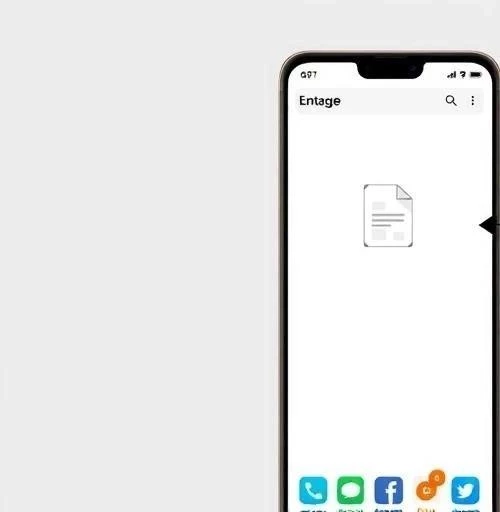
MIUI 12 does not always offer a built-in “Add to Home screen” command for ordinary files. The option depends on the phone’s software version and file manager. If you cannot find it, use a shortcut-making app rather than moving the file: a shortcut gives quick access while leaving the original in its folder;
First, check the File Manager
- Open File Manager and browse to the document, image, PDF, or other file you want.
- Press and hold the file to select it. Tap More or the three-dot menu.
- If you see Add to Home screen, Create shortcut, or a similar command, tap it and confirm. Return to the home screen and check the new icon.
The wording varies between MIUI builds, and some versions show no shortcut command at all. Do not confuse Move or Copy with creating a shortcut: those commands change the file’s location or make another copy.
If the option is missing
Install a reputable shortcut utility, such as Shortcut Maker, from Google Play. Review the app’s publisher and requested permissions before proceeding. Then:
- Open the utility and choose its option for a file, document, or internal storage shortcut.
- Use the Android file picker to navigate to the file and select it. Choose a clear name and, if offered, an icon.
- Tap Create or Add to Home screen. Confirm the system prompt, then locate the icon on the home screen. You may need to drag it to your preferred position.
Menu labels can differ by app version. If the picker does not show the file, check that you are browsing the right storage location and that the utility has only the access it needs. Avoid granting broad file access unless the feature genuinely requires it.
Check that it works
Tap the new icon. The file should open in a compatible viewer; if Android asks, select an app. If it fails, confirm that the original file still exists and has not been renamed or moved. A shortcut points to the file’s location, so moving or deleting the original can break it. Removing the home-screen icon normally removes only the shortcut, not the file; verify the confirmation message before deleting anything.
For a tidy screen, group related shortcuts in a folder or place the most-used one near the dock. This is usually faster than repeatedly searching File Manager, while keeping files organized in their original folders.
8 Comments. Оставить новый
The note that menu names vary across MIUI versions is important. Readers are less likely to assume they have made a mistake if their phone does not show the same option.
The advice to use Android’s file picker makes the process easier to follow and helps readers locate the file in the correct storage location. The troubleshooting note is also relevant.
The steps are presented in a sensible order, from checking the phone’s own menu to using a third-party utility. The final check gives readers a straightforward way to confirm the shortcut works.
This article sets realistic expectations by noting that the feature depends on the software version and file manager. Its practical cautions make the instructions safer and more useful.
The permission advice is a strong part of the instructions. A shortcut utility should not be given broad access without a clear reason, especially when handling personal documents.
I like that the guide explains what happens if the original file is moved or deleted. That detail clarifies why a shortcut may stop working later.
The distinction between a shortcut and a copied or moved file is useful. It helps prevent accidental changes to the file’s location when the goal is simply easier access.
This is a practical guide because it starts with the built-in File Manager option before suggesting another app. That order avoids unnecessary downloads when the feature is already available.