
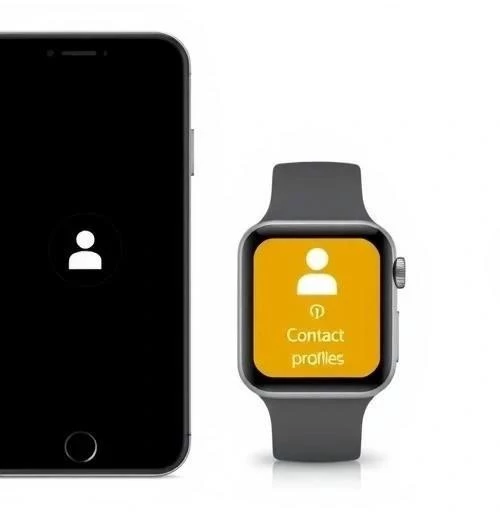
A watch is excellent at counting steps, timing a run, and reminding you to stand up. But when an important call arrives, it becomes much more useful if the person on the screen has a name instead of an unfamiliar number. Adding contacts to a Huawei watch is usually straightforward, although the exact steps depend on the watch model, phone, software version, and region.
This guide walks through the most common setup using the Huawei Health app, explains what to check when a contact refuses to appear, and shows how to make calls or send messages once everything is connected. Think of the process as opening a small, carefully chosen address book on your wrist—not necessarily copying your entire phone directory.
Before you begin: what your watch can do
Huawei watches do not all handle contacts in the same way. Many models let you add selected or favorite contacts through Huawei Health, then call them over Bluetooth when the watch is connected to your phone. Some watches have a Contacts app or a different contact-management screen. Features, contact limits, and menu names vary by model and software version.
Bluetooth calling also has a practical boundary: on a watch without independent mobile service, your phone generally needs to be nearby and connected. A watch with eSIM or cellular service may have different options, depending on the model, carrier, and region. Adding a contact does not automatically give every watch the ability to place a standalone call.
- Charge the watch and keep it near your phone.
- Pair the devices in Huawei Health before trying to sync contacts.
- Install or update Huawei Health and your watch’s software if possible.
- Make sure the person you want to add is saved in your phone’s contacts.
- Allow Huawei Health the permissions it needs to access contacts and Bluetooth.
The usual method: add contacts in Huawei Health
- Open Huawei Health. Use the phone on which your watch is already paired. If the app asks you to sign in, complete that step.
- Open the device page. Tap Devices and select your connected watch from the list. If several devices appear, check the model name before continuing.
- Find the contacts setting. Look for Contacts, Favorite contacts, or a similarly named option in the device settings. The label and location can differ between watches and app versions.
- Add the people you need. Tap Add or the plus symbol, choose names from your phone’s address book, and confirm. Some versions let you select several people; others may ask you to add them one at a time.
- Allow contact access if prompted. Choose the permission that lets Huawei Health read contacts. Without it, the app may open an empty list even though your phone’s address book is full.
- Wait for synchronization. Keep the watch close to the phone, leave Bluetooth on, and allow the transfer to finish. Open the watch’s calling or contacts screen to check whether the selected names appear.
On some models, you may need to confirm the change on the watch or open its Contacts app once the phone has synchronized. If you do not see a separate Contacts setting in Huawei Health, do not assume that you have missed a hidden button: your model may use another workflow, or it may not support a standalone contact list. Check the watch’s user guide or the device-specific options shown in Huawei Health.
Where to look on the watch
Once syncing is complete, wake the watch and look for Contacts, Phone, or the calling feature in the app list. On some devices, pressing the side button opens the apps menu; on others, you may need to swipe through the home screens. Tap a contact to view the available actions, such as placing a call.
If the watch supports Bluetooth calling, it may ask you to complete an additional Bluetooth pairing or calling connection. Follow the prompts on both devices. Pairing a watch for health data and notifications does not always mean that the separate Bluetooth audio connection for calls is already active.
Contact list, call history, and quick access are different things
These features can look similar, but they are not interchangeable. Contacts is the list of people you selected or synchronized. Call history shows recent calls, which may include numbers you have not saved. A watch face shortcut or favorite list is simply a quicker way to reach selected functions or people. Adding someone to call history does not necessarily save that person as a contact.
If a watch supports only a limited number of favorites, choose the people you are most likely to call from your wrist. This might be a partner, a family member, or someone you need to reach during a workout. The limit is model-specific, so use the app or manual as the final word rather than relying on a number quoted for another Huawei watch.
Permissions: the small gatekeeper
When the contacts list stays blank, permissions are one of the first things to inspect. On your phone, open the system settings and find Apps, Huawei Health, and Permissions. Allow access to Contacts. Depending on the phone and operating system, Huawei Health may also need nearby-device, Bluetooth, or background-running permissions to keep the watch connected and synchronize changes.
Names for these settings differ across Android versions and phone brands. On an iPhone, review Huawei Health’s permissions in iOS settings and make sure Bluetooth is enabled; If you denied a prompt earlier, granting access manually in system settings is often quicker than reinstalling the app.
Permission choices have privacy implications: contact access lets the app read information from your address book for supported features. If you prefer not to grant it, you may be unable to populate the watch’s contact list through the app. You can revoke access later in the phone’s settings, although doing so may interrupt contact synchronization.
Editing or removing a contact
To change the watch’s selected people, return to the watch’s page in Huawei Health and open the same contacts setting used during setup. Remove the old entry or edit the selection, then add the replacement and let the watch sync again. The precise controls vary: a contact may have a minus icon, a remove button, or an edit option in its own menu.
Removing a person from the watch’s favorites usually does not delete them from the phone’s address book. It changes what is available on the watch, not the underlying contact record. Likewise, editing a phone contact may not update the watch immediately; reopen Huawei Health, check the connection, and allow another synchronization.
Troubleshooting: when a name does not show up
The contact picker is empty
Check that the person is actually saved in the phone’s address book, then review Huawei Health’s Contacts permission. If the contact is stored only in another account or service, confirm that it is visible in the phone’s Contacts app. Close and reopen Huawei Health after changing permissions.
The contact was selected but is missing from the watch
Make sure the watch is connected in Huawei Health, Bluetooth is on, and both devices are nearby. Leave the app open briefly to give synchronization time. Restarting the app and watch can help with a stalled connection. Also check that your watch supports contact synchronization and that its software is up to date.
The name appears, but a call will not start
Check the phone’s Bluetooth connection and the watch’s calling connection. Keep the phone within range, confirm that Bluetooth calling is supported on your model, and make sure the phone itself can place calls. If you use an eSIM watch, check its mobile-service setup and coverage separately; the presence of a contact does not configure cellular service.
Only some people can be added
Your watch may have a limit on saved or favorite contacts. The available capacity depends on the model and software. Remove an unused entry and try again. If a particular contact still cannot be selected, inspect its phone number in the address book and check whether it is stored in a format or account the app can access.
Contacts disappear after a phone or app change
After changing phones, reinstalling Huawei Health, restoring a backup, or re-pairing the watch, verify the device connection and permissions again. You may need to select the favorites again. Avoid unpairing or resetting the watch as a first step: those actions can remove settings or data, and they are rarely necessary for a simple permission problem.
A quick checklist
- The watch is paired and shown as connected in Huawei Health.
- The contact is saved in the phone’s address book.
- Huawei Health has permission to access contacts.
- You selected the person in the correct device-specific contacts menu.
- The watch has had time to synchronize while near the phone.
- Bluetooth calling is supported and connected if you want to call from the wrist.
Keep the wrist-sized address book useful
A watch is not always the right place for every number you have ever saved. Start with a few people you genuinely need to reach quickly. That keeps the list easy to navigate, particularly while walking, cycling, or carrying bags. If your model supports contact shortcuts, arrange them around the way you use the watch rather than trying to recreate your whole phone screen on a tiny display.
The short version is simple: pair the watch, open its device settings in Huawei Health, find the contacts or favorites option, choose people from the phone’s address book, grant the necessary permission, and wait for synchronization. Then check the watch itself—and remember that making a call may require a separate Bluetooth calling connection. If a menu is missing, follow the instructions for your exact model: Huawei’s watch lineup is a family of devices, not one identical interface.


2 Comments. Оставить новый
This guide treats troubleshooting like a calm detective story: check the pairing, permissions, and watch capabilities before blaming the contact list. A useful reminder that a watch can borrow your phone’s voice, but not always its independence.
The “small, carefully chosen address book on your wrist” is a lovely way to frame this—practical, vivid, and refreshingly free of tech-manual gloom. The model and connectivity caveats also keep the guidance grounded.