
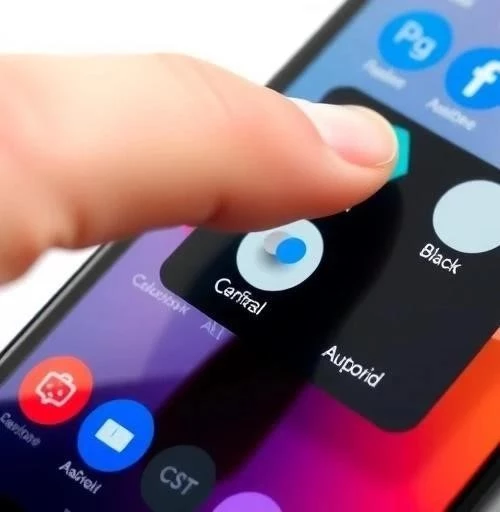
On a Xiaomi phone‚ the way an app icon can be changed depends on the device‚ the version of MIUI or HyperOS‚ and the launcher in use. Some phones let you apply a complete icon theme through the Themes app. Others offer fewer customization options‚ or require a compatible third-party launcher to change individual icons. The instructions below cover the main approaches‚ explain their limitations‚ and show how to restore the original appearance if needed.
Before you begin
First‚ identify the software and launcher on your phone. Open Settings and look for About phone to check whether the device uses MIUI or HyperOS and to see its version. To check the launcher‚ open Settings‚ then look under Home screen or Apps for an option such as Default apps or Default launcher. Menu names vary between models and software releases‚ so the same option may be in a different location.
It is also useful to decide what you want to change. A theme may alter many icons at once‚ along with the wallpaper‚ lock screen‚ or other visual elements. A launcher may let you replace icons individually‚ but it changes how the home screen works. If you only want a different appearance for one app‚ check whether your current launcher supports per-app icon editing before applying a full theme.
Method 1: Apply an icon theme with the Themes app
The Themes app is the simplest built-in option on many Xiaomi phones. It can apply icon designs created for MIUI or HyperOS. Depending on the theme‚ it may change all supported app icons or only a selection. Some themes also change other parts of the interface‚ so review the preview and description before applying one.
- Open the Themes app. If it is not visible on the home screen‚ find it in the app drawer or search for “Themes” in Settings.
- Browse the available themes‚ or use the search field to look for an icon style. You can also check categories such as icons or personalization if they are available in your region.
- Tap a theme to open its details. Review the screenshots‚ compatibility information‚ and whether the theme is free or paid.
- Choose Download or the equivalent option‚ then wait for the download to complete.
- Tap Apply. If the phone asks which parts of the theme to use‚ select Icons or System icons and deselect components you do not want to change.
- Return to the home screen and check the result. Some icons may update immediately; others may update after the launcher refreshes or the phone restarts.
On some versions‚ a theme can be applied in parts. If the entire theme changes the wallpaper or lock screen‚ look for a customization screen that lets you apply only its icon set. The available controls differ by region and software version. If there is no separate icon option‚ applying that theme may change several visual elements together.
Use a downloaded theme or icon set
Some Themes app catalogs allow users to download themes or icon sets created by other designers. Availability depends on the country‚ account settings‚ and the current version of the store. Use the official Themes app where possible‚ and read the listing before downloading. Avoid installing files from unknown websites just to obtain an icon design: unofficial packages may be incompatible‚ may not work as described‚ or may pose a security risk.
Not every app icon is guaranteed to change. A theme can include artwork for popular apps‚ while newer‚ less common‚ or region-specific apps may keep their original icons. In some cases‚ the system displays a generic icon or adapts the original design. This is usually a limitation of the theme rather than a problem with the app itself.
Method 2: Change individual icons with a third-party launcher
If you want to give one app a different icon without changing the rest of the interface‚ a third-party launcher may provide more control. Launchers replace or customize the home screen‚ app drawer‚ and shortcuts. Their settings and capabilities vary‚ and some require an icon pack or an image saved on the phone.
- Choose a launcher from a reputable app store. Check its developer‚ permissions‚ reviews‚ update history‚ and compatibility with your Android version.
- Install the launcher and open it. Follow its setup instructions to create or import a home screen layout.
- If the phone asks which home app to use‚ select the new launcher. You can also set it from Settings under Default apps or a similar menu.
- To change an icon‚ press and hold the app shortcut on the home screen. Look for Edit‚ a pencil symbol‚ or an icon customization option.
- Select an icon from an installed icon pack‚ or choose an image if the launcher supports custom image files. Adjust the crop or shape if prompted‚ then save the change.
- Repeat for other shortcuts as required. Changing a shortcut usually does not alter the app’s icon in Settings‚ notifications‚ or the app store.
Icon packs are often designed for specific launchers. Before installing one‚ check its description to see which launchers it supports and how to apply it. Some packs include a dedicated app with an Apply button; others must be selected from the launcher’s icon settings. An icon pack may not contain every app‚ so the launcher might use a default icon for apps that are not included.
What changes when you use another launcher?
A third-party launcher can affect more than icons. It may change the app drawer‚ gestures‚ folder appearance‚ widgets‚ home-screen transitions‚ or the way notification dots appear. Certain Xiaomi features may be designed to work best with the system launcher and could behave differently with another one. For example‚ an option or gesture might be unavailable‚ or a system update might reset the default launcher. If a feature stops working‚ switch back temporarily to the Xiaomi launcher and check whether the issue is specific to the alternative launcher.
Method 3: Create a custom shortcut‚ if supported
Some launchers and shortcut utilities can create a home-screen shortcut that opens a particular app and displays a chosen image. This can be useful when an icon pack does not include the app you want. The shortcut is not always the same as changing the app’s actual system icon: the original icon can remain in the app drawer‚ Settings‚ and notification areas. The shortcut may also have a small badge or label supplied by the launcher.
Use this option only with an app from a trusted developer. Review the permissions it requests and avoid tools that ask for access unrelated to creating shortcuts. If the shortcut opens the wrong screen‚ stops working‚ or displays an unexpected label‚ remove it and recreate it through the launcher’s own editing feature.
Can the original app icon be replaced everywhere?
For most users‚ changing an icon means changing how a home-screen shortcut or theme displays it. Android generally does not provide a standard setting that replaces an app’s original icon across every part of the operating system. The icon shown in Settings‚ the app store‚ notifications‚ or system dialogs may remain unchanged. An app update can also restore its default artwork in places controlled by the app itself.
Changing an icon does not normally change the app’s name‚ package‚ data‚ or function. It is a visual customization. Be cautious of instructions that require unlocking the bootloader‚ rooting the phone‚ or modifying system files merely to change an icon. Those steps carry additional risks‚ can affect security and warranty coverage‚ and are usually unnecessary for ordinary home-screen customization.
Restore the default icons
If you applied a theme
Open Themes and select a default or previously used theme. If the phone supports applying theme components separately‚ open the customization controls and select the default icon set. The wording may be My account‚ My themes‚ Customize theme‚ or something similar. Apply the change and return to the home screen to check whether the original icons have returned.
If you changed an icon in a launcher
Press and hold the edited shortcut‚ open its edit options‚ and choose Reset‚ Default icon‚ or the original app icon. If the launcher does not provide a reset option‚ remove the customized shortcut and add the app again from the app drawer. Removing a home-screen shortcut normally does not uninstall the app‚ but confirm the wording of the menu before selecting an option such as Uninstall.
If you changed the default launcher
Open Settings and find the default home app or launcher setting. Select the Xiaomi system launcher to return to the original home-screen experience. Menu locations differ‚ but the option is commonly under Apps‚ Manage apps‚ or Default apps. Switching launchers may change the layout that appears on the home screen‚ so check whether your folders and shortcuts are still arranged as expected.
Troubleshooting
- The icon did not change: Confirm that the theme or icon pack was applied‚ and check whether it includes that particular app. Refresh the home screen or restart the phone. If you use a third-party launcher‚ make sure it is the active default launcher.
- Only some icons changed: The theme may not include artwork for every installed app. Try another compatible theme or customize the remaining shortcuts individually in a launcher.
- The Themes app is unavailable: Availability can depend on the phone model‚ region‚ and software version. Check for system and app updates‚ or use a compatible launcher instead. Do not install unofficial system packages without understanding the risks.
- The theme changes the wallpaper too: Look for an option to apply icons separately. If the theme does not support separate components‚ choose another theme or restore your preferred wallpaper afterward.
- The launcher resets after an update: Recheck the default home app setting. Updates or system maintenance can occasionally change defaults or affect compatibility. Install launcher updates from a trusted store and review its instructions.
- Icons look blurry or cropped: Use an image with adequate resolution and a square composition‚ if the launcher allows image-based icons. Check the crop preview and the launcher’s icon-shape settings.
- A shortcut has a label or badge: This may be added by the launcher or shortcut tool. Open its shortcut settings to hide the label or adjust badges‚ if supported.
- The phone becomes unstable: Switch back to the system launcher‚ remove the recently installed customization app if necessary‚ and restart the device. Avoid clearing app data unless you understand that it may remove settings or layouts.
Practical tips
- Take a screenshot of the home screen before making major changes. It can help you restore the previous arrangement.
- Change one element at a time. This makes it easier to identify which theme‚ icon pack‚ or launcher caused an unexpected result.
- Check how an icon looks against your wallpaper and at the size used by your home screen. A design that looks clear in a preview may be difficult to distinguish at a smaller size.
- Keep the original app names or use recognizable artwork‚ especially for apps used for payments‚ communication‚ or device settings. A decorative icon should not make it difficult to identify the app it opens.
- Install customization tools only from trusted sources‚ and review requested permissions. An icon pack usually should not need broad access to personal files or account information merely to display icons.
- Keep in mind that menus differ across Xiaomi models‚ software releases‚ and regions. If the instructions do not match your screen‚ search Settings for terms such as “Themes‚” “launcher‚” “home screen‚” or “default apps.”
Which method should you choose?
Use the Themes app if you want a straightforward change and are satisfied with a coordinated set of icons. Choose a third-party launcher if you need more control over individual shortcuts or want additional home-screen options. Use a custom shortcut only when the launcher supports it and you understand that the change may apply to the shortcut alone‚ not to the app throughout the system.
The exact steps vary‚ but the general process is the same: select a compatible theme or launcher‚ apply the icon design‚ check the home screen‚ and restore the default appearance through the same customization settings if needed. No root access is normally required for these standard methods.

7 Comments. Оставить новый
Checking the phone’s software version and default launcher before starting is a sensible way to find the relevant settings.
The overview presents the built-in Themes app and third-party launchers as options with different trade-offs.
The guidance to review a theme’s preview and description is practical, especially because themes may affect more than icons.
The instructions account for menu names varying across devices. That caveat makes the steps more adaptable.
The article explains why icon customization can differ between Xiaomi models and software versions. Checking the launcher first is a useful step.
The distinction between applying a full theme and changing one app icon is clear. It helps set expectations before making changes.
The article provides a useful starting point for customizing Xiaomi icons while noting that available features depend on the device and software.