
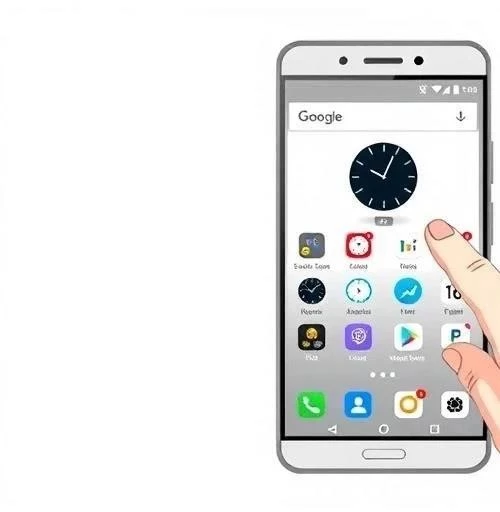
The clock on a Xiaomi phone’s home screen is usually a widget: a small, movable element that displays the time and, depending on its design, the date, weather, or other information. You can change its appearance by replacing or resizing the widget, and you can change the time it displays by adjusting the phone’s date-and-time settings. These are separate tasks. Knowing the difference helps avoid changing the system clock when you only wanted a different design.
The exact menu names vary between Xiaomi models and software versions. A phone running MIUI may look different from one running HyperOS, and themes or regional settings can also affect the available options. Nevertheless, the main method is similar on most Xiaomi devices: open the home-screen editing controls, find the clock widget you want, and place it on the screen.
Change the clock widget on the home screen
- Go to the home screen. If necessary, press the Home button or swipe up from the bottom of the screen.
- Open home-screen editing mode. Touch and hold an empty area of the screen until the icons shrink or editing controls appear. On some models, pinching two fingers together on the home screen opens the same controls.
- Tap “Widgets.” The button may appear along the bottom of the screen, in a panel, or under a similarly named option. If you do not see it, check the home-screen editing menu or swipe through its available pages.
- Find the clock widgets. Look for “Clock,” “Clock & weather,” or a clock section. The available choices depend on the launcher, installed apps, and software version.
- Choose a design and size. Touch and hold the widget you want, then drag it to an empty area of the home screen. Some versions let you tap a widget to preview or select it before placing it.
- Position the widget. Move it to the preferred location and release it. If the widget does not fit, move or remove another item, or try a smaller clock layout.
- Finish editing. Tap a check mark or Done button if one is shown, or tap an empty area of the screen to leave editing mode.
After placing the new clock, check that the time is visible and that the design suits your layout. A large clock may be easier to read, but it takes up more space. A compact design leaves room for app icons, while a clock-and-weather widget can provide more information at a glance. The best choice depends on what you want the home screen to do, not simply on which style looks most decorative.
Replace or remove an existing clock
If the home screen already has a clock, you may want to remove it before adding a different style. Touch and hold the existing widget. When the screen enters editing mode, drag the clock to the Remove, Delete, or trash area, if one appears. On some Xiaomi versions, a small minus symbol or an on-screen menu provides the removal option. Removing a widget does not uninstall the Clock app and does not affect alarms.
You can also try adding the replacement first and then removing the old one. This makes it easier to compare designs, but be aware that some widgets require more free space than others. If the screen is crowded, temporarily move an icon or use another home-screen page. Avoid dragging an item to an option labelled Uninstall unless you genuinely intend to remove an app; removing a widget and uninstalling an app are not the same action.
Resize a clock widget
Some Xiaomi clock widgets can be resized after they have been placed. Touch and hold the widget, then release it when a border or resize handles appear. Drag the handles to make the widget larger or smaller, and tap outside it to finish. If no handles appear, that particular widget may have a fixed size. Choose a different clock layout from the widget list instead of repeatedly trying to resize one that does not support it.
Resizing can improve readability, but it may also cause the home screen to rearrange nearby icons. A larger widget may shift items to another row or page. If the layout becomes untidy, move the clock to a less crowded area or select a more compact design. It is usually better to choose a size that fits the screen cleanly than to force the largest possible clock into a limited space.
Change the clock’s colour or style
Some widgets offer appearance options when you add them or tap them after placement. Depending on the model and software, you may be able to choose a light or dark design, a different layout, or a display that includes the date or weather. If the widget has no customization controls, its appearance may be fixed. In that case, select another clock widget or explore Xiaomi’s Themes app.
Themes can change more than a single clock: they may alter icons, wallpapers, lock-screen elements, and other interface details. To try one, open the Themes app, browse the available themes, and review its preview before applying it. Theme availability can vary by region, and some themes may change parts of the interface you did not intend to change. If you only want a different home-screen clock, replacing the widget is generally the more targeted and reversible option.
Change the lock-screen clock instead
The clock shown when the phone is locked is not necessarily the same as the home-screen widget. Adding or removing a widget usually changes only the home screen. To customize the lock-screen clock, open Settings and look for Lock screen, Always-on display & Lock screen, or a similarly named section. The available clock styles and controls depend on your Xiaomi model, software version, and theme.
You may also be able to change the lock-screen appearance through the Themes app. Look for lock-screen or customization options and check the preview before applying changes. If the option you want is missing, the feature may not be supported on that device or software version. Do not assume that a lock-screen setting will also change the home-screen widget: they are separate parts of the interface and may need to be configured independently.
Correct the time or time zone
If the clock shows the wrong time, changing its widget design will not fix the underlying problem. The widget normally displays the time maintained by Android, so correct the phone’s date and time settings instead. Open Settings, then search for Date & time or navigate through Additional settings to find it. Menu paths differ across versions, which is why searching Settings can be the quickest approach.
- Turn on Set time automatically or Use network-provided time to let the phone obtain the time from the network.
- Check that Set time zone automatically is enabled if you want the phone to choose your location’s zone.
- If automatic settings are unavailable or incorrect, turn them off and select the correct time zone manually. You may also be able to set the date and time yourself.
- After changing these settings, return to the home screen and give the widget a moment to refresh.
Automatic time is usually the sensible choice because it keeps the phone aligned with the network and updates the time when you travel. Manual settings are useful when automatic detection is unavailable, but they can become inaccurate and may affect alarms, calendar events, or other scheduled activities. If you change the time manually, verify that the date and time zone are also correct.
If the clock widget is missing or not updating
If you cannot find a clock widget, first confirm that you are looking in the home-screen widget panel rather than the app drawer. Check for a separate Clock or Weather app, and look for the widget category under another name. Restarting the phone can sometimes resolve a temporary interface problem. You can also install available system updates, but avoid resetting the device just to change a widget: a factory reset is disproportionate and removes personal data.
If a placed clock appears frozen or incorrect, check the system time, time zone, and network connection. Then restart the device and see whether the display refreshes. If the issue affects only one widget, remove it and add it again. If several system elements show the wrong time, investigate the date-and-time settings rather than repeatedly replacing the widget.
Third-party clock apps may offer extra designs, but they can request permissions or display advertisements. Prefer built-in widgets when they meet your needs, and review an app’s permissions and publisher before installing it. In particular, a clock widget should not need access to unrelated personal information simply to show the time.
Quick summary
- For a different home-screen design: long-press an empty area, open Widgets, and add another clock.
- For more or less screen space: long-press the widget and use resize handles if the widget supports them.
- For a different lock-screen clock: check the Lock screen settings or Themes app.
- For an incorrect time: adjust Date & time and the time-zone settings in Settings.
In most cases, changing a Xiaomi home-screen clock is a quick, reversible adjustment. Start with the built-in widget panel, because it changes only the element you want to customize. Use Themes for broader visual changes, and use the system date-and-time controls only when the actual time or time zone is wrong. Keeping these options separate makes it easier to get the appearance you want without disturbing alarms, apps, or the rest of the phone’s layout.

4 Comments. Оставить новый
I like that the guidance includes both holding an empty area and pinching the screen, since users may have different ways to open editing mode. The practical advice about making room for a widget also addresses a common source of frustration.
The article clearly distinguishes changing the clock widget’s appearance from changing the phone’s system time. That distinction is useful because it helps readers avoid adjusting settings they do not need to change.
The step-by-step layout makes the instructions easy to follow, and mentioning both MIUI and HyperOS appropriately acknowledges that Xiaomi menus can vary. The article could be even more helpful with a brief note on what to try if the Widgets option is missing.
The article is approachable and avoids assuming that every Xiaomi phone has identical menus. However, the text appears to end abruptly, so completing the final instruction would make the guide feel more polished and self-contained.