
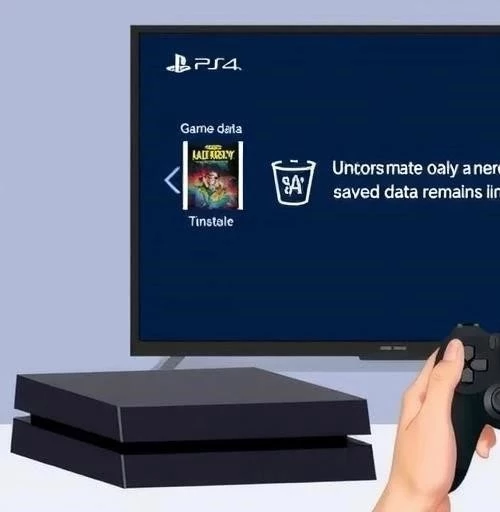
Deleting a game from a PlayStation 4 is a straightforward way to free storage when the console is running out of space or you no longer play a particular title․ The process removes the game’s installed files from the console, but it does not normally erase your saved progress or cancel your ownership of a digital purchase․ Those distinctions matter: deleting the application is not the same as deleting its save data, and it does not permanently remove a game from your library․ Follow the steps below, and check the notes on saves and reinstalling before you confirm anything you intend to keep․
Quick method: delete a game from the home screen
- Turn on the PS4 and sign in to the user profile that has access to the game․
- On the home screen, highlight the game you want to remove․ Do not start it․
- Press the Options button on the controller․
- Choose Delete from the menu․
- Confirm the prompt to remove the application․
The game’s icon may remain visible in the content area even after its installed files have been removed․ Selecting that icon may take you to the PlayStation Store or offer a download, rather than launching the game․ This is expected: the icon can serve as a shortcut to the title, while the actual application is no longer installed․ If you do not see the game on the home screen, or want to check how much space it occupies, use the Storage method below․
Delete games through the Storage menu
The Storage menu is useful when you want to review installed applications, compare their sizes, or remove several titles in one session․ The labels may differ slightly depending on your PS4 system software, but the general route is:
- Open Settings from the PS4 function area․
- Select Storage, then choose the location containing the game, such as System Storage or Extended Storage․
- Choose Applications․ The console will display installed games and apps, often with their storage sizes․
- Highlight the title you want to remove and press Options․
- Select Delete․ If the screen allows selection of multiple items, mark each title you want removed, then confirm․
Using the list makes it easier to make an informed choice: a large game may free substantially more space than several small ones․ However, size alone should not decide what to delete․ Check that you can access the game again—especially if it is a disc title, a subscription game, or a purchase on another account—before removing it․ The Storage menu shows installed content; it is not a list of everything you own․
What happens to a digital game?
Removing a digitally downloaded game generally uninstalls its application data from that PS4․ It does not usually revoke the purchase or remove the title from the account’s library; To download it again, sign in to the account that bought the game, open Library on the home screen, find the title, and choose Download․ Depending on the interface and your account region, you may also be able to find it through the PlayStation Store․
There are important exceptions to keep in mind․ A game accessed through a subscription may be playable only while the subscription is active and the title remains available under its terms․ A game bought or downloaded using a different account may require that account, or the relevant console-sharing settings, to access it․ If a title is locked after reinstalling, check that you are signed in to the purchasing account and, if appropriate, use Settings > Account Management > Restore Licenses․ Deleting the installation does not solve an account or license issue․
What happens to a disc game?
A disc game also installs data to the console, so deleting its application can free storage even though you own the disc․ Keep the disc: you will generally need to insert it to play the game again, and the disc acts as proof of access․ To reinstall, insert the disc and follow the on-screen instructions․ The PS4 may need to copy game data and download updates, so allow time and maintain an internet connection if updates are required․
Do not assume that removing the disc alone uninstalls the game․ Ejecting a disc stops the console from using it, but the installed application may remain on the hard drive and continue to take up space․ Use the home-screen or Storage procedure to remove those files․
Will deleting a game erase saved progress?
In normal circumstances, deleting the game application does not delete its saved data․ Game installations and save files are managed separately on PS4․ This means you can often remove a game, reinstall it later, and continue from the existing save․ Still, do not treat this as a substitute for a backup: save data can be deleted separately, lost through hardware problems, or unavailable on a different account․
If you want extra protection, back up important saves before uninstalling․ With a PlayStation Plus subscription, you may be able to upload saves to online storage; you can also copy compatible saved data to a USB storage device․ Check the upload or copy has completed and that you are using the correct user profile․ Save files are commonly associated with the profile that created them, so signing in as another user may make your progress appear to be missing even when it has not been erased․
Delete save data only if you really mean to
If your goal is to remove progress as well as the installed game, manage saves separately: open Settings > Application Saved Data Management > Saved Data in System Storage > Delete․ Select the game and the save files to remove, then confirm․ Menu wording can vary slightly․ This action is different from deleting the game and can permanently erase progress stored on the console․ If you also use online storage or a USB backup, check those locations separately; deleting a local copy does not necessarily remove every backup, and deleting the wrong copy can make recovery harder․
How to free space without deleting the wrong thing
Before removing a title, consider whether you may want to play it soon and whether it is easy for you to download or install again․ Some games are very large, and reinstalling them may take a long time or use a substantial amount of data․ If you only need a little extra room for a system update, check the Storage screen first and remove content that is genuinely disposable․ You can also review captures, applications, and other content, but take care not to delete screenshots or video clips you want to keep․
PS4 can use compatible external USB storage for games and applications․ If a game is installed on extended storage, select that storage location in Settings > Storage before looking for the title․ You can delete it there, or, where the menu offers the option, move it between system and extended storage instead․ Moving a game is useful if you want to keep it installed but need to clear space on the internal drive․ Do not unplug external storage while the console is accessing it; use the system’s safe-stop option first․
If Delete is missing or the game will not disappear
First, make sure you are highlighting an installed application, not a store listing, an add-on, or an icon that simply links to a download․ Open Settings > Storage and check the relevant drive’s Applications list․ If the title is on an external drive, disconnecting that drive is not the same as deleting the game; reconnect it safely and remove the application through the Storage menu if that is your intention․
If a deletion appears stuck, wait for the console to finish any active installation, update, or download, then check the Storage list again․ Restarting the PS4 may resolve a temporary display problem․ Avoid using Initialize PS4 as a troubleshooting step for one game: initialization can erase much more than the selected application․ It is unnecessary for ordinary game removal and can put personal data at risk․
Before you confirm: a short checklist
- Confirm the game title and storage location are correct․
- Remember that removing the application is not the same as removing saved data․
- Keep the disc for a disc-based game, or make sure you can sign in to the account that owns a digital copy․
- Back up valuable progress before separately deleting or changing save data․
- Check whether the title is available to you again and whether reinstalling will require a large download․
For most users, the safest procedure is simple: highlight the game on the PS4 home screen, press Options, choose Delete, and confirm․ If you need to choose by file size or remove something stored on an external drive, use Settings > Storage instead․ Keep in mind that uninstalling removes the installed game files, while saves, licenses, and access to the title are separate matters․ Checking those details before acting helps you reclaim space without losing progress or access you intended to preserve․
9 Comments. Оставить новый
The note that menu labels can vary slightly by system software is a thoughtful detail. It sets realistic expectations if a reader’s screen does not match the wording exactly.
I found the guidance clear and appropriately cautious. It explains what the deletion prompt does while reminding readers to consider anything they intend to keep.
It is useful that the article clarifies that deleting a digital game does not remove ownership. That reassurance can help users understand they can download the title again later.
This is a practical guide for PS4 owners who need to make room without risking their progress. The reminder to check save data separately is an important safeguard.
The explanation that a game icon may remain after the installed files are deleted prevents confusion. It makes clear that seeing the icon does not necessarily mean the game is still installed.
The steps are laid out in a sensible order, starting with the simplest method and then covering Storage settings. That makes the instructions easy to follow for different situations.
The Storage method sounds particularly useful for managing several large games at once. Including application sizes helps readers make an informed choice about what to remove.
The distinction between deleting a game and deleting its save data is especially helpful. It addresses the main concern many players have before freeing up storage.
I appreciate that the guide gives both a quick home-screen method and a Storage menu option. The second approach is useful when you want to compare game sizes before deciding what to remove.