
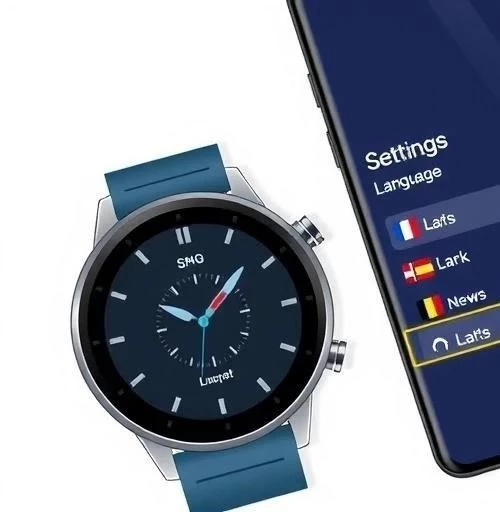
The Galaxy Watch 5’s language is usually managed through the Galaxy Wearable app on the phone paired with the watch. Menu names may vary slightly depending on your phone, software version, and region. Changing the watch’s language does not necessarily change the phone’s language.
Change the language in Galaxy Wearable
- Make sure the watch is switched on, connected to your phone, and has enough battery.
- Open the Galaxy Wearable app on the paired phone.
- Tap Watch settings, then open General.
- Select Language. If prompted, choose the language and region you want to use.
- Confirm the selection and allow the watch a short time to apply the change. It may restart or briefly disconnect while updating.
If Language is not shown in the app, check the watch itself: press the Home button, open Settings, and look under General or General management for Language. The exact route depends on the installed software. If no language option is available, use the paired phone’s language settings as described below.
Use the phone’s language settings
Some software versions make the watch follow the primary language set on the connected phone. On an Android phone, open Settings and search for Language, or go to General management > Language. Add the desired language if necessary, then set it as the default. Keep the phone and watch connected and give them time to synchronize.
On a Samsung phone, the path is commonly Settings > General management > Language. On phones from other manufacturers, the menu may be under System or Languages & input. Changing the phone’s default language can affect other apps and menus on the phone, so check whether the Galaxy Wearable app offers a separate watch-language setting first.
If the language does not change
- Check that the selected language is supported in your region and by the watch’s current software.
- Confirm that the phone and watch are connected in Galaxy Wearable, then close and reopen the app.
- Restart both devices and check for available updates in the phone’s settings and Galaxy Wearable.
- Reopen the language menu and confirm the selection. Some changes take a few minutes to appear across the watch interface.
A factory reset is generally unnecessary for a language change. If the setting remains unavailable after these checks, consult Samsung Support for your country and software version. Avoid resetting the watch unless support recommends it, since a reset removes local data and requires setting up the device again.
What to expect
The selected language can change system menus and notifications, but individual apps may use their own language settings or may not support the chosen language. The watch’s language options can also differ from the phone’s list. If you want to keep the phone in its current language, use the separate language control in Galaxy Wearable, when available, rather than changing the phone’s default;

7 Comments. Оставить новый
The troubleshooting points about connectivity and supported languages address common reasons a setting might not take effect.
The instructions clearly distinguish between changing the watch language and changing the phone language, which helps explain why the menus may differ.
Including both app-based and on-watch settings provides practical alternatives for different software versions.
This is a concise guide, and the suggestion to search the phone settings for language options makes the steps easier to follow across devices.
The reminder that changing the phone language can affect other apps is a helpful detail to consider before making changes.
The note that menu names can vary by software version and region is useful for readers who do not see the same options.
The article gives a straightforward sequence for checking the Galaxy Wearable app before changing the phone’s default language.