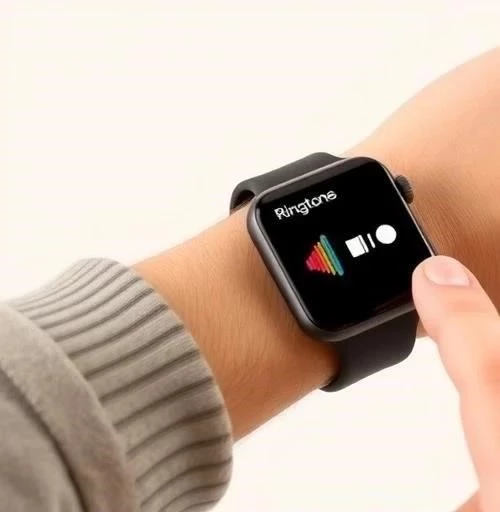
Short answer: Apple Watch Series 3 does not let you choose a separate ringtone or upload a custom call tone directly on the watch. Its sound and vibration controls are limited, so the practical options are to change the ringtone on your paired iPhone or adjust how the watch alerts you. This distinction matters: changing the iPhone ringtone does not give you a ringtone-selection menu on the watch.
Change the ringtone on your iPhone
If you want to change the sound for incoming calls generally, do this on the iPhone paired with your watch:
- Open Settings on the iPhone.
- Tap Sounds & Haptics (or Sounds on some iOS versions).
- Tap Ringtone, listen to the available tones, and select one.
This changes the iPhone’s call ringtone. The Apple Watch still does not provide a control for choosing its own call tone, so do not expect this setting to add a ringtone picker to the Watch app. If you use a custom tone, it must first be available on the iPhone; the watch cannot install or select it independently.
Adjust sound or vibration on the watch
- On Apple Watch, open Settings.
- Tap Sounds & Haptics.
- Adjust Alert Volume with the slider. Turn on Haptic Alerts if you want vibration, and choose a stronger haptic option if it is shown;
You can also open the watch’s Control Center and tap the bell to turn Silent Mode on or off. Silent Mode stops audible alerts but generally leaves haptic alerts available. It changes how alerts are delivered, not which ringtone is used. Use the volume and haptic controls when the goal is to hear calls less loudly or notice them without sound.
Check call and notification behavior
Make sure the watch is connected to its paired iPhone and that call alerts are not being suppressed by Focus, Do Not Disturb, or Silent Mode. When the iPhone is unlocked, notifications may appear on the phone rather than the watch; when the iPhone is locked or asleep, they are generally routed to the watch, provided it is worn and unlocked. These conditions affect whether an alert appears, not ringtone selection.
For app alerts, open the Watch app on iPhone, tap Notifications, then review the relevant app’s settings. Mirroring iPhone notifications can control whether alerts are delivered, but it does not create a custom ringtone setting for calls.
Bottom line
You cannot set a distinct, user-selected ringtone directly on Apple Watch Series 3. Change Settings > Sounds & Haptics > Ringtone on the iPhone for the phone’s ringtone; use the watch’s Sounds & Haptics settings to adjust alert volume and vibration, or enable Silent Mode. If you cannot find the menus described, check the iOS version and watchOS version, since labels can differ slightly.