
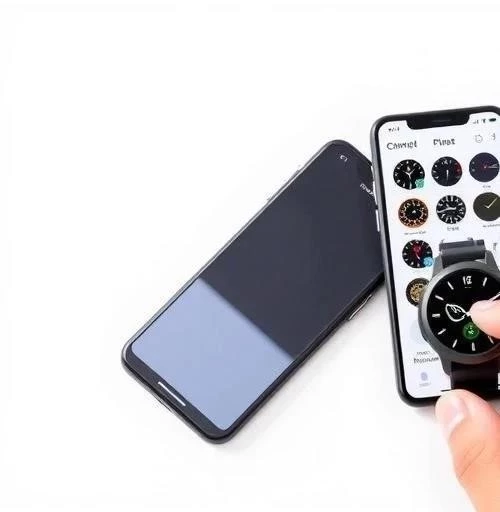
The X8 Pro offers several ways to change the look of its screen․ On many versions, you can select a built-in face directly on the watch; for additional designs or a photo background, use the companion Wearfit Pro app․ Menu names and available options can vary slightly between X8 Pro, Ultra, SE, and other batches․
Change the face on the watch
- Wake the screen and open the current watch face․
- Touch and hold the center of the display for a few seconds, until the face-selection screen appears․
- Swipe left or right to browse the available designs․
- Tap the face you want to use․ Wait a moment for the screen to return to the selected design․
This is the quickest method and normally does not require your phone․ If holding the screen opens a menu or does nothing, make sure you are on the main watch face, not inside an app․ Some firmware versions use a side button or a long press on the display to open face selection․
Install a face with Wearfit Pro
- Install Wearfit Pro from your phone’s official app store․ Open it and pair the watch from the app, following its prompts․ Keep Bluetooth enabled and the watch nearby․
- Open the device page in Wearfit Pro and look for a section named “Watch face,” “Dial,” “Dial market,” or “Push dial․” The exact wording depends on the app version․
- Browse the designs, select one, and tap “Download,” “Set,” or the equivalent button․ Keep the app open and the watch connected while the transfer completes․
- When the sync finishes, check the watch․ The new face should appear automatically; if not, return to the face list on the watch and select it․
Use your own photo
If the app offers a custom or DIY dial, open that option, choose a picture from your gallery, and adjust its crop and position․ Select the available time placement, color, or information fields, then preview the result and send it to the watch․ A clear image with open space behind the clock is usually easier to read․ Custom-photo features are not supported by every X8 Pro version;
If the face will not change
- Confirm that Wearfit Pro is connected to the correct watch, not just paired in the phone’s Bluetooth settings․
- Keep both devices close, turn off battery-saving restrictions for the app temporarily, and retry the transfer․
- Check the phone’s internet connection if the dial must be downloaded first, and allow photo or Bluetooth permissions when requested․
- Restart the watch and app, then reconnect․ If the watch has little free storage, remove an unused downloaded face if the app allows it․
Do not interrupt a face upload or power off the watch during the transfer․ If the app cannot connect, unpairing and pairing again may help; avoid a factory reset unless simpler steps fail, because it can erase settings․ The X8 Pro name is used for different hardware and firmware, so an option shown in an online guide may not appear on your model․ Use the on-watch face selector for a quick change, and Wearfit Pro for supported downloads and customization․