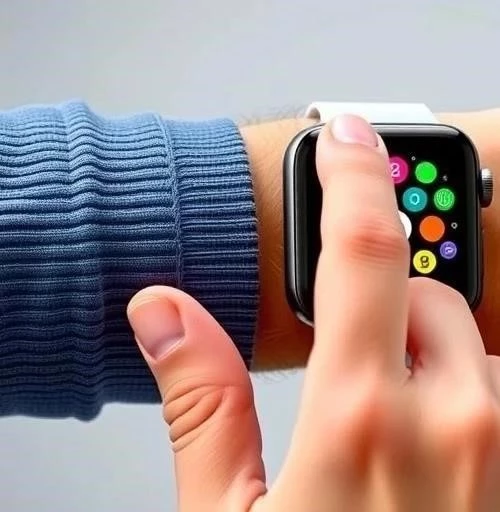
Changing the face on your Apple Watch Series 7 lets you give the screen a new look, make useful information easier to see, or match your watch to an outfit. You can switch faces directly on the watch or use the Watch app on your paired iPhone. The steps below work with the usual watchOS interface; labels and available faces can vary slightly with your software version.
Switch between faces on the watch
- Wake the display and touch and hold the current watch face. Keep your finger on the screen until the face shrinks and the face gallery appears.
- Swipe left or right to browse the faces already saved on your watch.
- Tap the face you want to use. It becomes the active face immediately.
If swiping from the edge of the screen used to change faces on your watchOS version, that gesture may be disabled in newer versions. Touch and hold the screen to open the gallery instead.
Add a new face
- Touch and hold the current face, then swipe left until you reach the end of your saved faces.
- Tap the plus button. Browse the available designs by turning the Digital Crown or swiping on the screen.
- Tap a face to select it. If the face offers different styles or colors, turn the Crown or tap the choices to preview them.
- When you are happy with the design, tap Add. The new face is added to your collection and becomes active.
Some faces are available only on certain watchOS versions. If you do not see a design shown in a guide, check that your watch is updated and that the face is compatible with Series 7.
Customize colors and complications
Many faces can show complications: small areas with information or shortcuts, such as the date, weather, activity rings, battery level, or a timer. To edit a saved face, touch and hold it in the gallery, then tap Edit. Swipe through the available settings. Turn the Digital Crown to change a selected color, style, or other option. Swipe to a complication position, tap it, and choose the information you want there. Press the Crown when you finish to save your changes.
Not every face has the same settings or complication positions. A simple face may offer only color choices, while another lets you select several complications. Choose items you check often, and avoid filling every space if you prefer a cleaner display.
Use the Watch app on iPhone
Open the Watch app on the iPhone paired with your Series 7 and tap Face Gallery. Choose a design, then set its color, style, and complications. Tap Add to place it in My Watch; it will sync to the watch and can become the active face; To manage existing faces, open My Watch and look under My Faces. Select a face to edit its options, or use Edit to rearrange the collection or remove faces. The exact controls can differ between iOS versions.
Reorder or remove a face
To move a face on the watch, touch and hold the display, then touch and hold a face in the gallery and drag it left or right. On iPhone, use My Watch > My Faces > Edit to reorder faces, if that option is available. To remove one from the watch, open the gallery, swipe up on the face, and tap Remove or the trash icon. You can add it again later from Face Gallery.
If the change does not appear
- Make sure you tapped Add when creating a face and selected it in the gallery.
- Keep the paired iPhone and watch nearby while they sync. Check Bluetooth and Wi-Fi, then give the devices a moment.
- If the Watch app seems stuck, close and reopen it. Restart both devices if needed, and check for a watchOS update.
Changing a face does not erase your apps or data. Explore a few designs, keep your favorites in the gallery, and switch whenever you want a different balance of style and at-a-glance information.