
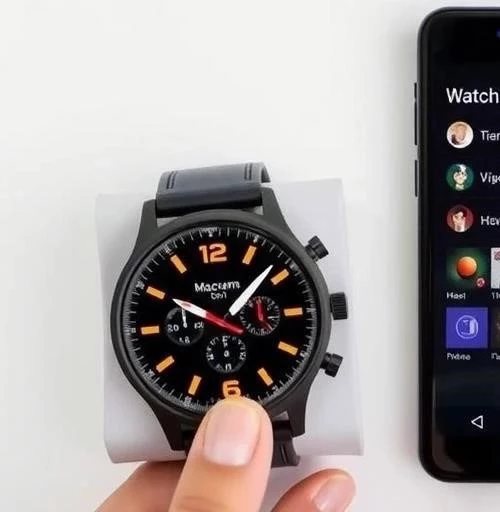
The Xiaomi Watch S1 Active supports changing its watch face directly on the watch or through the Mi Fitness app on a paired phone․ The app usually offers the widest selection, while the watch itself provides a quick way to switch between faces already stored on the device․ Menu names and available designs can vary slightly with the app version, region, and watch firmware․
Change the face on the watch
- Wake the display by raising your wrist or pressing a button․
- Touch and hold the current watch face for a moment․ The face-selection screen should appear․
- Swipe left or right to browse the faces saved on the watch․
- Tap the design you want to use․ The display will apply it․
If a long press does not open the selector, make sure you are pressing on the watch face rather than a notification or another screen․ Return to the home screen first, then try again․ Some software versions may present the selector differently; check the watch’s settings or update its firmware if the option is unavailable․
Choose a face in the Mi Fitness app
- Open Mi Fitness on the phone paired with the watch and make sure Bluetooth is on․
- Open the device page and select Xiaomi Watch S1 Active․
- Tap Manage watch faces, Watch faces, or the similarly named option․
- Browse the available designs․ Select a face to view its preview and, when offered, adjust its style or displayed information․
- Tap Apply, Sync, or the equivalent button, and keep the phone and watch close together until transfer finishes․
The watch may briefly show a connection or synchronization message․ Avoid closing the app, disabling Bluetooth, or restarting either device during the transfer․ Once synchronization is complete, the new face should appear automatically․ If it does not, wake the display or return to the watch’s home screen․
Use a personal photo
Some versions of Mi Fitness provide a custom or album face․ In the watch-face section, look for a design marked Custom, Album, or similar․ Choose it, select a photo from the phone when prompted, position the image in the preview, and apply the design․ The exact options depend on the software available for the S1 Active․ If no custom-face option appears, update Mi Fitness and the watch, then check again; features and catalogs can differ by region․
If the watch face will not change
- Confirm that the S1 Active is connected in Mi Fitness, not merely visible in the phone’s Bluetooth settings․
- Keep the watch near the phone and check that both devices have sufficient battery․
- Allow Mi Fitness the permissions it requests, including photo access when selecting a personal image․
- Restart the app and watch, reconnect if necessary, and retry the synchronization․
- Install available app or firmware updates․ If a download fails, try another face or repeat the transfer on a stable connection․
Changing the design does not normally erase health or activity data․ Watch faces can show different information, such as time, date, steps, or battery level, so check the preview before applying one․ The number of faces that can be stored at once is limited; replacing a saved face may be necessary before adding another․
For a quick change, press and hold the current face, swipe through saved designs, and tap one․ To browse or install more options, use the S1 Active’s device page in Mi Fitness and wait for synchronization to finish․ Use only options shown by the app for your device and software version․
1 Comment. Оставить новый
The instructions clearly distinguish between changing a watch face on the device and using the Mi Fitness app. The note that menu names and features may vary by software version is also useful.