
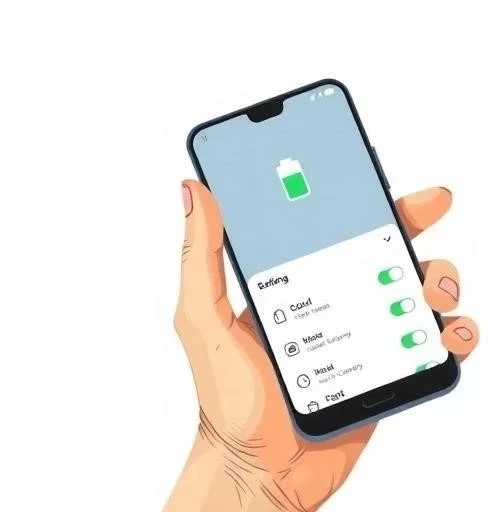
Checking your Xiaomi battery can mean several things: seeing how much charge remains, finding out which apps consume power, or assessing the battery’s condition․ These checks answer different questions, so it is worth using the right method rather than relying on one number or a third-party app․ Menu names and features can vary between MIUI and HyperOS versions, phone models, and regions․
Check the current charge and turn on the percentage
The quickest way to see the remaining charge is to look at the battery icon in the status bar․ If the icon does not show an exact percentage, open Settings and look for Notifications & status bar, Status bar, or a similarly named display option․ Choose Battery indicator or Show battery percentage, then select the display style available on your phone․ On some models, the percentage can also be enabled under Settings > Battery․
You may also be able to view the percentage by swiping down from the top of the screen to open Control Center or the notification shade․ This is useful when you do not want to keep the number visible all the time․ If you cannot find the setting, use the search box at the top of Settings and search for “battery percentage․” This is usually faster than following instructions written for a different Xiaomi software version․
See what is using battery power
To understand why the charge is falling, open Settings > Battery or Settings > Battery & performance․ The screen commonly displays recent battery use, remaining time estimates, and a list of apps or system functions with their consumption․ Tap an item for more detail․ The figures are estimates over a selected period, not a laboratory measurement, but they can reveal patterns worth investigating․
For example, unusually high use by an app you rarely open may point to background activity, frequent location access, or a software problem․ High screen consumption may simply mean that the display is bright or has been on for a long time․ Mobile data, weak signal, games, navigation, camera use, and high refresh rates can also increase drain․ Compare similar periods of use before deciding that the battery itself is faulty․
If one app appears responsible, first update it and restart the phone․ Then review its battery permissions under Settings > Apps > Manage apps or the app’s information page․ You can restrict background activity where appropriate, but avoid doing so for apps that must deliver timely alerts․ Battery-saving modes may extend runtime, although they can delay notifications or limit performance․
Check battery health—not just charge
The percentage shown in the status bar tells you how full the battery is now; it does not tell you how much capacity the battery has lost over time․ Some newer Xiaomi devices or software versions may provide battery health or capacity information in Settings, but the option is not available everywhere․ Search Settings for “battery health” or inspect the Battery section․ If there is no health readout, that does not by itself mean anything is wrong․
Some Xiaomi phones may open a hardware information screen when the code *#*#6485#*#* is entered in the Phone dialer․ Availability and displayed fields differ by model and software version, and the values can be technical or unclear․ Treat this as a diagnostic clue, not a definitive health certificate․ Do not change unfamiliar settings in service menus․ If the code does nothing, use the normal Settings menus or ask an authorized service center to test the battery․
Tell normal drain from a possible problem
Battery capacity naturally declines with age and charging cycles․ A phone that lasts noticeably less than it used to may also be affected by a recent system update, a newly installed app, poor reception, cold or hot conditions, or heavier use․ Check the usage list, install available updates, and observe the phone over a few ordinary days․ One unusually short day is not enough evidence to diagnose a failing battery․
Stop using the phone and seek professional service if the battery or casing is swollen, the device becomes dangerously hot, or the back cover starts separating․ Do not press, puncture, or attempt to replace a swollen battery yourself․ For routine concerns, back up important data before service and use a qualified repair provider․
In short
Use the status bar or Settings to check the current charge, the Battery page to identify power-hungry apps, and a health readout or professional test to assess long-term condition․ Because Xiaomi menus and diagnostic features vary, search Settings by keyword and treat unofficial readings cautiously․ This approach is more reliable than assuming that every Xiaomi phone has the same battery menu—or trusting a single app’s estimate․
8 Comments. Оставить новый
The instructions are accessible, especially the suggestion to use Settings search instead of relying on a path designed for another software version. That should make the guidance useful across more Xiaomi devices.
The article sensibly separates the remaining charge from battery condition and app consumption. Those are different questions, and clarifying that helps prevent confusion when interpreting the settings screens.
The advice to check for background activity or frequent location access gives readers reasonable leads when an app’s consumption seems unusually high. It avoids jumping straight to the conclusion that the battery itself is faulty.
This is a useful, straightforward guide for everyday checks. Mentioning both the status-bar option and the notification shade gives readers more than one convenient way to see the charge level.
The article clearly distinguishes checking the current charge from investigating battery usage. That distinction is helpful because the percentage alone cannot explain why a phone is losing power.
The explanation of battery-use figures as estimates is important. It encourages readers to look for patterns in app activity rather than treating a single percentage as a precise diagnostic result.
I appreciate the reminder that Xiaomi menu names vary across MIUI and HyperOS versions. Searching Settings for “battery percentage” is a practical alternative when the suggested menu path does not match a particular phone.
The examples connect battery statistics to plausible causes, such as screen brightness or background app use. This makes the guidance more actionable while appropriately presenting the figures as indicators rather than definitive measurements.