
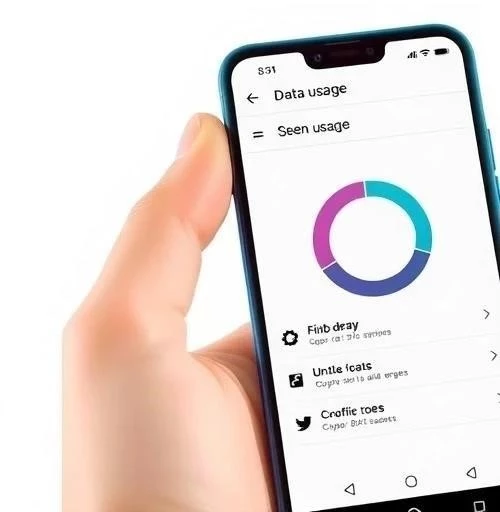
Your mobile data has a way of vanishing like a magician’s coin: one moment you have gigabytes to spare, the next a video has eaten the lot. On a Xiaomi, Redmi, or POCO phone, you can check which apps are using the internet, review mobile and Wi-Fi consumption, and—on many models—set a warning or limit. Menu names vary between MIUI, HyperOS, and phone versions, but the route is usually close at hand.
Quick route: use the Security app
- Open Security on your home screen or in the app drawer.
- Tap Data usage, Data usage statistics, or Data usage control. The label depends on your software version.
- Choose Data usage or Data consumption to see the total for the selected period.
- Open the app list to compare individual apps. You may be able to switch between mobile data and Wi-Fi.
Think of this screen as a little set of footprints across your connection. A streaming app may leave deep tracks; a messaging app, just a few. Tap an app, if available, to see its foreground and background activity. Foreground means you were using it. Background means it transferred data while you were doing something else—syncing mail, refreshing a feed, or quietly updating content.
Find the counter in Settings
If the Security app does not show the option, open Settings and use the search field. Type data usage, data consumption, or traffic. Xiaomi menus shift between releases, so search is often faster than following a fixed map.
Common paths include Settings > SIM cards & mobile networks > Set data plan or Data usage. On some versions, look under Connection & sharing, or open Security > Data usage. Select the SIM you want to inspect if your phone has two. The screen may show an overall total, a daily chart, and a list of apps ranked by consumption.
Check Wi-Fi as well as mobile data
Mobile data is the allowance supplied by your carrier; Wi-Fi is traffic over a wireless network. Some Xiaomi versions show these in separate tabs or sections. If you are trying to find what drained your cellular plan, make sure the mobile-data view is selected rather than the Wi-Fi total. A phone can use plenty of Wi-Fi without reducing your carrier allowance.
For a second view, go to Settings > Apps > Manage apps, select an app, and look for its data or network details. The exact information varies, so the Security app’s usage page is usually the better place to compare many apps at once.
Set a warning before the gigabytes disappear
In Security > Data usage or the mobile-network data-plan settings, look for Set data plan, Data warning, or Monthly data limit. Enter the allowance from your carrier, choose the start day of your billing cycle, and set a warning below the cap. If offered, enable the limit to pause mobile data when it is reached.
Use the cycle date shown on your carrier’s account, not automatically the first day of the month. A mismatched start date can make Xiaomi’s counter look wildly different from your bill. A warning gives you room to react; a hard limit is stricter and may interrupt maps, messages, or other services until you reconnect to Wi-Fi or change the setting.
When the numbers do not match
- Check the date range. The phone may show today, this month, or a custom period. Compare the same dates as your carrier’s app.
- Check the SIM. On dual-SIM models, usage can be displayed separately for each card.
- Allow for different counting. Your carrier and phone may measure sessions, rounding, or billing periods differently. The phone’s figure is a useful estimate, not always the final bill.
- Look for system entries. Updates, cloud backups, hotspot use, and system services can consume data too. They may appear under their own names rather than under a familiar app.
- Refresh the view. Counters can update with a delay. Reopen the page or check again after a short while.
Reduce background use
If one app is behaving like a tiny data vacuum, open its app-information page and review Data usage or Restrict data usage. Depending on your version, you can block mobile data, limit background data, or turn off automatic syncing inside the app itself. Be selective: restricting an app may delay notifications or stop it from updating until you open it.
You can also enable Data Saver, if your software provides it, and set large downloads or video updates to use Wi-Fi only. This does not erase the usage already recorded; it helps keep tomorrow’s total calmer.
The shortest answer
Open Security > Data usage, or search for data usage in Settings. Choose the relevant SIM or connection, inspect the time period and app list, then set a warning if you want an early nudge. Xiaomi’s menus may wear different names from one update to the next, but the data trail is still there—waiting to tell you which app has been spending your gigabytes.


8 Comments. Оставить новый
A handy little troubleshooting guide, especially for people with dual-SIM phones. The reminder to select the right SIM could spare readers a very confusing data total.
Clear, calm, and immediately useful. The explanation of mobile data versus Wi-Fi is simple without talking down to readers—exactly the sort of detail that prevents confusion.
The distinction between foreground and background data is especially useful. It turns a list of numbers into clues about what the phone is actually doing.
A practical guide with a helpful twist: instead of assuming every Xiaomi has the same menus, it points readers toward Settings search. That could save a lot of menu wandering.
I like that this explains both the quick Security-app route and the Settings fallback. It feels like a map with more than one path, which suits Xiaomi’s ever-shifting menus.
The app-by-app angle is a smart touch. Sometimes the culprit is not the obvious video app but a background refresh quietly working behind the curtain.
This guide has the reassuring feel of someone showing you the shortcut after you have already taken three wrong turns. The advice to search Settings is gold.
The “little set of footprints” image makes data usage feel surprisingly easy to understand. I also appreciate the reminder that background activity can quietly nibble away at a plan.