
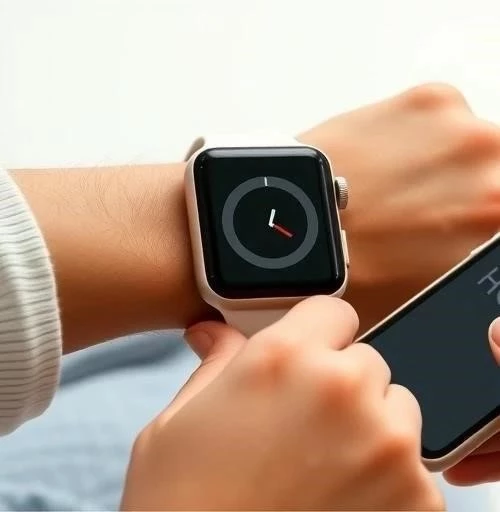
Your Apple Watch is already a tiny motion detective. In most cases‚ there is no separate “steps” switch to turn on: the watch counts steps automatically when you wear it‚ and shares activity data with the Health app on your iPhone. The trick is knowing where to find the number—and what to check if it seems stuck.
Check today’s step count
- On your Apple Watch‚ press the Digital Crown to open the app list.
- Open Activity (the colored rings).
- Scroll down with your finger or the Digital Crown. Look for Total Steps‚ along with distance and other daily activity details.
The rings are not a step counter: they track Move‚ Exercise‚ and Stand goals. Steps are recorded in the background‚ so you can walk without starting a workout.
See steps on your iPhone
Open Health on your iPhone‚ tap Browse or Overview‚ then choose Activity → Steps. The page shows your daily total and history. Add Steps to Favorites if you want it on the Overview screen. Your watch and phone can both contribute data; Health combines eligible sources.
Put steps on the watch face
Apple’s built-in Activity complication may show rings rather than a live step total. To see steps at a glance‚ install a compatible step-counter app that reads Apple Health data‚ then add its complication:
- Touch and hold the watch face‚ then tap Edit.
- Swipe to the complications screen and select a position.
- Turn the Digital Crown to choose the step app‚ then press the Crown to save.
Available complications depend on the app and watch face. If the number does not update instantly‚ open the app once and allow it time to sync.
If steps are missing
- Wear the watch snugly‚ with your wrist detected; check that it is unlocked and paired with your iPhone.
- On iPhone‚ open Watch → Privacy and make sure Fitness Tracking is enabled. In Settings → Privacy & Security → Motion & Fitness‚ allow fitness tracking too.
- In Health‚ open Activity → Steps → Data Sources & Access and confirm Apple Watch appears as a source. Check that Health has permission to read the relevant data.
- Restart both devices and update watchOS and iOS if counts still look frozen.
Take a short walk‚ then check Activity or Health again. Your step tally is a quiet breadcrumb trail—not a judgment. Use it to notice patterns‚ celebrate movement‚ and set a personal goal that feels encouraging.


8 Comments. Оставить новый
The watch-face complication tip is the gem here. It turns a buried Health statistic into a little walking scoreboard on your wrist.
A brisk, well-organized walkthrough. The steps are easy to scan, and the small caveat about third-party complications not updating instantly saves needless troubleshooting.
I came for the step-count instructions and left knowing why my Activity rings never answered that question. A pleasantly useful bit of everyday tech guidance.
This makes the Apple Watch feel less like a mysterious gadget and more like a helpful little pocket librarian, keeping your movement records neatly filed in Health.
A useful guide for anyone who has ever walked a mile and then wondered where the watch hid the evidence. The troubleshooting checklist is especially reassuring.
Simple without being simplistic. I appreciate the reminder that steps can be logged in the background—no workout ceremony required before taking a stroll.
The advice about checking data sources is a smart detail. When numbers go missing, it helps to know where the watch and phone are passing the baton.
I like the distinction between activity rings and steps—three colorful circles can look like a tiny dashboard, but they aren’t a step counter. Clear, practical, and easy to follow.