
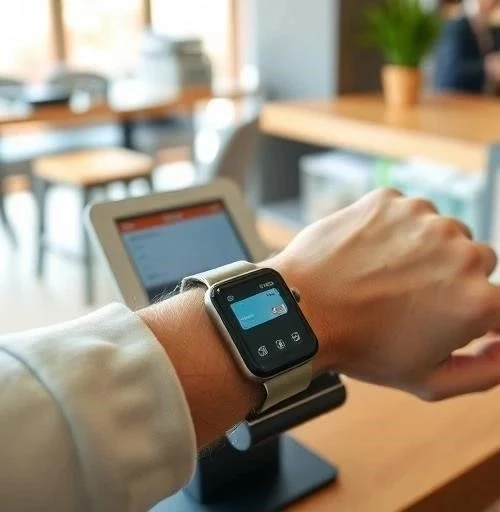
Apple Watch Series 4 can make contactless payments using Apple Pay. Once a supported card is added to Wallet, you can pay by holding the watch near a contactless payment terminal. Your iPhone does not usually need to be with you or connected to the internet at the time of purchase. You do need a compatible region, a participating bank or card issuer, and a passcode set on the watch.
Before you begin
- Make sure Apple Pay is available in your country or region and that your bank supports it. Check the issuer’s website if you are unsure.
- Pair the Apple Watch with an iPhone and sign in to your Apple Account. Update the iPhone and watch to the latest software versions available for your devices.
- Set a passcode on the watch. On the watch, open Settings > Passcode > Turn Passcode On, then follow the prompts. Apple Pay requires a passcode and wrist detection.
- Confirm that the card you want to use is eligible for Apple Pay. Some prepaid, business, or regional cards may not be supported.
Add a payment card
- On your iPhone, open the Watch app and tap My Watch.
- Scroll to Wallet & Apple Pay. If you have not added a card before, tap Add Card. Depending on your iOS version, you may also be able to start in the iPhone’s Wallet app by tapping the plus button.
- Choose a card type if asked. Hold your card in view of the iPhone camera to capture its details, or enter them manually. Check that the name, number, and expiration date are correct.
- Read and accept the issuer’s terms. Complete the verification requested by your bank, such as a text message, email, banking-app approval, or a call. The issuer decides whether to approve the card.
- Wait for the card to appear under the watch’s Wallet & Apple Pay settings. If prompted, choose whether it should be the default card. You can add more than one supported card and select a different one when paying.
Adding a card to Apple Pay on your iPhone does not always add it to the watch automatically. Check the Watch app and complete setup for the watch itself. A card may need to be verified again when added to another device.
Make a contactless payment
- Look for the contactless payment symbol at a shop’s terminal, or ask whether the cashier accepts Apple Pay.
- Double-click the side button on the Apple Watch. Do not press the Digital Crown. Your default card will appear.
- To pay with another card, swipe or turn the Digital Crown to choose it, then hold the watch near the reader.
- Position the watch display close to the contactless symbol and keep it there until you feel a tap or hear a tone. A confirmation on the screen indicates that the payment was sent.
You generally do not need to wake the display first. Keep the watch near the reader for a moment; moving it away too quickly can interrupt the transaction. The terminal may still ask you to confirm the amount, enter a PIN, or sign a receipt, according to the merchant, card, and local rules.
Transit, refunds, and security
Some transport systems accept Apple Pay at fare gates or onboard readers. Use the same double-click and hold-near-the-reader process unless the system supports an Express Transit card. Express Transit availability and setup vary by location and transit provider; check Wallet & Apple Pay settings and the provider’s instructions. Do not assume that every contactless transit reader supports every card.
For a refund, the shop may ask you to hold the same watch near its reader. If necessary, open Wallet, select the card used for the purchase, and show the card’s device account details as directed by the merchant. Keep the original receipt, since the store’s return policy still applies.
Apple Pay uses a device-specific account number rather than sending your full card number to the merchant. If you remove the passcode or turn off wrist detection, payment cards may be removed from the watch. If the watch is lost, mark it as lost or remove its cards using Find My or your Apple Account, and contact the bank if you suspect unauthorized activity.
If payment does not work
- Check that the card is active, verified, and supported by your issuer; contact the bank if setup or approval fails.
- Make sure the watch has its passcode enabled and is unlocked on your wrist. If it has been removed, enter the passcode again.
- Hold the display close to the reader and wait for the confirmation. Try another terminal, or ask the merchant whether contactless payments are available.
- Restart the watch and iPhone, check for software updates, and review the card under Watch app > My Watch > Wallet & Apple Pay.
Apple Watch Series 4 supports Apple Pay, but card and merchant availability depends on your location and financial institution. If a card continues to be declined, the issuer can explain whether the issue is with the card, verification, or transaction.
4 Comments. Оставить новый
I appreciate the distinction between adding a card to an iPhone and adding it to the watch. That detail could prevent confusion during setup.
The steps are easy to follow, and the notes about passcodes, wrist detection, and regional availability set useful expectations before getting started.
This is a clear, practical guide to setting up Apple Pay on an Apple Watch. The reminder that the card issuer must verify the card is especially helpful.
A helpful overview for anyone new to Apple Pay on Apple Watch. The explanation that the iPhone generally is not needed at the checkout is reassuring.