
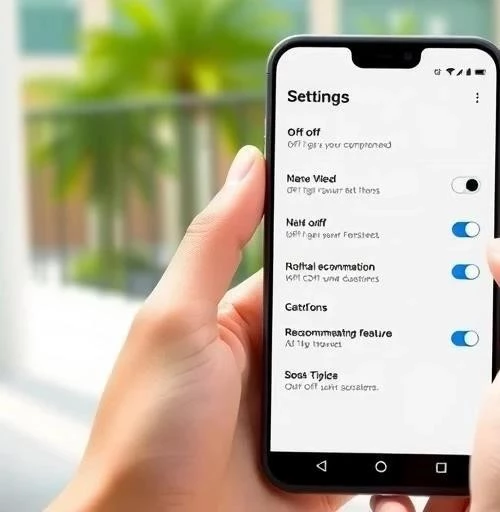
“Recommended Today” may appear in Xiaomi’s GetApps store, App Vault, the Security app, or another system app. The setting is not identical on every Xiaomi phone: its name and location can vary with your MIUI or HyperOS version and region. Start by identifying which app displays the card, then disable recommendations there. This is usually more effective than changing general ad settings alone.
Turn off recommendations in GetApps
- Open GetApps.
- Tap Me or your profile icon, then open Settings.
- Look for Recommendations, Personalized recommendations, or Receive recommendations, and switch it off.
If you cannot find that option, check the app’s notification settings in Settings > Notifications & status bar > App notifications > GetApps. Turning off notifications stops recommendation alerts, but may not remove cards shown inside the app.
Check App Vault and the home screen
If the content appears when you swipe right from the home screen, open Settings > Home screen > App Vault (the wording may differ). Open App Vault’s settings and disable recommendations, suggested apps, or the relevant content card. On some versions, press and hold an empty area of the home screen, tap Settings, and look for a separate App Vault switch.
Disable suggestions in Xiaomi system apps
For recommendations inside Security, open the app, tap its gear icon, and turn off Receive recommendations. Check individual tools such as Cleaner as well: some versions have their own recommendation switch. In Browser or Mi Video, open the app’s settings and disable personalized content, suggested content, or notifications if those are the source.
Reduce personalized advertising
Open Settings > Privacy or Passwords & security > Privacy, then find Ad services and switch off personalized ad recommendations. Menu names vary by software version. This can reduce targeted ads, but it may not remove every in-app recommendation; use the controls in the app showing it.
If it still appears
- Restart the phone and check whether the card is gone.
- Update the relevant app and system software; settings can move after updates.
- Reopen its settings and check that the switch stayed off.
- Use Settings > Apps > Manage apps to restrict notifications from the app, if needed.
Avoid disabling system services or revoking authorizations unless you understand the consequences: this can affect unrelated features and is rarely necessary. The safest approach is to switch off recommendations in the specific Xiaomi app and separately disable its notifications if they are also unwanted.
7 Comments. Оставить новый
The article is useful because it explains that “Recommended Today” can come from different Xiaomi apps, rather than assuming there is one universal setting. Identifying the app first should help readers avoid changing unrelated options.
A helpful and measured explanation. It clearly separates personalized advertising from in-app suggestions, so readers understand why switching off one privacy option may not remove all recommendations.
I appreciate the distinction between disabling notifications and removing recommendations within an app. That clarification sets realistic expectations and helps readers choose the right fix for what they are seeing.
The article balances step-by-step directions with useful caveats about MIUI and HyperOS differences. Readers are less likely to get stuck if their phone uses slightly different menu names.
This is a clear troubleshooting guide for a setting that can be difficult to locate. The advice to check the individual app is sensible, since general advertising controls may not affect every recommendation card.
Including Security, Cleaner, Browser, and Mi Video makes the guidance more comprehensive without losing focus. It could help users trace recommendations that appear outside the app store.
The menu paths are presented in a practical order, starting with GetApps and then covering App Vault and system apps. Mentioning that labels vary by software version and region is especially helpful.