
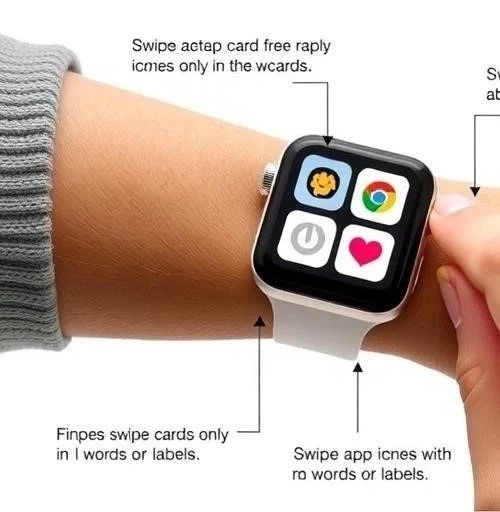
Your Apple Watch is a small stage with a surprisingly busy cast: Maps is giving directions, Music is choosing the soundtrack, and an app you opened yesterday may still be waiting in the wings. If you want to dismiss an app—or make a stubborn one start fresh—you can do it in a few taps. The exact route depends on what you mean by “close.”
First, the quick truth
You usually don’t need to close apps just to save battery or keep your watch running smoothly. watchOS manages background activity, and many apps pause when they’re no longer on screen. Think of the app switcher as a row of bookmarks, not a row of engines all racing at once. Close an app when you’re finished with it, want to clear the recent-app list, or need to fix a frozen screen.
Close a recent app
- Open the app switcher. On recent watchOS versions, double-press the Digital Crown. You’ll see recently used apps as cards. On older watchOS versions, press the side button to open the Dock.
- Find the app. Turn the Digital Crown or swipe up and down through the cards. Tap the app if you first need to check which one it is.
- Dismiss it. Swipe the app card to the left, then tap the X that appears. If your software shows a slightly different layout, follow the on-screen close control.
That’s the ordinary exit: a gentle wave goodbye, not an emergency evacuation. Press the Digital Crown to return to the watch face.
Force-quit an app that has frozen
If an app ignores taps, displays a stuck screen, or behaves as if time itself has stopped, use the force-quit shortcut:
- Keep the troublesome app open in the foreground.
- Press and hold the side button until the power options appear. Don’t select an option.
- Now press and hold the Digital Crown until the watch returns to the watch face.
The app should close. Open it again from the Home Screen. This is a stronger reset than swiping away a card, so save any work first if the app offers something worth saving. The two-button sequence matters: holding the Crown before the power screen appears won’t perform the same action.
Which button does what?
Apple has changed the watch interface over the years, which is why instructions sometimes disagree. On older software, the side button opens the Dock, where you can locate a recent app and swipe left to reveal its close button. On newer versions, the side button is commonly used for Control Center, while a double-press of the Digital Crown brings up recent apps. If your watch doesn’t match a guide, check its watchOS version under Settings > General > About, or look for the app switcher gesture on your model.
The Digital Crown is the round wheel; the side button is the flatter button beneath it. Their names sound like a royal family, but the rescue plan is simple: double-press the Crown to browse, and use the side button followed by a Crown hold to force-quit.
Battery, speed, and other myths
Closing every app after each use can feel satisfyingly tidy, like straightening tiny digital picture frames. But it generally isn’t a battery-saving ritual. Reopening apps repeatedly may take more effort than letting watchOS manage them. If the battery drains unusually fast, check battery usage, update watchOS and the app, and review features such as frequent location tracking or workout recording. A restart can also help with a temporary glitch.
For a normal restart, hold the side button until the power controls appear, use the on-screen power option, then turn the watch back on. If the watch is frozen, a force restart is a last resort: hold the side button and Digital Crown together for about ten seconds, until the Apple logo appears. Avoid doing this while an update is installing.
When the app won’t behave
- Close and reopen it once; then check whether the problem returns.
- Update the app and watchOS, and restart the watch if needed.
- If only one app keeps freezing, remove and reinstall it when possible. Some app data may depend on the developer’s cloud sync, so check before deleting.
- If the watch remains unresponsive, consult Apple Support rather than repeatedly force-restarting it.
In short: double-press the Digital Crown to find recent apps, swipe a card left and tap X to dismiss it; for a frozen app, show the power screen with the side button, then hold the Crown. Your wrist-sized stage is clear—and the next act can begin.


2 Comments. Оставить новый
A miniature troubleshooting map for a device that fits on your wrist. I especially like the calm tone: it resists the urge to treat every recent app as a problem, then gives the Digital Crown a starring role when one actually misbehaves. A practical little lesson in knowing when to wave goodbye—and when to call for backup.
This guide turns a tiny watch ritual into a useful distinction: most apps are resting, not secretly sprinting in the background. The “bookmarks, not engines” image makes that technical point stick, while the force-quit steps offer a clear escape hatch for a truly frozen screen.