
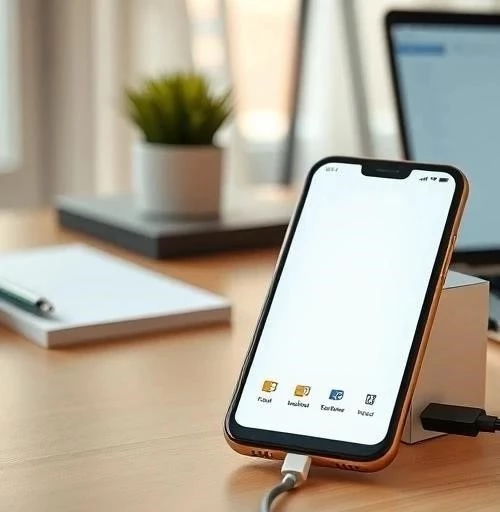
Connecting a Huawei phone to a laptop can mean several different things: transferring photos‚ sharing an internet connection‚ viewing phone notifications‚ or controlling the phone from the computer. The best method depends on what you want to do‚ whether your laptop runs Windows or macOS‚ and which Huawei phone and software versions you have.
This guide explains the most reliable options: a USB cable‚ Huawei Share and Multi-Screen Collaboration‚ Windows Phone Link‚ Bluetooth‚ and a mobile hotspot. Menu names may differ slightly between EMUI‚ HarmonyOS‚ Android versions‚ and laptop operating systems.
Before you begin
- Charge your phone and make sure the laptop is powered on.
- For wireless connections‚ enable Wi-Fi and Bluetooth on both devices if the method requires them.
- Use a data-capable USB cable. Some cables provide power only and cannot transfer files.
- Unlock the phone when connecting it for the first time. Keep it unlocked while approving connection requests.
- Install system updates when practical. Updated software can improve compatibility and fix connection problems.
Method 1: Connect with a USB cable
A USB cable is usually the simplest choice for copying photos‚ videos‚ documents‚ and other files. It can also provide a stable connection for certain phone-management tools.
- Connect the Huawei phone to the laptop with a USB cable.
- Unlock the phone and swipe down from the top of the screen to open the notification panel.
- Tap the notification that says something like Charging via USB or USB preferences.
- Select Transfer files‚ File transfer‚ or MTP. If you only want to import pictures‚ select Transfer photos or PTP if that option is available.
- On Windows‚ open File Explorer and select the phone under This PC; Browse the phone’s storage and copy the files you need.
On a Mac‚ the phone may not appear in Finder as a browsable drive. Use Huawei’s supported transfer software‚ or another reputable Android file-transfer application compatible with your macOS version. Availability and compatibility can change‚ so download software only from an official or trusted source.
Where to find common files
Photos taken with the camera are usually in the DCIM folder‚ often inside a folder called Camera. Screenshots are commonly in Pictures or a Screenshots folder. Files downloaded from a browser or messaging app may be in Download or in that app’s own folder. Folder names and locations vary by phone and app.
Copy files to a folder on the laptop rather than moving them if you want to keep the originals on the phone. Before disconnecting‚ close any file-transfer window and safely eject the device from Windows when the option is available. Avoid unplugging the cable while files are being copied.
Method 2: Use Huawei Share and Multi-Screen Collaboration
On supported Huawei phones and Huawei laptops‚ Huawei Share can make wireless file transfer and device collaboration easier. Depending on the models and software versions‚ Multi-Screen Collaboration may let you display the phone screen in a laptop window‚ open or interact with phone apps‚ and move content between devices. These features are not available on every Huawei phone or every computer.
- Check that both devices support Huawei Share or Multi-Screen Collaboration and install available updates.
- Turn on Wi-Fi and Bluetooth on both devices. Keep them near each other and connected to the same network when the setup requests it.
- On the laptop‚ open PC Manager or the Huawei connectivity feature provided for that computer. The exact menu depends on the model.
- On the phone‚ open the control panel or Settings and look for Huawei Share‚ Device+‚ or Multi-Screen Collaboration.
- Follow the on-screen instructions to scan a QR code‚ tap the devices together where supported‚ or confirm a pairing request.
- Approve the connection on both screens. If asked‚ verify that the displayed code matches.
Once connected‚ use the options shown in the Huawei interface to share selected files or start collaboration. Do not assume that every feature is available just because the two devices are Huawei: support depends on hardware‚ region‚ software version‚ and PC Manager version. If the laptop is not a Huawei model‚ Huawei Share’s computer-specific features may not be available‚ although USB‚ Bluetooth‚ and other methods can still work.
Method 3: Pair the phone with Windows Phone Link
Microsoft Phone Link can connect some Android phones to Windows for notifications‚ messages‚ photos‚ calls‚ and other functions. The available features depend on the phone‚ Windows version‚ and the companion app or service supported by the device. Huawei compatibility may vary‚ so check what your particular model offers rather than expecting every Phone Link feature to work.
- On the Windows laptop‚ open Phone Link. If it is not installed‚ check the Microsoft Store or Windows settings for the official app.
- Choose the option to add an Android phone. The app will show a QR code or another pairing instruction.
- On the Huawei phone‚ scan the code if the requested Microsoft or companion app is available and supported. Alternatively‚ follow the setup method shown on screen.
- Sign in if prompted‚ then approve the requested permissions on the phone;
- Keep the phone connected to Wi-Fi or mobile data and allow the relevant background permissions if you want notifications or messages to sync.
Grant only permissions you are comfortable with. For example‚ access to messages‚ contacts‚ photos‚ or calls is not necessary if you only need to connect the devices for another purpose. If pairing fails or a feature is missing‚ use a USB cable or Huawei’s own supported tools instead.
Method 4: Send files using Bluetooth
Bluetooth is useful for sending a small number of files without a cable or Wi-Fi network. It is usually slower than USB or local Wi-Fi‚ so it is not ideal for large video collections.
- Turn on Bluetooth on the laptop and set it to discoverable or open the Windows Bluetooth device-pairing screen.
- On the Huawei phone‚ open Settings and turn on Bluetooth.
- Select the laptop from the list of available devices and confirm that the pairing code matches on both screens.
- On Windows‚ open the Bluetooth file-receiving option if needed. On the phone‚ select a file‚ tap Share‚ choose Bluetooth‚ and select the laptop.
- Accept the incoming file on the laptop and choose where to save it.
Bluetooth menus differ between Windows versions. Pairing the devices does not always start a transfer automatically; you may need to select the file on the phone and separately enable file reception on the computer.
Method 5: Use the Huawei phone as a laptop hotspot
If you want the laptop to use your phone’s mobile internet‚ enable a personal hotspot. This shares the phone’s cellular connection‚ not its Wi-Fi connection in every configuration‚ and it may use your mobile data allowance.
- On the phone‚ open Settings and find Mobile network‚ Personal hotspot‚ or Tethering.
- Set a strong hotspot password. Use a security option such as WPA2 or WPA3 if the phone offers it.
- Turn on the Wi-Fi hotspot and note its network name.
- On the laptop‚ open the Wi-Fi list‚ select the phone’s hotspot‚ and enter the password.
You can also use USB tethering on many Huawei phones. Connect the phone by USB‚ then look for USB tethering in the phone’s hotspot or tethering settings. This can be more stable than Wi-Fi and may charge the phone at the same time. The option may be unavailable until the cable is connected‚ and some mobile carriers restrict tethering or charge extra. Monitor data use‚ especially when the laptop downloads updates or streams video.
Choose a method for your task
- Copy lots of files: use a USB cable‚ or a supported Huawei Share connection.
- Send one or two small files: use Bluetooth or a supported wireless sharing feature.
- View notifications or messages: try Phone Link if your phone and Windows setup support the required features.
- Use the phone’s internet on the laptop: enable a Wi-Fi hotspot or USB tethering.
- Control or mirror the phone: check whether your Huawei model and laptop support Multi-Screen Collaboration.
Troubleshooting connection problems
The laptop charges the phone but cannot see its files
Unlock the phone and change the USB mode from charging to File transfer or MTP. Try a different cable and USB port; charging alone does not prove that a cable supports data. Restart both devices if the phone still does not appear. On Windows‚ check File Explorer again after reconnecting. If the connection is intermittent‚ avoid a loose hub or adapter and connect directly to the laptop.
The Huawei phone does not appear in a wireless device list
Turn on Wi-Fi and Bluetooth‚ bring the devices closer‚ and make sure any required discovery or sharing setting is enabled. If the laptop is managed by a workplace or school‚ security policies may block pairing. Disconnect and pair again‚ confirming the request on both screens. For Huawei Share‚ verify that the feature is supported by both devices and that the relevant Huawei software is installed and updated.
Phone Link connects but some features do not work
Check the permissions granted to the companion app‚ keep the phone online‚ and make sure background activity is not being restricted by battery-saving settings. Some functions depend on the phone model‚ region‚ account‚ and Windows version. Re-pairing may help‚ but it cannot add features that the device does not support.
Hotspot connects but the laptop has no internet
Confirm that mobile data is on and that the phone itself can access the internet. Check the carrier plan and data limit‚ then disconnect and reconnect the laptop. If necessary‚ switch the hotspot off and on or test USB tethering. A connected laptop may consume data quickly through automatic updates‚ cloud backups‚ or video playback.
Privacy and safety tips
Pair only with a laptop you trust‚ and reject connection requests you did not initiate. Use a password for your hotspot and turn it off when you finish. When using a shared computer‚ do not save private files in public folders‚ sign out of accounts afterward‚ and remove temporary copies from the laptop if they are no longer needed. Download drivers and connection software from Huawei‚ Microsoft‚ or another verified source rather than unknown download sites.
For most file transfers‚ a USB cable set to File transfer is the dependable starting point. Huawei Share and Multi-Screen Collaboration offer a more integrated experience on compatible devices‚ while Bluetooth is handy for a few small files. Phone Link may provide Windows integration on supported setups‚ and hotspot or USB tethering lets the laptop use the phone’s internet. Choose the method that matches your goal‚ approve permissions carefully‚ and check model compatibility whenever a feature is unavailable.



3 Comments. Оставить новый
The step-by-step instructions are easy to follow, and the notes about cable limitations and changing menu names help set realistic expectations. Including both Windows and Mac considerations is a nice touch.
A helpful overview for troubleshooting common connection needs, from file transfers to wireless options. The reminder to unlock the phone and approve prompts could save readers a lot of confusion.
This guide clearly explains the main ways to connect a Huawei phone to a laptop and helps readers choose a method based on what they want to do. The practical USB tips are especially useful.