
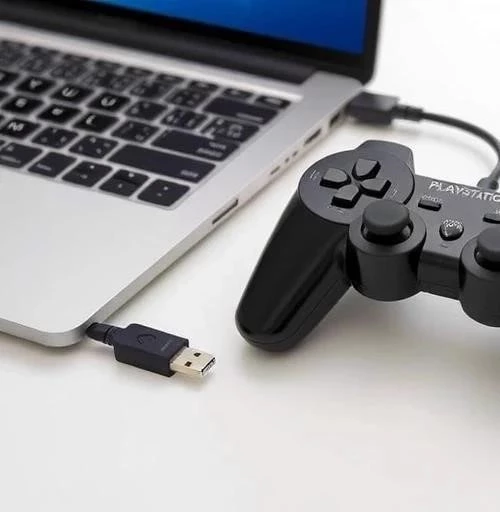
A PlayStation 3 controller can be connected to a computer with a USB cable or, on supported systems, over Bluetooth. The wired method is usually the simplest way to check that the controller works. Wireless setup can require additional software, especially in Windows, because the DualShock 3 does not have the same built-in PC support as newer controllers. The exact steps depend on the operating system and the game.
What you need
- A DualShock 3 or Sixaxis controller.
- A USB-A to Mini-USB cable. The connector at the controller end is Mini-USB, not Micro-USB or USB-C.
- For wireless use, a computer with Bluetooth or a compatible USB Bluetooth adapter.
- On Windows, suitable controller software if games do not recognize the controller directly.
Use a cable that supports data, not only charging. Some cables can supply power while carrying no data, so the controller may light up without appearing to the computer. If possible, test with a cable known to transfer files between devices.
Connect with a USB cable
- Turn on the computer and connect the Mini-USB end of the cable to the controller.
- Connect the other end to a USB port on the computer. If a USB hub causes problems, connect directly to the computer instead.
- Wait for the operating system to detect the device and install any available drivers. On Windows, a notification may appear while the system searches for a driver.
- Press the PS button if the controller does not become active automatically.
- Open the game or controller settings and check whether the buttons and sticks respond.
USB connection is useful for initial setup and troubleshooting because it avoids Bluetooth pairing issues and keeps the controller charged. However, detection does not guarantee that every game can use it. Some PC games expect an XInput controller, while the DualShock 3 uses a different input standard. In that case, a compatible driver or input-mapping program may be needed.
Using the controller in Steam
Steam can provide controller configuration for many games. Connect the controller first, open Steam, and check the controller options in Settings. If the device is listed, enable the relevant PlayStation or generic controller support option, then open the game’s controller layout. Availability and labels can vary between Steam versions and operating systems.
Steam Input can translate controller inputs for supported games, but it cannot make every controller work in every game. Test the controller in Steam’s calibration or test screen before changing game settings. If it works there but not in a particular title, check that title’s controller support and layout.
Connecting over Bluetooth in Windows
Bluetooth setup for a DualShock 3 is more involved than pairing a modern Bluetooth gamepad. Windows may detect the controller as a device but still not make it usable in games. A pairing utility or a driver package designed for the DualShock 3 may be required. Choose software carefully: older tools may be discontinued, may not support current Windows versions, or may install low-level drivers that affect other Bluetooth devices.
- Confirm that Bluetooth works on the computer and that the adapter is supported by the software you plan to use.
- Install a current, reputable DualShock 3 driver or pairing tool, following its own instructions. Download it only from a source you trust.
- Connect the controller to the computer by USB when the utility requests it. This allows the software to identify and configure the controller;
- Use the utility’s pairing procedure, then disconnect the cable and test the controller wirelessly.
Do not install several controller driver packages at the same time. They can conflict, and some older packages replace or reconfigure Bluetooth components. Create a restore point before making system-level changes, and read the software documentation before installation. If you are unsure about a driver’s source or permissions, use USB instead.
Bluetooth on macOS and Linux
On a Mac, connect the controller with a Mini-USB cable and check whether the system or the game recognizes it. Bluetooth support can vary with the macOS release and hardware. If wireless pairing is not offered or the controller is not detected, use a wired connection or consult documentation specific to the installed version of macOS.
Linux distributions may support the controller through built-in kernel components or available community drivers. Connect it by USB first and check the system’s controller settings. Bluetooth pairing procedures vary by distribution and adapter. Consult the distribution’s current documentation rather than installing an unfamiliar Windows driver on Linux.
Test and configure the controls
Once connected, open the operating system’s game-controller settings, a trusted controller test utility, or Steam’s input test. Press each button and move both sticks to confirm that inputs register. Check the triggers, directional pad, and motion features separately if the game uses them. A game may require you to select a controller layout or assign controls manually.
The PS button may not open a PC overlay or perform the same function it does on a PS3 console. The controller’s motion sensors and pressure-sensitive buttons may also be unsupported by a given driver or game. These limitations do not necessarily mean the controller is faulty.
Troubleshooting
- The controller charges but is not detected: try a data-capable Mini-USB cable, another USB port, and a direct connection without a hub.
- Windows detects it but the game does not: check Steam Input, the game’s controller settings, or a compatible DualShock 3 driver. The game may require XInput mapping.
- It disconnects or responds intermittently: test another cable or port for USB use. For Bluetooth, reduce distance and interference, check the adapter, and repeat the pairing procedure.
- It works only while connected by cable: verify that the Bluetooth adapter and selected software support DualShock 3 pairing. A generic Bluetooth pairing screen may not be sufficient.
- Buttons are assigned incorrectly: select or create a suitable layout in the game or input software, and check for overlapping controller programs.
Choosing a connection method
For the quickest setup, begin with USB. It is straightforward, does not depend on Bluetooth pairing, and helps identify whether the cable and controller work. Choose Bluetooth only if the computer and software support the required pairing process. In either case, install only the software needed for the games you play, check that downloads are trustworthy, and test the controls before starting a game.
1 Comment. Оставить новый
The guide clearly explains the basic wired setup and highlights useful troubleshooting details, such as checking that the USB cable supports data transfer. A fuller discussion of the wireless steps would make the instructions more complete.