
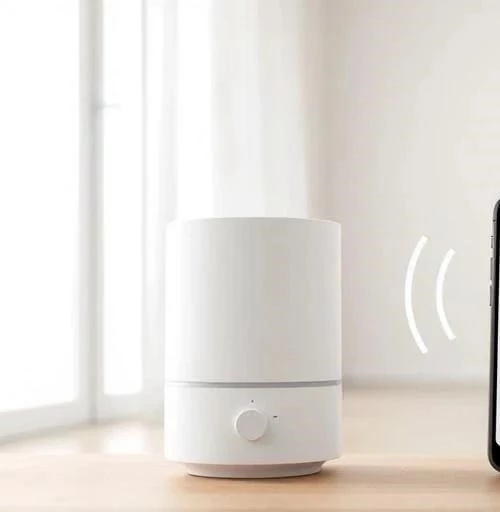
Connecting a Smartmi or Xiaomi humidifier to your phone is usually straightforward, but the exact app and pairing steps depend on the model․ “Smartmi Air Humidifier 2” is sometimes used informally for different products․ The Xiaomi Smart Humidifier 2, often identified as model BHR6026EU, is generally set up in Xiaomi Home (also called Mi Home)․ The Smartmi Evaporative Humidifier 2 may instead be listed in Smartmi Link, depending on its version and the region where it was sold․
Before starting, check the name and model number on the label on the device or its packaging․ If the app does not show the product under one brand or name, try the other compatible app rather than assuming the humidifier is faulty․ The instructions below cover the usual setup process and the most common fixes for pairing problems․
Before you begin
- Install the appropriate app: Xiaomi Home (Mi Home) for Xiaomi Smart Humidifier 2, or Smartmi Link if that is the app specified for your Smartmi model․
- Sign in to the app and allow the requested permissions․ Bluetooth, location, and local-network permissions may be needed for device discovery, even when the humidifier connects to Wi-Fi․
- Connect your phone to a 2․4 GHz Wi-Fi network․ Many humidifier versions do not support 5 GHz Wi-Fi for setup․
- Have the correct Wi-Fi password ready․ Avoid using a guest network, captive-portal network, or network that requires a browser sign-in․
- Place the humidifier near the router for the initial setup, and make sure it is powered on․
If your router combines its 2․4 GHz and 5 GHz bands under one network name, pairing may still work․ If it does not, temporarily create or enable a separate 2․4 GHz network, or use your router’s band-selection settings․ Do not change advanced router settings unless you are comfortable restoring them afterward․
Connect the humidifier in Xiaomi Home (Mi Home)
- Open Xiaomi Home․ Install or update the app from your phone’s official app store, open it, and sign in to your Xiaomi account․ The app may be called Mi Home in some regions or on older phones․
- Choose the correct region․ In the app’s profile or settings, select the region appropriate for your device and account․ Product availability varies by region․ If the humidifier does not appear in the device list, check the region indicated in its manual or on its packaging․ Changing regions can affect which existing devices are visible, so note your current setting first․
- Start adding a device․ Tap the plus sign or “Add device․” Allow the app to search nearby devices․ If the humidifier is not found automatically, select “Add manually” and look for the exact model under the humidifier, air treatment, or home-appliance category․
- Put the humidifier in pairing mode․ Follow the instructions shown in the app․ On many models, Wi-Fi must be reset before pairing․ The reset control and button combination differ between versions, so use the device manual if available․ A blinking Wi-Fi indicator commonly means that the unit is waiting to be configured․
- Choose your Wi-Fi network․ Select the 2․4 GHz network and enter its password carefully․ Passwords are case-sensitive․ Keep the phone connected to that same network while setup is in progress․
- Wait for the connection to finish․ Keep the phone close to the humidifier and do not close the app or switch networks․ The app should show a progress screen and then confirm that the device has been added․
- Name and assign the device․ Give it a useful name, such as “Bedroom Humidifier,” and select a room․ These choices make it easier to find the device later and may be used by voice assistants or automations․
After pairing, open the device page and confirm that it responds to a basic control, such as changing its operating mode․ Some models also show humidity, water level, or other status information․ Available readings and controls depend on the exact version, app, and firmware․
Connect a Smartmi model in Smartmi Link
If the product manual directs you to Smartmi Link, use that app rather than repeatedly searching for the device in Xiaomi Home․ Install Smartmi Link, sign in or create an account as prompted, and tap the add-device control․ Select the matching humidifier model, follow the on-screen instructions to reset its Wi-Fi if necessary, and provide the 2․4 GHz network name and password․ Wait for the app to confirm the connection before leaving setup․
Some Smartmi products can also be added to Xiaomi Home, but compatibility is not identical across every model, firmware version, and market․ A device being made by Smartmi does not guarantee that every Xiaomi Home region will list it․ Use the app named in the model’s manual as the first choice; try another supported app only when the documentation or the product listing confirms compatibility․
How to reset Wi-Fi pairing
If the humidifier was previously connected to another router, account, or phone, it may need to have its network settings cleared before it can be added again․ Look for the Wi-Fi reset procedure in the manual for your exact model․ Depending on the version, resetting may require holding a Wi-Fi button, using a control combination, or keeping a button pressed until an indicator changes or begins flashing․ Do not rely on a button sequence for a different Xiaomi or Smartmi humidifier: similar-looking products can use different controls․
A Wi-Fi reset usually clears the stored network connection, not necessarily the humidifier’s other settings․ Once the indicator shows pairing mode, return to the app and begin adding the device again․ If the indicator does not change, release the buttons, wait briefly, and repeat the model-specific procedure․ Avoid repeatedly unplugging the unit during a reset unless the manual instructs you to do so․
Troubleshooting: the humidifier is not found
- Check the app and product name․ Confirm whether you have Xiaomi Smart Humidifier 2 or a Smartmi-branded model․ Search the app’s manual device list as well as its automatic discovery screen․
- Confirm 2․4 GHz Wi-Fi․ If the router uses separate network names, choose the 2․4 GHz one․ If the bands share a name, temporarily separating them can help identify a band-steering problem․
- Reset pairing mode․ A device that is not in setup mode may be invisible to the app․ Follow the exact reset instructions for your model and check for the expected blinking indicator․
- Check the password; Re-enter it carefully, including uppercase and lowercase letters․ A phone’s saved password may be outdated if the router password was recently changed․
- Move closer to the router․ Weak Wi-Fi can interrupt discovery or the transfer of network details․ Set up the device near the router, then move it to its normal location after pairing․
- Review phone permissions․ Enable the app’s Bluetooth, location, nearby-device, and local-network access where requested․ The names of these permissions vary between Android and iOS․
- Restart and retry․ Close and reopen the app, restart the phone, and power-cycle the router if appropriate․ Then place the humidifier back into pairing mode and try again․
- Check router restrictions․ Guest-network isolation, device limits, MAC filtering, VPNs, and some security settings can block setup․ Try a normal home network and temporarily disable a VPN on the phone․
- Check the app region and updates․ Update the app and confirm that the selected region supports the model․ A device may not be listed in every regional catalogue․
If setup repeatedly fails at the same point, note the error message and when it appears․ Failure to discover the device often points to pairing mode, permissions, or app compatibility․ Failure after entering the Wi-Fi password more often suggests a network band, password, signal, or router-configuration issue․
After successful setup
Once the humidifier is online, explore its device page to set the desired mode, target humidity, timer, or schedule if those features are supported․ Keep the app and device firmware up to date, and leave the humidifier connected to a stable 2․4 GHz network․ If the router name or password changes, the stored connection may stop working; reset Wi-Fi pairing and add the humidifier again with the new details․
For voice control, first make sure the humidifier works in its own app․ Then check whether the specific model and app support linking to your chosen assistant in your country․ Open the assistant’s smart-home or skills section, link the relevant Xiaomi Home or Smartmi account if offered, and run a device discovery․ Voice-assistant support varies by model and region, so it should not be treated as a required step for ordinary app control․
Quick checklist
- Identify the exact model and use its recommended app․
- Connect the phone to 2․4 GHz Wi-Fi and keep it on that network․
- Put the humidifier into pairing mode using its own manual․
- Add it in the app, enter the correct password, and wait for confirmation․
- If it fails, check permissions, region, router settings, and Wi-Fi reset status․
In short: for Xiaomi Smart Humidifier 2, begin with Xiaomi Home (Mi Home); for a Smartmi model, follow the app recommendation printed in its documentation, which may be Smartmi Link․ The most common reasons for a failed connection are choosing the wrong app or region, trying to pair on 5 GHz Wi-Fi, or not resetting the humidifier’s saved Wi-Fi settings․
3 Comments. Оставить новый
Good reminder that Bluetooth and location permissions may be needed even though the humidifier ultimately connects over Wi-Fi. That detail is easy to overlook.
The advice to use a 2.4 GHz network and keep the device near the router makes the pairing guidance practical and easy to follow.
The distinction between Xiaomi Home and Smartmi Link is especially helpful. Checking the model number first could save a lot of time during setup.