
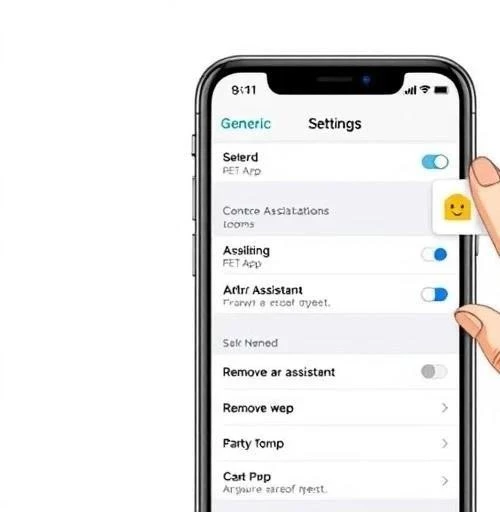
Huawei Assistant may appear as a news and service panel when you swipe right from the home screen. On some phones it is called Assistant∙TODAY or HUAWEI Assistant∙TODAY; other features, such as AI Voice or Celia, are separate tools. The exact names and options depend on your phone model, region, and version of EMUI or HarmonyOS.
In many cases, you cannot completely uninstall the built-in Assistant using the normal app screen. However, you can usually turn off its home-screen panel, disable selected features, or uninstall updates. Start with the first method below: it removes the part most people want to get rid of without affecting other phone functions.
Method 1: Turn off the Assistant panel on the home screen
- Go to the home screen and touch and hold an empty area. On some models, you can also pinch two fingers together on the screen.
- Open Home screen settings, Home screen style, or the settings icon that appears. The wording varies by software version.
- Look for Assistant∙TODAY, HUAWEI Assistant, Swipe right to access Assistant, or a similarly named option.
- Switch the option off, then return to the home screen and swipe right to check that the panel no longer appears.
If you cannot find the setting this way, open the main Settings app and use its search bar. Try searches such as “Assistant,” “Today,” or “home screen.” Settings menus differ, so searching is often quicker than following a menu path written for another Huawei model.
Method 2: Disable Assistant∙TODAY in Settings
Some versions provide a separate switch for the service. Open Settings and look under sections such as Home screen & wallpaper, Home screen, Apps, or Huawei Assistant. If you see Assistant∙TODAY, open it and turn off the available panel, content, or recommendation options.
You may also be able to hide individual cards rather than disable the entire page. Open the Assistant panel, tap its settings or profile icon, and review the options for news, search, suggestions, shortcuts, and personalized content. Turn off the items you do not want. This approach is useful if you still want quick access to a particular service but do not want a feed or recommendations.
Method 3: Disable the app or uninstall its updates
On some devices, Android allows a preinstalled app to be disabled. Go to Settings > Apps > Apps (or Apps > App management), find Assistant∙TODAY or HUAWEI Assistant∙TODAY, and open its app information page; If a Disable button is available, read the confirmation and tap it. You can usually return to this page and tap Enable if you change your mind.
If there is no Disable button, the app may be part of the system software. Check whether the app information page has a menu with Uninstall updates. This normally returns the built-in app to its original version; it does not necessarily remove the system component. Afterward, turn off the home-screen panel and automatic updates for that app if your phone offers those controls.
Some Huawei phones do not show Assistant∙TODAY as a separate app at all. It may be integrated into the launcher or system interface. In that case, use the home-screen switch or turn off its content and suggestions instead of trying to remove an app that is not listed.
Method 4: Change the default digital assistant
If the problem is that a button or gesture launches Huawei’s voice assistant, changing the home-screen panel will not necessarily fix it. Open Settings and search for Default apps, Digital assistant app, or Assist app. If your software provides this setting, select another available assistant or choose None.
To stop voice activation, open the relevant AI Voice or Celia settings and switch off options such as wake-word detection, voice wake-up, or activation with the power button. These controls may be under Settings > Huawei Assistant, Accessibility features, or the voice assistant app’s own settings. The labels and available choices vary. Disabling AI Voice or Celia is separate from hiding Assistant∙TODAY, so change only the feature you intend to stop.
Can you completely uninstall Huawei Assistant?
Sometimes, but not always. If the app information page offers Uninstall, you can use it like you would for another app. If it offers only Disable or Uninstall updates, the app is probably preinstalled as a system component. Huawei may require it for parts of the launcher or other system functions, and the normal interface may not permit full removal.
Do not assume that removing the Assistant panel means you have removed every Huawei service with “Assistant” in its name. Assistant∙TODAY is generally the swipe-accessed information page; AI Voice or Celia handles voice commands; other tools may provide search, tips, or contextual suggestions. Identify which feature opens and disable that particular feature. This avoids turning off something you still use.
Using ADB or other advanced removal methods
Instructions online sometimes recommend connecting a phone to a computer and using ADB commands to remove a system package for the current user. This can hide or disable a component more deeply, but it is not the best first step. Package names differ between models and software releases, and removing the wrong package can break the launcher, search, updates, or related services. A factory reset may not restore every change in the way you expect.
If you are experienced and still choose an ADB method, first identify the exact package on your own phone, make a full backup, and use instructions verified for that model and firmware. Do not run a command simply because it appears in a guide for a different Huawei device. Avoid root tools and unofficial “debloat” apps unless you understand the risks. For most users, turning off the panel or disabling the app through Settings is safer and easier to reverse.
If the Assistant keeps coming back
- Check the correct home-screen option. A launcher update or a change to the home-screen layout may restore the swipe panel. Search Settings again for “Assistant” or “Today.”
- Review app updates. An update can change the available switches or re-enable recommendations. Recheck the app’s settings after updating EMUI, HarmonyOS, or Huawei apps.
- Restart the phone. If you have changed a setting but still see the panel, restart once and test the swipe gesture again.
- Check another launcher. If you use a third-party launcher, its gestures and home-screen panels may have separate settings. Look in that launcher’s configuration rather than Huawei Assistant settings.
- Confirm what is opening. A voice screen, search page, or news feed can look like an Assistant feature but may be controlled by a different app or shortcut.
What changes when you turn it off?
Disabling the swipe panel usually affects only quick access to its cards, suggestions, and services. It should not delete your photos, contacts, or personal files. Disabling a broader system app may affect other features that rely on it, so review the warning shown by the phone before confirming. If a function stops working, return to Settings > Apps, open the app information page, and enable it again if that option is available.
Turning off personalized content or recommendations may change what appears in the Assistant feed without removing the feed itself. Similarly, switching off a voice wake word does not necessarily disable all voice-assistant functions: a button shortcut may still launch the assistant. Check the specific settings for each behavior you want to stop.
Quick summary
- To remove the swipe-left or swipe-right page, turn off Assistant∙TODAY in the home-screen settings.
- To stop its cards or recommendations, open the Assistant settings and disable the relevant content options.
- To disable the app, check Settings > Apps and use Disable if it is available.
- To stop voice activation, change the AI Voice or Celia wake-up and shortcut settings separately.
- If the app is built into the system, complete removal may not be supported. Avoid advanced removal commands unless you understand the consequences.
Bottom line: On most Huawei phones, the simplest solution is to disable the Assistant∙TODAY panel from the home-screen settings. Full removal depends on the model and software version; if Android does not offer an uninstall option, turning off the panel or disabling the app is the safer choice.


9 Comments. Оставить новый
The article is clear about the difference between disabling a feature and uninstalling a built-in app.
Starting with the home-screen settings is sensible, especially for people who only want to remove the swipe-right panel.
Using Settings search for terms like “Assistant” or “Today” is a useful tip when the menu names do not match.
The distinction between the home-screen panel and other Huawei tools is helpful. It clears up a common source of confusion.
I like that it offers several possible settings locations instead of assuming every Huawei phone has the same menus.
Helpful overview for anyone trying to hide Assistant∙TODAY while keeping other phone functions available.
The steps are straightforward, and checking the home screen afterward is a simple way to confirm the change worked.
I appreciate that the instructions explain how to turn off the panel without suggesting that other phone features will be affected.
The note about differences between models and software versions makes the advice feel realistic and easy to follow.