
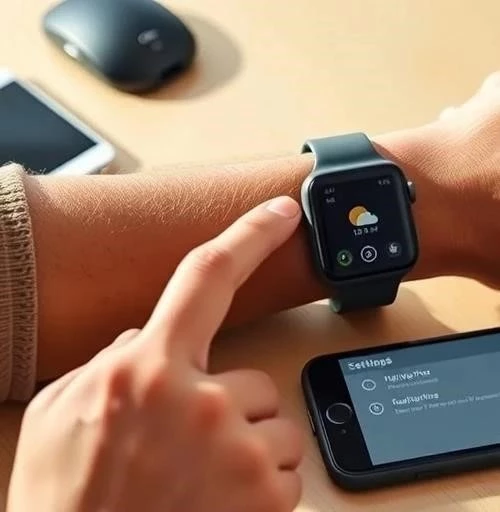
The Watch 8 Ultra name is used for several smartwatch models, and their menus and companion apps may differ․ Weather is usually supplied by the phone app and synced to the watch, rather than downloaded directly by the watch․ Follow the steps below, and check your manual or app if a menu has a different name․
Connect the watch to your phone
- Charge the watch, turn on Bluetooth on your phone, and install the companion app specified in the watch’s manual or QR code․
- Open the app and pair the watch from inside it․ Accept the requested Bluetooth and notification permissions․ Pairing only through the phone’s Bluetooth settings may not complete app setup․
Enable weather and location
In the companion app, open the device page or settings and look for Weather, Widgets, or App settings․ Turn on weather synchronization․ Allow the app to access your phone’s location; choose precise location if available․ For automatic local forecasts, set location access to “While using the app” or “Always,” depending on your phone and app․ Also enable location services on the phone․
If the app offers a city list or manual location, select your city and verify the displayed place․ Some apps update weather only when opened, so launch the app once and keep the phone connected to the internet․ Allow background activity and disable battery restrictions for the companion app if updates stop when it is closed․
Sync and show the forecast
Keep the watch near the phone, open the companion app, and wait for synchronization to finish․ On the watch, swipe through the widgets or open the weather tile․ To put weather on the watch face, press and hold the face, choose Edit or Customize, then select a weather complication if one is offered․ Some faces do not support complications; try another face․
Choose units and troubleshoot
Look in the app’s weather settings for Celsius or Fahrenheit․ If there is no unit option, check the phone’s regional or temperature settings․ If the forecast is blank or outdated, check internet access, location permissions, the selected city, Bluetooth, and app synchronization․ Restart the app and watch, then sync again․ Keep the phone app installed and connected for reliable updates․

3 Comments. Оставить новый
This guide clearly explains that weather syncing depends on the companion app and phone settings. The troubleshooting tips are especially useful.
A practical overview for a device with potentially different menus across models. I appreciate the reminder to check the watch’s manual and app.
The step-by-step structure makes the setup process easy to follow, and the advice about background permissions could help resolve missing weather updates.