
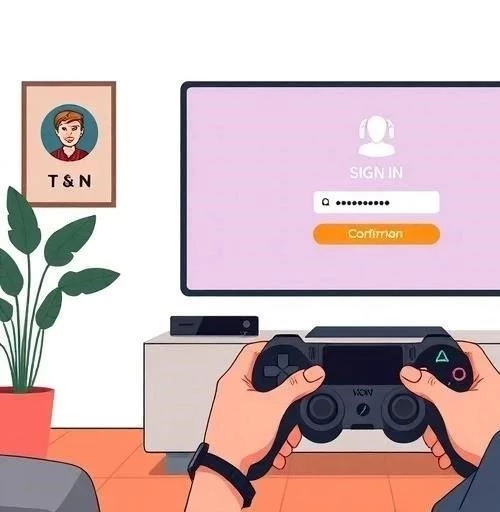
Your PlayStation Network account is the small key that opens a surprisingly large world: online multiplayer‚ digital games‚ cloud saves‚ trophies‚ friends‚ and the PlayStation Store. Signing in should feel like opening a door‚ not solving a mystery. This guide walks you through the process on a PS5‚ PS4‚ phone‚ or computer‚ then helps you recover access if the key seems to have gone missing.
A quick safety note: menus and sign-in options can change over time‚ and some features vary by country or device. Use PlayStation’s official website‚ console menus‚ or PlayStation App for account actions. Never share your password‚ verification code‚ or recovery codes with someone who contacts you unexpectedly.
Before You Begin: Know Which Details You Need
To sign in‚ you normally need your sign-in ID—the email address registered to your PlayStation account—and your password. Your PlayStation Online ID‚ the public name friends see in games‚ is not usually a substitute for that email address. If you have more than one email account‚ take a moment to identify the one connected to PlayStation before attempting repeated logins.
- Email address: Your account’s sign-in ID. Check spelling‚ dots‚ and the domain after the @ symbol.
- Password: The current password for your PlayStation account‚ not necessarily the password for your email account.
- Verification method: If two-step verification is enabled‚ you may also need a code from an authenticator app‚ a text message‚ or a passkey‚ depending on the options set up for your account.
- Internet connection: Your console or device must be online to complete many account and network functions.
If you are setting up a new console‚ you can create a PlayStation account during setup or sign in with an existing one. Creating a second account by accident can split your purchases‚ trophies‚ friends‚ and subscriptions between two profiles. If you already own games digitally‚ use the account that bought them.
Sign In on a PS5
- Turn on the PS5 and choose the user profile you want to connect to PlayStation Network.
- Open Settings from the gear-shaped icon on the home screen.
- Choose Users and Accounts‚ then open the Account section.
- Select Sign In and enter your sign-in ID and password‚ or follow the on-screen instructions for another available sign-in method.
- If prompted‚ complete two-step verification. Enter the code only on the PlayStation sign-in screen you opened yourself.
- Wait for the console to confirm the account is connected. You can then visit the PlayStation Store‚ check your friends list‚ or try an online feature.
The exact wording or location of a menu may differ after a system update. If you do not see the route above‚ look under Users and Accounts for account or sign-in settings‚ or use the console’s search or help prompts where available. A profile on the console and a PlayStation Network account are related but not identical: a local user can exist before it is linked to an online account.
Sign In on a PS4
- Start the PS4 and select the user profile you want to use.
- From the home screen‚ open Settings.
- Choose Account Management‚ then select Sign In to PlayStation Network.
- Enter the account’s email address and password. Follow any additional verification prompts.
- Once signed in‚ confirm that the account name appears correctly and try opening an online service.
If you are using a console that belongs to someone else‚ do not save your password or leave your account signed in unless you trust the owner and understand who can use the device. When you finish‚ sign out through the account settings. On a shared console‚ downloaded games and saved data may be affected by which account is active and by that console’s sharing or primary-console settings.
Sign In on a Phone or Computer
Using a web browser
Open PlayStation’s official website by typing its address yourself or using a trusted bookmark‚ then choose the sign-in option. Enter your sign-in ID and password and complete any security check. On a public or shared computer‚ avoid saving your credentials‚ do not tick “remember me‚” and sign out before closing the browser. Close the page afterward‚ especially if other people use the device.
Using the PlayStation App
Install the official PlayStation App from your device’s Apple or Google app store. Open it‚ choose the sign-in option‚ and enter your PlayStation account details. The app may offer a QR-code or other linked sign-in flow for a console; if you use one‚ scan only a code displayed on your own PlayStation and follow the instructions inside the official app. Never scan a login code sent by a stranger or displayed on an unfamiliar website.
Using a passkey
If passkeys are available for your account and device‚ you may be able to sign in with a fingerprint‚ face scan‚ device PIN‚ or another screen-lock method instead of typing a password. A passkey is tied to a trusted device or password manager. Set one up only through official account security settings‚ and make sure you can still access the device or account where it is stored. If the prompt does not appear‚ choose another offered sign-in method rather than repeatedly tapping an unrelated notification.
Two-Step Verification: The Second Lock on the Door
Two-step verification (2SV) adds a second check after your password. It helps protect the account if someone learns your password‚ because they may still need a temporary code or another approved verification method. Depending on your settings‚ the code may arrive by text message or come from an authenticator app. Enter it only into the sign-in flow you started.
If you receive an unexpected verification message‚ do not approve it or share its code. It may mean someone is trying to access your account. Change your password through the official PlayStation account website‚ review security settings‚ and check for unfamiliar devices or account changes. If you cannot safely sign in‚ contact official PlayStation Support through its published support channels.
Lost your phone or verification device?
When you enable 2SV‚ save the recovery codes somewhere secure and separate from the device that generates your everyday codes. If you still have a valid recovery code‚ use it when the sign-in screen offers that option; each code is generally intended for one-time use. Do not post recovery codes in a chat‚ send them to a supposed support agent‚ or store them in a public note. If you have lost both your device and access to your recovery method‚ you may need help from PlayStation Support to verify ownership.
Forgot Your Password? Reset It Safely
- On the PlayStation sign-in screen or official PlayStation website‚ select the option such as Trouble signing in? or Reset password.
- Enter the email address associated with your account and submit the request.
- Check that email inbox‚ including spam‚ junk‚ promotions‚ or filtered folders‚ for a password-reset message.
- Use the link promptly and create a new‚ unique password that you do not reuse on other websites.
- Return to your console or app and sign in with the new password. Complete any verification steps.
If no message arrives‚ first check the spelling of the email address and search every inbox you may have used. Make sure you requested the reset from an official PlayStation page. Do not repeatedly submit forms on sites that merely imitate PlayStation. If you no longer have access to the registered email‚ or the reset link does not work‚ use official support rather than trying to bypass account security.
“I Don’t Know Which Email I Used”
Look through older messages for PlayStation receipts‚ account notifications‚ or security emails. Search likely inboxes for “PlayStation‚” “Sony‚” or a purchase confirmation. Check saved passwords in your own browser or password manager‚ but do not expose them on a shared device. If you find a likely email‚ use the official password-reset process to confirm whether it is connected to an account.
If you have several accounts in your household‚ check which one owns the game or subscription you are trying to use. Purchases and account details usually belong to the account that made them; signing into a different family member’s profile will not magically move them. For a child account‚ the family manager may need to help with settings or recovery. Follow PlayStation’s official family-account guidance‚ and do not claim a different age or identity to get around restrictions.
Common Sign-In Problems and What to Try
The password or email is rejected
- Check for typing errors‚ extra spaces‚ a switched keyboard layout‚ or Caps Lock.
- Make sure you are using the account email‚ not your Online ID or a console profile name.
- If the password may be wrong‚ reset it once through the official recovery flow rather than guessing repeatedly.
- If you recently changed your password‚ update it on other devices where you use the account.
The verification code does not work
- Confirm that you are using the newest code. Time-based authenticator codes expire quickly.
- Check that your phone’s date and time are set automatically if your authenticator code is out of sync.
- For text messages‚ check mobile reception‚ blocked messages‚ and whether you still use the phone number on the account.
- If you cannot access the method‚ use a saved recovery code or contact official support.
The console says you cannot connect
First check whether the console is online: open another network-enabled service or run the console’s connection test. Restart the console and your router‚ then try again. If other internet services work but PlayStation Network does not‚ check the official PlayStation Network service-status page for an outage or maintenance. A service interruption is not proof that your password is wrong‚ so avoid changing it repeatedly while status is being restored.
If the problem continues‚ install available system software updates‚ confirm that your date and time are correct‚ and review your network settings. A restrictive firewall‚ unstable Wi-Fi‚ captive hotel or school network‚ or parental-control setting may prevent sign-in. On a managed network‚ ask its administrator for help instead of trying to defeat its restrictions. If you use a VPN or custom DNS‚ temporarily testing a standard connection may help identify the cause‚ but change settings only if you understand how to restore them.
The account appears locked or suspended
Read the on-screen message carefully. A temporary security lock‚ a suspension‚ and a connection error are different problems and require different solutions. Check the email associated with the account for an official notice‚ but be cautious: scammers can imitate notices. Do not pay someone who promises to “unlock” an account or asks for your password. Use PlayStation Support to understand the status and any available appeal or recovery process.
Protect Your Account After You Sign In
- Use a unique password. A long password or passphrase that you do not use elsewhere is harder to guess and limits damage if another site is breached.
- Turn on two-step verification or a supported passkey. Keep recovery options current and store backup codes securely.
- Protect your email account too. Whoever controls the registered inbox may be able to request account changes. Use a strong‚ separate password and security verification there as well.
- Review account details. Check that the email‚ phone number‚ and security settings are yours. Remove anything unfamiliar using official settings.
- Be wary of urgency. Messages promising free currency‚ exclusive items‚ or immediate account suspension may be phishing attempts. Do not sign in through links in unexpected messages.
- Never share codes. A genuine support representative should not need you to reveal your password or a one-time sign-in code in a chat or phone call.
If you think someone has entered your account‚ change the password from a trusted device‚ secure the linked email account‚ review sign-in and security settings‚ and contact official support. If the account remains accessible‚ sign out of devices you do not recognize where that option is available. Also review recent purchases and payment methods. Contact your bank or payment provider if you find unauthorized charges‚ while avoiding chargebacks for purchases you actually made until you understand the consequences for account access.
Signing Out and Using a Shared Console
When you borrow a console or use a public computer‚ sign out when finished. On a PlayStation console‚ look in the account or user settings for the sign-out control; the wording can vary by system software. Do not simply leave a browser page open or assume that turning off the screen ends your session. If you cannot sign out of a device you no longer have‚ use official account-security options to review or manage devices and ask PlayStation Support for advice.
A family console can have several local profiles‚ each linked to a different account. Choose your own profile before launching a game or checking purchases. This prevents confusion between save files‚ trophies‚ friends‚ and subscriptions. Avoid adding your account to a device you do not trust just to try a game or claim an offer.
A Calm‚ Quick Sign-In Checklist
- Open the PlayStation sign-in screen on your own console‚ app‚ or the official website.
- Enter the email address registered to the account and its current password—or use an available passkey.
- Complete two-step verification without sharing the code.
- If access fails‚ identify the exact message before changing settings.
- Use password recovery or official support if necessary; never use a third-party “account recovery” service.
That is the whole journey: choose the right account‚ use a trusted sign-in screen‚ pass the security check‚ and let the console reconnect you with your games and people. If the door stays closed‚ pause before trying random fixes. A careful reset‚ a network check‚ or help from official PlayStation Support is safer—and usually faster—than handing your account details to anyone offering a shortcut.


7 Comments. Оставить новый
The reminder about accidentally creating a second account is the quiet star here. Digital purchases and trophies deserve to stay under one roof.
A refreshingly calm guide in a world where a forgotten password can feel like a boss battle. The official-channel warning is especially valuable.
I appreciate the small details—checking the email domain, knowing which password belongs where, and remembering that menus can change. Useful without being fussy.
I like the “small key” image—it makes account security feel less like paperwork and more like protecting the entrance to your digital home.
This turns sign-in into a tidy checklist instead of a guessing game. The safety note reads like a friend gently reminding you not to hand a stranger your house key.
The distinction between a sign-in email and an Online ID is wonderfully practical. Those two names have probably sent many players wandering down the wrong corridor.
Clear, grounded advice with a helpful human touch. I especially like the idea that the right account keeps your games, friends, and memories from scattering across profiles.