
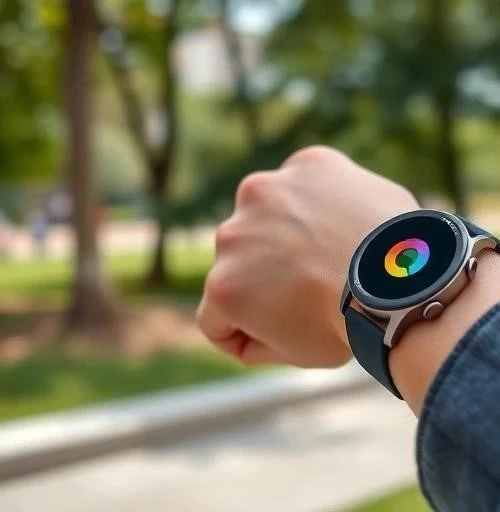
Apple Watch can play music through Bluetooth headphones or speakers, stream songs over Wi-Fi or cellular on supported models, and store audio for offline listening. You can use Apple Music, the Music app, or compatible third-party services. For private listening, pair Bluetooth headphones first: open Settings > Bluetooth on the watch, put your headphones in pairing mode, and select them. AirPods usually connect automatically when they are already paired with your iPhone.
Play music from your iPhone
This is the simplest option and does not require downloading songs to the watch. Keep your iPhone nearby, open the Music app on the watch, and choose On iPhone. Browse your library, playlists, or recommendations, then tap a track or album. You can also start playback on the iPhone and use the watch’s Now Playing screen to pause, skip tracks, adjust volume, or choose an output device.
Sync music for listening offline
- On your iPhone, open the Watch app and tap My Watch > Music.
- Choose Add Music, then select albums or playlists. With an Apple Music subscription, you can add eligible music from your library; purchased or otherwise available tracks may also be synced.
- Place the watch on its charger and keep it near the iPhone while the music transfers. Syncing may take time, and the watch needs enough free storage.
- On the watch, open Music > Library and select the downloaded content. Connect headphones to hear it.
For a workout, you can also choose a playlist in the Watch app under Workout > Workout Playlist, if that option is available for your setup.
Stream directly from the watch
On supported models, connect to Wi-Fi or use an active cellular plan to stream without carrying your iPhone. Open the Music app, browse or search, and play a selection. Streaming availability depends on your network, subscription, region, and service. Cellular use can consume data and battery, so download music beforehand if you expect weak coverage or want to reduce data use.
Use another music service
Services such as Spotify may offer an Apple Watch app, but features differ by provider, subscription, and watchOS version. Install the service’s iPhone app, add its watch app if needed, sign in, and follow its instructions for playback or downloads. Offline listening may require a paid plan and compatible headphones; check the service’s current requirements.
Useful tips and troubleshooting
- No sound? Check that headphones are connected and selected as the audio output, and raise the volume.
- Music will not download? Charge the watch, keep it near the iPhone, check available storage, and allow syncing to finish.
- Playback stops outdoors? Use downloaded tracks or check Wi-Fi/cellular coverage and your service’s access.
Downloaded music is the most reliable choice when you leave your phone behind. Streaming is convenient when you have a connection, while the iPhone option is best when you want access to its library without filling watch storage.


3 Comments. Оставить новый
A straightforward overview for anyone who wants music during a workout or while away from their phone. The reminders about storage, network access, and battery use make the advice more useful.
This is a clear, practical guide to the main ways to listen to music on an Apple Watch. The distinction between playing from an iPhone, syncing songs, and streaming directly from the watch is especially helpful.
I appreciate the useful setup details, especially pairing Bluetooth headphones and keeping the watch on its charger during a music sync. It would also be helpful to include a note that menu names and available features can vary by watchOS version.