
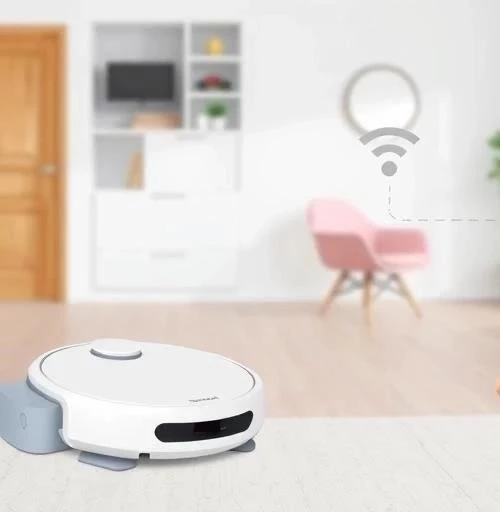
Connecting a Xiaomi Mijia LDS vacuum to the Xiaomi Home app lets you start or stop cleaning remotely, create schedules, view the map and manage room-specific settings. The exact button names and pairing prompts can vary between models and app versions, but the process is broadly the same. Most connection failures come down to Wi-Fi band, app region or pairing mode, so check these before repeating setup.
Prepare the vacuum, phone and network
- Charge the robot. Put it on its dock, with the dock connected to power. Keep the robot close to the router during setup; you can move the dock to its final position afterward.
- Install the app. Download Xiaomi Home (sometimes called Mi Home) from your phone’s official app store. Sign in or create a Xiaomi account.
- Check the Wi-Fi band. Many Mijia LDS models connect only to 2.4 GHz Wi-Fi, not 5 GHz. If your router combines both bands under one network name, temporarily separate them or disable 5 GHz while pairing, if your router allows it. Connect your phone to the 2.4 GHz network.
- Check the password and signal. Make sure you know the correct Wi-Fi password and that the router has a stable signal where the dock is located. A guest network, captive-portal network or enterprise login may not work.
These checks matter because the robot must join the home network during setup; a phone connected to a different band or network can interrupt the hand-off. Do not reset the router or change its security settings unnecessarily. If you do need to adjust them, use a supported home-network setting such as WPA2, and restore any temporary changes after pairing.
Add the vacuum in Xiaomi Home
- Open Xiaomi Home and allow the permissions it requests for device discovery. Depending on your phone, Bluetooth, location or local-network access may be needed during setup. You can review these permissions in the phone’s settings.
- Set the app’s region to the market where your vacuum was sold, then tap the plus sign or Add device. Search for “Mijia LDS,” “vacuum” or the model name on the robot’s label. If the app finds the robot automatically, select it and confirm that it is yours.
- Put the vacuum into Wi-Fi pairing mode. On many models, pressing and holding the two front buttons—often Power and Home—until a voice prompt or flashing Wi-Fi indicator appears resets the network connection. Button combinations differ, so check the manual for your exact model. A Wi-Fi reset usually clears network details, not the saved cleaning map.
- In the app, select your 2.4 GHz home network and enter its password carefully. Follow the on-screen instructions. The app may ask you to connect temporarily to the vacuum’s own Wi-Fi hotspot and then return to Xiaomi Home. Keep the app open and the phone near the robot until setup completes.
Region selection is especially important: some versions are listed only on the server for their intended market. If the vacuum does not appear, first check the model name and the app region that matches its origin rather than selecting random devices or repeatedly resetting it. Changing regions can affect which other Xiaomi devices appear in the app.
Confirm the connection and map the home
When the app reports success, give the vacuum a clear path from its dock and start a short cleaning run. Confirm that its status updates in the app and that it can return to the dock. Let it complete an initial mapping run with doors open and loose cables, toys and small objects cleared away. Keep the dock in a permanent position against a wall, with open space around it, so the robot can navigate back reliably.
Troubleshooting
- The device is not found: confirm that the robot is in pairing mode, restart the app, move the phone closer and check Bluetooth or local-network permissions.
- Setup stops at the Wi-Fi step: verify the password, use 2.4 GHz, improve the signal and temporarily turn off a VPN or mobile-data switching if it disrupts setup.
- The vacuum is missing from the device list: check the model label and region. Restart the robot and router before attempting another pairing reset.
- The connection drops later: check router coverage at the dock, confirm the network name or password has not changed, and update the app. If the robot was paired to another account, its previous owner may need to remove it first.
If these steps do not work, consult the manual for the exact model and the current Xiaomi Home instructions; Avoid factory-resetting the vacuum as a first response: a Wi-Fi reset is usually the less disruptive option, while a full reset may erase settings or maps.
3 Comments. Оставить новый
The article appropriately distinguishes between general setup guidance and details that can vary by model or app version. Its advice about permissions and less suitable networks could help readers avoid repeated failed attempts. Since the supplied text ends partway through the device-adding instructions, a complete version would need to include the remaining pairing steps and what to try if discovery fails.
This is a practical introduction for someone connecting a Mijia LDS vacuum for the first time. Keeping the robot near the router during setup and checking the network password are useful, straightforward suggestions. The explanation of why the phone and vacuum need compatible network access makes the troubleshooting advice more meaningful.
The guide is well organized and focuses on the checks most likely to prevent pairing problems, especially the 2.4 GHz requirement and matching the app region to the vacuum. I also appreciate the caution against changing router settings unnecessarily. Adding a note that menu labels may differ by app version would make the setup steps even easier to follow.