
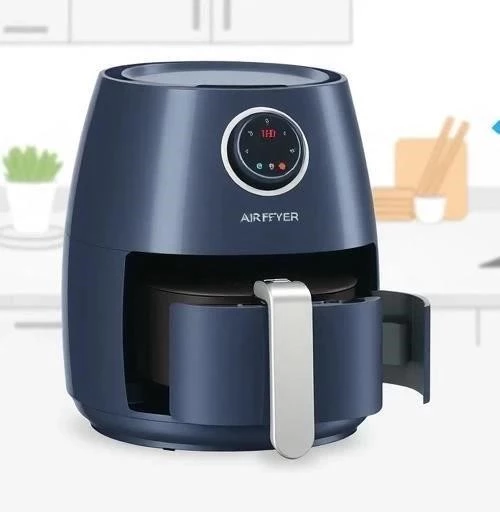
Give your air fryer a place on the home network and it becomes more than a countertop oven: it can report its status, receive settings from your phone and, on supported models, let you start a recipe from the Xiaomi Home app. The connection is usually straightforward, but model compatibility and the right Wi-Fi band matter. Follow this guide like a small kitchen expedition.
Before you begin
- Check that your model supports Wi-Fi. Look for a Wi-Fi symbol or smart-control instructions in its manual. Not every Xiaomi or Mijia air fryer has wireless features.
- Install or update Xiaomi Home (also called Mi Home) from your phone’s official app store, then sign in.
- Connect your phone to your home’s 2.4 GHz Wi-Fi. Many smart appliances do not pair with a 5 GHz-only network. If both bands share one network name, temporarily separate them or ask your router to provide a 2.4 GHz connection.
- Have the Wi-Fi password ready. Keep the fryer, phone and router reasonably close during setup.
Pair the fryer step by step
- Plug in the air fryer and switch it on. Leave it idle and cool while pairing; don’t run a cooking cycle.
- Open Xiaomi Home, sign in and select the correct country or region in the app’s profile settings. The region should match the one supported for your device. If the fryer does not appear, check the manual or product listing for its intended region.
- Tap + or Add device; Allow Bluetooth, nearby-device, location or local-network permissions if your phone requests them. These permissions help the app discover devices; exact prompts depend on your phone.
- Select the air fryer from the list, or search for its exact model name. Choose your 2.4 GHz network and enter its password carefully. A single mistyped character can send the pairing process on a detour.
- Follow the on-screen instructions. Some models enter pairing mode automatically; others require you to press and hold a Wi-Fi or control-panel button. The icon may blink while the fryer is waiting to connect. Use your model’s manual for the correct button and reset method.
- Wait for the app to finish adding the device, then give it a recognizable name, such as “Kitchen air fryer.” Test the connection by opening its control page and checking whether its status appears.
If the connection fails
First, check the simple things: confirm the password, move closer to the router, turn off a phone VPN temporarily, and make sure the phone is on 2.4 GHz. Restart the app, router and fryer, then try again. If setup stalled, remove an incomplete device entry from Xiaomi Home and repeat the pairing steps.
If the fryer was previously connected, it may need its Wi-Fi settings cleared before it can join a new network. Use the reset instructions for your exact model—button combinations differ, so don’t guess. Also check that the app and firmware are up to date and that the router’s security settings are compatible. Guest networks, captive-portal Wi-Fi and networks that block communication between devices can prevent setup.
After pairing
Keep the fryer within reliable Wi-Fi range, and check the app occasionally for updates. Smart functions vary by model: an app may offer recipes, remote monitoring or controls, but it may not allow every action. For safety, follow the appliance manual, supervise cooking as instructed and never leave a hot fryer unattended just because your phone can see it. Once the device appears online, your kitchen has gained a quiet new assistant—one that speaks in status icons and crispy results.

6 Comments. Оставить новый
This turns a vague tech chore into a tidy checklist, from permissions to password accuracy. I’d gladly follow it with one hand on my phone and the other guarding the last potato wedge.
A helpful guide that remembers not every air fryer is smart—and that checking the model comes before tapping every menu in sight. Practical advice with just enough personality to keep the router from becoming the villain.
The region-setting detail is the kind of quiet troubleshooting clue that saves an evening. Smart appliances may live in the kitchen, but their digital passports matter too.
I like how this treats setup as a little expedition rather than a button-mashing contest. The reminder about 2.4 GHz Wi-Fi is especially useful—it’s the tiny bridge between a stubborn fryer and a very pleased cook.
The best detail is the suggestion to keep the fryer idle and cool during pairing. It’s a small touch, but it makes the whole process feel safer and less like negotiating with a hot, impatient robot.
“A single mistyped character can send the pairing process on a detour” made me smile because it is painfully true. Clear, calm guidance for anyone whose dinner plans have met a blinking Wi-Fi icon.