
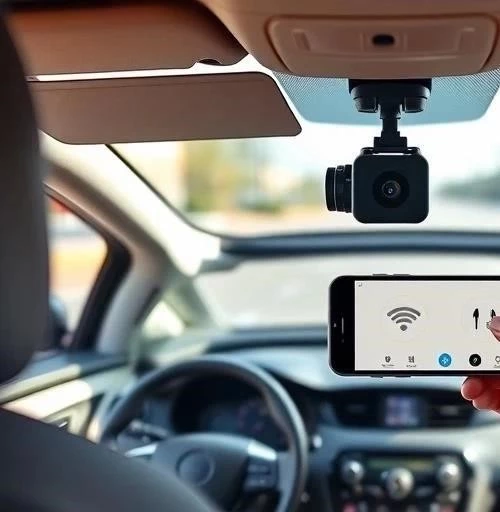
Connecting a Xiaomi dash cam to a phone lets you view the camera’s live feed, change settings, and transfer recordings without removing the memory card․ The exact process depends on the model: some Xiaomi devices use the Mi Home/Xiaomi Home app, while many cameras sold under the 70mai name use the separate 70mai app․ Check the camera label, manual, or product page before you begin; the apps and menus are not interchangeable․
Before you start
- Install the app specified for your exact dash-cam model from the official Apple App Store or Google Play Store․
- Charge your phone and make sure the camera is powered; In a car, use the supplied power cable and a suitable USB adapter․
- Turn on Bluetooth and Wi-Fi on your phone․ Allow the app to use any permissions it requests for setup, such as nearby devices, local network, or location․ Permission names vary by phone and operating system․
- Park safely before operating the camera or changing settings․ Do not handle your phone while driving․
Method 1: Add the camera in Mi Home/Xiaomi Home
- Open Mi Home or Xiaomi Home, sign in to your Xiaomi account, and select the correct country or region if prompted․ Some devices are available only in particular regions, so the region may need to match the one supported by the camera․
- Power on the dash cam and wait for it to finish starting․ If the camera has a screen, open its settings and look for an option such as Wi-Fi, Connect to app, or Pair device․ Follow the on-screen instructions․
- In the app, tap the + button or Add device․ Let the app search for nearby devices, or choose the camera’s category and model manually․ Select the matching device when it appears․
- Follow the prompts․ Depending on the model, the app may ask you to scan a QR code shown on the camera, scan a code in the manual, or connect to the camera’s Wi-Fi network․
- If asked to join a Wi-Fi network, open your phone’s Wi-Fi settings and choose the network name shown by the dash cam․ It may look like a model name or a short code․ Enter the password displayed on the camera or in its settings; do not assume the password is the same for every model․
- Return to the app and wait for pairing to complete․ Keep the phone close to the camera and leave the camera powered during setup․ When connected, the device should appear on the app’s home screen․
Method 2: Connect a 70mai camera
If the camera or its manual identifies it as a 70mai model, install the official 70mai app rather than assuming Mi Home will support it․ Create or sign in to an account if requested, tap Add device, and select the precise camera model․ Start the camera’s Wi-Fi or pairing mode, then follow the app’s instructions to join its network and confirm the connection․ The labels, pairing button, and default network details vary between models, so use the instructions supplied with your particular unit․
What happens to your phone’s internet?
Most dash cams create a direct Wi-Fi connection to the phone․ This is a local link for viewing or copying video, not necessarily an internet hotspot․ Your phone may warn that the camera network has no internet and may try to switch back to mobile data or another saved Wi-Fi network․ Choose the option to stay connected, if offered․ You may temporarily lose internet access through Wi-Fi while connected to the camera; this is normal․ After finishing, disconnect from the camera network and reconnect to your usual network․
View and download recordings
Open the camera in the app and look for Live view, Album, Files, or a similarly named section․ Select a recording and use the download or save button․ The app may ask for photo or file access so it can save clips to your phone․ Large or high-resolution videos can take time to transfer, so keep both devices powered and nearby․ Some cameras store footage on a microSD card and show only selected clips in the app; use the camera’s manual to learn how to access locked, emergency, or parking recordings․
If pairing does not work
- Check the app and model․ Confirm that you installed the app named in the manual and selected the exact camera model․ An incompatible app may not find the device․
- Restart the connection․ Close the app, turn the camera off and on, then enable its Wi-Fi or pairing mode again․ Toggle Wi-Fi and Bluetooth on the phone and retry․
- Join the camera network manually․ If automatic setup fails, open the phone’s Wi-Fi settings, select the network shown by the camera, enter its displayed password, then return to the app․ Some phones show “No internet”; stay connected to the camera․
- Review permissions․ Allow the permissions the app needs for discovery and local connection․ On some Android phones, location services must also be enabled for nearby Wi-Fi discovery, even if the camera itself does not use location․
- Forget an old connection․ If the phone saved a previous camera network or pairing, remove that entry and set up the connection again․ Also check that another phone is not already connected if the camera supports only one connection at a time․
- Update carefully․ Install app updates from the official store․ Update camera firmware only through the model’s supported procedure, with stable power; do not unplug the camera during an update․
If the camera still does not appear, reset its Wi-Fi or network settings using the instructions for that model, then repeat setup․ A factory reset can erase preferences, so use it only as a last resort․ If the camera’s Wi-Fi name is missing, check that Wi-Fi is enabled in the camera menu and that its power supply is stable․
Keep the connection secure
Use the camera’s own password where available, avoid sharing account credentials, and connect only to a network name confirmed on the camera or in its manual․ When you have finished viewing footage, disconnect the phone from the camera’s Wi-Fi․ For reliable results, follow the model-specific guide: Xiaomi and 70mai devices can have different pairing steps even when their menus look similar․


4 Comments. Оставить новый
The reminder to check the exact camera model is useful, especially since Xiaomi and 70mai devices may require different apps.
This is a helpful start for connecting a dash cam, with practical steps for finding the right app and beginning setup.
Clear setup advice. I appreciate the note about enabling the phone permissions that may be needed for pairing.
The safety reminder to park before handling the phone is important and easy to overlook.