
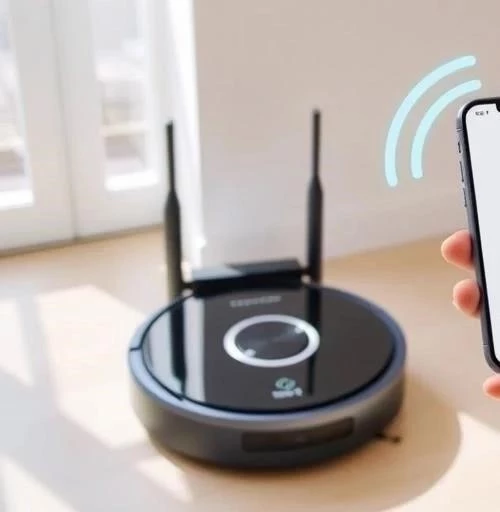
Connecting a Xiaomi robot vacuum to Wi-Fi lets you control it from the Xiaomi Home app, start or schedule cleaning remotely, and, on supported models, view maps and adjust room-specific settings. The setup is usually straightforward, but the exact buttons and app screens vary by model and region. Follow the steps below, and use your vacuum’s manual if its instructions differ.
Before you begin
- Check that your vacuum supports Wi-Fi. Many Xiaomi robot vacuums do, but not every Xiaomi-branded or Xiaomi-compatible appliance has wireless features. Confirm the model name on its label, packaging, or manual.
- Install the correct app. Download Xiaomi Home, also called Mi Home in some regions, from the official app store. Avoid unofficial downloads. If your model’s manual specifically names another app, follow the manual.
- Prepare your network. Most Xiaomi vacuums connect to a 2.4 GHz Wi-Fi network, not a 5 GHz-only network. Your phone should have internet access and be connected to the same home network you intend to use for the vacuum.
- Charge and switch on the vacuum. Place the robot near its dock, check that it has power, and keep it within range of the router during setup.
- Have your Wi-Fi password ready. Check spelling and capital letters. A connection may fail if the password is wrong, even when the network name appears correctly.
Step-by-step setup
- Sign in to Xiaomi Home. Open the app and log in or create an account. Allow the app to use Bluetooth, nearby-device discovery, and local-network permissions when prompted. Depending on your phone and app version, location permission may also be needed to find nearby devices during setup.
- Select your region. In the app’s profile or settings, choose the region where the vacuum is intended to be used. The device may not appear if the selected region does not match its market. If unsure, check the packaging or manual before changing regions.
- Add the vacuum. Tap the plus sign or Add device. You can select the exact model from the list or let the app search for nearby devices. If asked, scan the QR code on the vacuum or its documentation.
- Put the vacuum into pairing mode. Follow the on-screen directions for your model. Typically, this involves pressing and holding one or more buttons until a Wi-Fi indicator flashes or a voice prompt announces that network settings are being reset. Button combinations differ, so do not assume that a reset method for another Xiaomi model will work for yours.
- Choose your home Wi-Fi network. Select the 2.4 GHz network and enter its password. If the router shows one shared name for both frequency bands, automatic band steering may interfere with setup. If connection fails, temporarily give the 2.4 GHz band a separate network name or ask the router manufacturer or internet provider how to do this.
- Wait for pairing to finish. Keep the app open and the phone near the vacuum. The app may transfer network details using Bluetooth or a temporary device network. Follow its prompts rather than switching apps or manually disconnecting from a temporary network unless instructed.
- Name the device and test it. Once the app confirms connection, assign a room or a memorable name. Start a short cleaning task from the app to check that commands reach the vacuum. Keep it on the home network while the initial setup or map creation completes.
Common connection problems
The vacuum does not appear in the app
Confirm that the vacuum is powered on and in pairing mode, then move your phone closer to it; Turn Bluetooth on and grant Xiaomi Home the permissions requested by your operating system. Close and reopen the app, or restart the phone if discovery still fails. Check that you selected the right region and that the model is supported in the app version you installed. If the vacuum was previously connected to another account or router, reset its Wi-Fi settings using the model-specific instructions before trying again.
The app cannot connect to the Wi-Fi network
First, verify the password by connecting another device to the same network. Then make sure the router’s 2.4 GHz band is enabled. Some routers combine 2.4 GHz and 5 GHz under one network name; temporarily separating the bands can help identify whether band steering is the issue. If available, use a simple network name and password while testing, and avoid guest networks that block communication between connected devices. Do not disable router security permanently. If a setting needs changing, use a secure mode supported by both the router and the vacuum, as specified in the device documentation.
Pairing stops or times out
Move the vacuum and phone closer to the router, restart the router, and try again after the internet connection is stable. Temporarily disable a phone VPN or private network filter if it prevents local device discovery. Check that the router is not at its device limit and that it allows new devices to join. If the app offers a different pairing method, such as connecting through a temporary device hotspot, use the on-screen instructions. A crowded Wi-Fi channel or weak signal can also interrupt setup; testing near the router helps rule these out.
The device connects but goes offline later
Check whether the router changes network names, passwords, or security settings automatically. A vacuum cannot reconnect if its saved credentials no longer work. Improve signal coverage near the dock, and avoid placing the dock behind thick walls, inside a cabinet, or beside equipment that causes interference. Restarting both the router and vacuum can restore a temporary connection. If the app still shows the device offline, remove it from the app only after checking the manual, reset its Wi-Fi connection, and pair it again.
Important notes about routers, regions, and resets
Network compatibility is the most frequent source of setup trouble. A vacuum that supports 2.4 GHz Wi-Fi may not join a network configured for 5 GHz only, a captive-portal network that requires a web sign-in, or a workplace network with enterprise authentication. Home routers can also restrict new devices through access-control lists, MAC filtering, or guest-network isolation. If you do not manage the router, ask its administrator to check those settings rather than changing them blindly.
Region selection matters because Xiaomi Home’s device catalogue and cloud services can differ by market. Choose the region appropriate to the device, not simply the closest location on the map. Changing regions may affect access to existing smart-home devices, automations, or account data. If the model is absent, confirm its exact name and intended market before repeatedly switching settings.
A Wi-Fi reset is not necessarily a factory reset. On many models, resetting network settings only clears the saved wireless connection; a full factory reset may erase maps or other preferences. Use the reset procedure described for your exact model and read any app warning before confirming. Do not press buttons at random or reset the robot repeatedly while it is updating.
After the vacuum is connected
Keep Xiaomi Home installed and signed in if you want to use remote control, schedules, maps, or notifications. Some features require the robot to complete a first cleaning run, and available options differ between models. If you use voice assistants or smart-home automations, link them through the official app settings and review which account and region they use. For privacy, give account access only to people you trust and use a strong, unique account password.
Remember that Wi-Fi connection is different from Bluetooth pairing: Bluetooth may help with setup, while Wi-Fi generally provides the ongoing connection to the app. If your vacuum cleans normally but does not offer app control, check the model specifications before troubleshooting the router; the device may not support Wi-Fi at all.
Quick checklist
- The model supports Wi-Fi and is listed in Xiaomi Home.
- The app is installed, permissions are allowed, and the region is appropriate.
- The vacuum is powered on and in its model-specific pairing mode.
- The router has a working 2.4 GHz network and the password is correct.
- The phone, vacuum, and router are close enough for a stable setup.
- The app confirms the connection and a test command works.
In short: install Xiaomi Home, select the correct region, put the vacuum into pairing mode, and add it to a 2.4 GHz Wi-Fi network by following the app’s prompts. If setup fails, check the band, password, permissions, signal, and model-specific reset instructions in that order. This approach avoids unnecessary factory resets and usually reveals whether the issue is with the app, router, or vacuum.


8 Comments. Оставить новый
The advice to verify the model and consult its manual is particularly valuable, since Xiaomi-branded devices may have different requirements. I would find the continuation most useful if it also covered what to try when pairing fails.
This is an approachable introduction for someone setting up a robot vacuum for the first time. The orderly preparation steps make it easier to troubleshoot basic connection problems before adding the device.
The permissions section is a useful addition because device discovery can depend on phone settings. Explaining that permission requirements vary by phone and app version keeps the advice appropriately cautious.
It is helpful that the instructions acknowledge differences between models, regions, and app versions. That qualification makes the guidance more realistic than presenting one button sequence as universal.
The distinction between 2.4 GHz and 5 GHz Wi-Fi is important and clearly stated. Readers with a dual-band router will know to check that their network supports the band the vacuum requires.
The checklist before setup is useful because it addresses common causes of failure, especially using a 2.4 GHz network and confirming the vacuum model. Checking the manual before changing app regions is also sensible.
The article explains why the phone and vacuum need to be prepared before pairing. Having the password ready and keeping the robot near the router can prevent frustrating setup retries.
I appreciate the reminder to download Xiaomi Home from an official app store. That small detail helps readers avoid unofficial apps and makes the setup instructions safer to follow.