
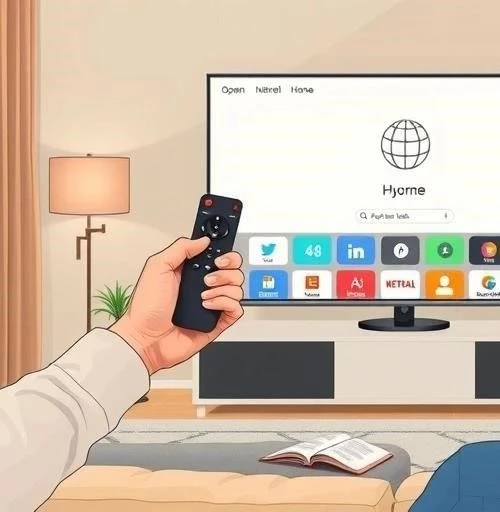
A Xiaomi TV can connect to the internet over Wi-Fi or, on models with a network port, by Ethernet cable. Once connected, you can use supported streaming apps, browse online content, and access other network features. Menu names vary by model and software version, but the general process is similar on Android TV and Google TV devices.
Before you begin
Check that your internet service and router are working. If possible, use a phone or computer to confirm that the Wi-Fi network has internet access. Keep the network name and password nearby. For a wired connection, prepare an Ethernet cable long enough to reach from the router to the TV. Make sure the TV is close enough to the router for a stable wireless signal, or use a cable for a more direct connection.
Connect using Wi-Fi
- Turn on the TV and press the Home button on the remote.
- Open Settings. Depending on the interface, this may be a gear icon on the home screen or in the upper-right corner.
- Choose Network & Internet, Network, or a similarly named option.
- Switch Wi-Fi on if it is disabled. Select your home network from the list.
- Enter the password carefully, observing capital letters and any symbols, then choose Connect.
Wait for the status to show that the TV is connected. Some models display a confirmation or network details. If your router offers both 2.4 GHz and 5 GHz networks, either may work; the best choice depends on signal strength, router settings, and the TV model. A 2.4 GHz signal may reach farther, while 5 GHz can be faster at a short distance.
Connect with an Ethernet cable
Plug one end of the cable into a LAN or Ethernet port on the router and the other into the corresponding port on the TV. Many Xiaomi TVs detect a wired connection automatically. Open the network settings to check the connection status. If the TV remains offline, confirm that the cable is firmly seated, try another router port or cable, and restart the router and TV.
Open online content
After connecting, return to the home screen and open an installed streaming app. If an app requests an account, sign in using the on-screen instructions. You can also open the app store to install available services. The selection of apps depends on the TV model, region, and operating system version.
To visit websites, look for a web browser in the installed apps or app store. Not every Xiaomi TV includes a browser by default, and some browsers may be awkward to use with a remote. If no suitable browser is available, use a supported casting feature to send a webpage from a phone or computer to the TV. The devices generally need to be on the same local network, and casting support varies by app and model.
If the TV will not connect
- Re-enter the Wi-Fi password and check that the correct network is selected.
- Restart the TV and router: unplug each from power briefly, then reconnect them.
- Move the TV or router to reduce distance and interference, or test Ethernet.
- In network settings, forget the saved network and connect again.
- Check whether the router limits new devices or requires a particular security setting.
- Install available system updates when the TV has a connection.
If other devices also cannot get online, the issue may be with the router or internet provider rather than the TV. If only the TV is affected, note any error message and consult the model’s manual or Xiaomi support. Avoid sharing your Wi-Fi password publicly, and use trusted apps and websites. After a successful connection, the TV should reconnect automatically whenever it is switched on and the network is available.



1 Comment. Оставить новый
The article provides clear, practical steps for connecting a Xiaomi TV to Wi-Fi or Ethernet and notes that menu labels can vary by model.