
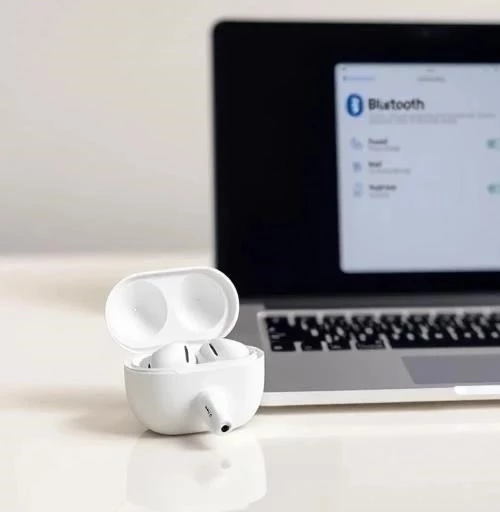
AirPods can connect to a Huawei laptop just like other Bluetooth headphones․ You do not need an Apple computer, an iPhone, or special software: a Huawei MateBook or another Windows laptop can pair with them through Windows Bluetooth settings; Once connected, you can listen to music, watch videos, and use the AirPods’ microphone for calls․ Some Apple-only features may not be available, but basic wireless audio usually works normally․
Before you start
- Charge your AirPods and put them in their charging case․
- Make sure the laptop has Bluetooth․ Most recent Huawei laptops include it․ If Bluetooth is missing from Windows settings, check the laptop specifications or Huawei support page․
- Keep the AirPods and laptop close to each other while pairing․
- If the AirPods are already connected to a nearby iPhone, iPad, or Mac, temporarily turn off Bluetooth on that device․ This can prevent the AirPods from switching away during setup․
Put the AirPods into pairing mode
Leave both earbuds in the case and open its lid․ The method for making the AirPods discoverable depends on the case model:
- Cases with a setup button: Press and hold the button on the back of the case until the status light flashes white․
- Some newer buttonless cases: Double-tap the front of the case, near the status light, until the light flashes white․ Follow the instructions for your particular AirPods model if the light does not respond․
A flashing white light indicates that the AirPods are ready to pair․ Keep the case open and near the laptop until the connection is complete․
Connect using Windows 11
- On the Huawei laptop, open Start > Settings > Bluetooth & devices․
- Turn Bluetooth on․ If there is no Bluetooth switch, see the troubleshooting section below․
- Select Add device, then choose Bluetooth․
- Wait for the AirPods to appear in the list․ Their name may be “AirPods,” “AirPods Pro,” or a custom name․ Select the correct device․
- Wait for Windows to confirm that the device is connected․ Select Done, if prompted․
After pairing, the AirPods should reconnect automatically when Bluetooth is enabled and you take them out of the case․ If they do not reconnect, open the Bluetooth devices page and select Connect․
Connect using Windows 10
- Open Start > Settings > Devices > Bluetooth & other devices․
- Turn Bluetooth on, choose Add Bluetooth or other device, and select Bluetooth․
- When your AirPods appear, select them and wait for Windows to finish pairing․
Select AirPods for sound and calls
Pairing does not always make the AirPods the active audio device automatically․ In Windows, select the speaker icon on the taskbar and choose the AirPods as the sound output․ You can also go to Settings > System > Sound and select them under Output․ For calls, choose the AirPods under Input as well, or select them in the audio settings of your meeting app․
Windows may show separate options for stereo playback and a headset or hands-free mode․ Stereo is generally best for music and video․ The hands-free mode uses the AirPods’ microphone, but its sound quality may be lower because Bluetooth shares bandwidth between the microphone and audio․ If you want better listening quality, use the laptop’s built-in microphone or a separate microphone while selecting the AirPods for output․
If the AirPods do not appear or connect
- Check pairing mode: Confirm the case light is flashing white․ Close the lid briefly, reopen it, and try the setup-button or front-of-case method again․
- Toggle Bluetooth: Turn Bluetooth off and back on in Windows, then search for devices again․ Restarting the laptop can also help․
- Disconnect other devices: Turn off Bluetooth on nearby devices that may be using the AirPods, and try pairing once more․
- Remove an old pairing: In Windows Bluetooth settings, select the AirPods, choose Remove device or Forget, then pair them again from the beginning․
- Check the Bluetooth adapter: Open Device Manager and look under Bluetooth․ If the adapter is disabled or has a warning icon, enable it or update its driver through Windows Update or Huawei’s official support tools․
- Charge and reset if needed: Charge the case and earbuds․ If pairing still fails, follow Apple’s instructions for resetting your AirPods model, then repeat the connection steps․
What to expect after connecting
AirPods work with a Huawei laptop as standard Bluetooth headphones, but not every Apple feature transfers to Windows․ Automatic switching between Apple devices, Siri, and some battery or spatial-audio controls may be limited or unavailable․ The connection is still useful for everyday listening and online meetings․ If sound cuts out, move closer to the laptop, reduce interference from other wireless devices, and make sure Windows is using the AirPods as the intended output․
Quick summary: Put the AirPods in pairing mode, open Bluetooth settings on the Huawei laptop, add a Bluetooth device, and select the AirPods․ Then choose them as the sound output—and, if needed, as the microphone—in Windows sound settings․


8 Comments. Оставить новый
This guide makes the pairing process easy to follow, especially the reminder to put the AirPods into pairing mode first.
The steps for finding AirPods in Windows Bluetooth settings are easy to understand. This should help first-time users.
Clear and practical instructions for Windows 11 users. The note that case pairing methods can vary by model is especially important.
A straightforward guide that avoids unnecessary technical language. The preparation checklist is a nice touch.
I like that the article sets realistic expectations about Apple-only features while explaining that basic audio and microphone use should work.
Useful advice for anyone mixing Apple accessories with a Windows laptop. Keeping the devices close during pairing is a good reminder.
The tip about temporarily turning off Bluetooth on nearby Apple devices is useful. That can save a lot of confusion during setup.
Helpful explanation. I appreciate that it clarifies you do not need an Apple device to use AirPods with a Huawei laptop.