
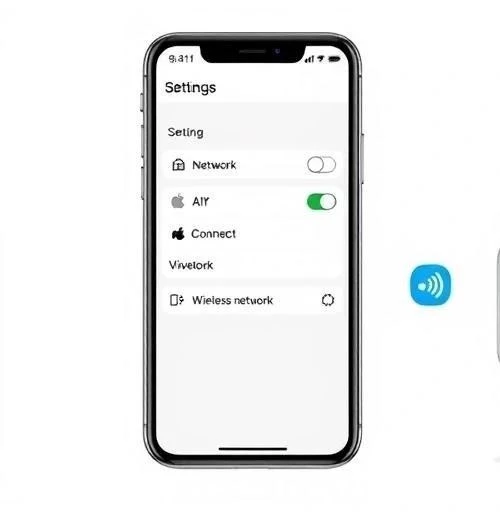
Connecting your Apple Watch to Wi-Fi helps it stay online when your paired iPhone is out of Bluetooth range. This can support messages, notifications, Siri and other internet features, although availability depends on the app, watchOS version and network. The simplest approach is to let the watch use a network your iPhone already knows; if that does not work, select the network directly on the watch.
Before you begin
- Check that Wi-Fi is enabled on your Apple Watch and that Airplane Mode is off.
- Make sure the network is working and that you know its password.
- Keep your watchOS and iPhone software reasonably up to date. A restart can also clear a temporary connection issue.
Apple Watch generally uses familiar Wi-Fi networks that the paired iPhone has joined, so you may not need to enter a password at all. When the iPhone is nearby, the watch may use its connection instead. To test Wi-Fi itself, move the watch out of Bluetooth range while staying within range of the router.
Join a network from the watch
- On the watch, open Settings.
- Tap Wi-Fi and wait for available networks to appear.
- Select your network. If prompted, enter the password using the on-screen keyboard or Scribble, then tap Join.
Enter the password carefully: capitalization and symbols matter. If your watch has a keyboard, you may also be able to type on the paired iPhone when a prompt appears. A network with a login webpage, such as hotel or public Wi-Fi, may not work because the watch cannot complete every captive-portal sign-in. In that case, use a different network or follow the venue’s instructions.
If the connection fails
First, confirm that another device can connect to the same Wi-Fi. Then check the password, move closer to the router, and toggle Wi-Fi off and on in the watch’s Settings. Restart both the watch and iPhone if needed. If the network was saved with an old password, open its details in the Wi-Fi list, choose Forget This Network if available, and join again with the current credentials.
Some workplace networks require special authentication or a configuration profile, so they may need help from an administrator. Also check whether the router’s security settings are compatible with your watch. Avoid changing router settings blindly: other household devices may rely on them. If ordinary home Wi-Fi still fails after these checks, update the devices and contact Apple Support or your network provider.
How to confirm it worked
When the watch is away from the iPhone, open Control Center and check its connection status; a Wi-Fi indicator or successful online request can confirm access. Remember, Wi-Fi does not replace every iPhone feature: calls, cellular service and app behavior vary by model, carrier and settings. In most cases, using a trusted network already saved on the iPhone is the easiest and most reliable option.

4 Comments. Оставить новый
I appreciate that the article explains the watch may already use a Wi-Fi network saved by the paired iPhone. The suggestion to move out of Bluetooth range while remaining near the router is a sensible way to check whether Wi-Fi is working independently.
This is a useful, well-organized explanation for a common Apple Watch connection issue. The distinction between using a familiar network automatically and selecting one on the watch helps readers understand why entering a password may not always be necessary.
The troubleshooting advice is straightforward and starts with sensible checks, such as confirming the network works on another device. It could be even more helpful with a note that some workplace or managed networks may have compatibility restrictions.
The guide gives a clear sequence for joining a network directly from the watch, and the reminder about capitalization in passwords is especially practical. Mentioning captive portals is useful too, since public Wi-Fi does not always work like a home network.