
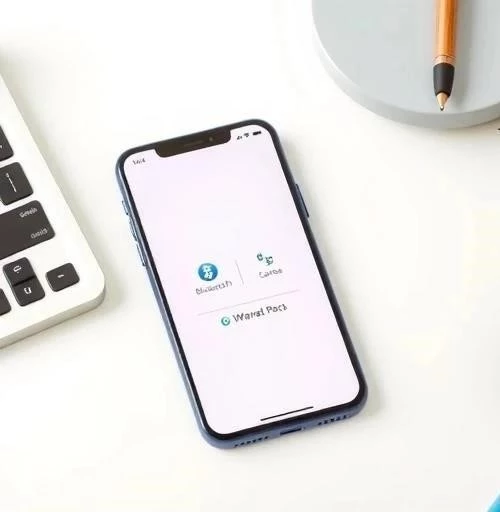
Connecting an X8 Pro smartwatch to an iPhone usually takes only a few minutes‚ but the exact companion app can vary between versions of the watch․ The most reliable approach is to check the QR code or app name shown in the watch’s menu or instruction leaflet‚ install that app‚ and pair the watch from inside it․ Pairing through the iPhone’s Bluetooth settings alone may connect only some features—or prevent the companion app from setting up correctly․
Before you start
- Charge the X8 Pro and turn it on․
- Keep the watch and iPhone close together․
- Turn on Bluetooth on the iPhone․ Allow the companion app to use Bluetooth and‚ if requested‚ notifications․
- Connect the iPhone to Wi-Fi or mobile data so you can download the app․
Find the correct companion app
On the watch‚ look in the menu for an option such as App‚ QR code‚ Connect phone‚ or Download app․ Scan the code with the iPhone camera and open the App Store link it provides․ If the code does not work‚ search the App Store for the app name printed in the watch’s manual or packaging․ X8 Pro devices are sold in different versions‚ so do not assume that an app recommended for another X8 Pro will work with yours․
Install the app from Apple’s App Store rather than from an unfamiliar website․ Open it and allow the requested permissions․ Bluetooth access is required for pairing; notifications‚ contacts‚ or location may be needed for particular features․ You can review or change permissions later in the iPhone’s Settings․
Pair the watch in the app
- Open the companion app and choose Add device‚ Bind device‚ or a similarly named option․
- If prompted‚ allow the app to search for nearby Bluetooth devices․
- Select the entry that matches the watch‚ such as X8 Pro or a device name shown on its screen․
- Confirm the pairing request on both the iPhone and the watch‚ if a confirmation appears․
- Wait for the app to show that the device is connected․ Keep the app open until the initial sync finishes․
Menu names differ between companion apps․ If the watch does not appear‚ check that it is switched on‚ nearby‚ and not already connected to another phone․ Some versions show a Bluetooth name that is different from the product name; use the app’s scan results and the watch’s own connection screen to identify it․
Set up notifications and calls
Once connected‚ open the device settings in the app and enable the alerts you want‚ such as calls‚ messages‚ and app notifications․ On the iPhone‚ go to Settings > Bluetooth‚ tap the information button beside the watch if available‚ and make sure Share System Notifications is enabled․ Also check Settings > Notifications and allow notifications for the apps you want to receive on your wrist․ Keep the companion app permitted to run in the background; force-closing it can interrupt syncing or alerts․
Some X8 Pro versions support Bluetooth calling through a second Bluetooth connection‚ separate from the connection used by the companion app․ If the manual or watch menu describes this feature‚ open the iPhone’s Bluetooth settings and connect to the additional device name shown by the watch․ This step is not required on every version․ If you hear calls on the watch but want them on the iPhone‚ select the iPhone as the audio destination during the call․
If the iPhone cannot find or connect to the watch
- Check the app: Confirm that you installed the app specified for your particular watch and granted it Bluetooth permission in Settings > Privacy & Security > Bluetooth․
- Remove an incomplete pairing: In the iPhone’s Bluetooth settings‚ tap the information button beside an old X8 Pro entry and choose Forget This Device․ Then restart the app and pair again from within it․
- Restart both devices: Turn Bluetooth off and on‚ restart the iPhone and watch‚ and try the app’s device search again․
- Disconnect another phone: A watch may stay linked to the last phone it used․ Unbind it in that phone’s app‚ or reset the watch if the old phone is unavailable․
- Check distance and battery: Keep the devices close and make sure the watch has enough charge․ Avoid trying to pair while it is switching off or restarting․
- Use a reset only as a last resort: A factory reset can erase watch settings and unsynced data․ After resetting‚ remove any stale Bluetooth entry from the iPhone and start the setup again․
How to confirm the connection
The companion app should display the X8 Pro as connected and may show its battery level‚ steps‚ or other health data․ Check that the watch’s time updates and‚ if enabled‚ send a test notification․ If basic syncing works but calls or alerts do not‚ review those feature-specific settings rather than repeating the whole setup․
In brief
Install the app identified by your X8 Pro’s QR code or manual‚ then add the watch from inside that app and approve the iPhone’s permission requests․ Use Bluetooth settings afterward only for optional functions such as a separate calling connection․ Because X8 Pro versions and companion apps can differ‚ the instructions supplied with your individual watch take priority over generic app names or steps․
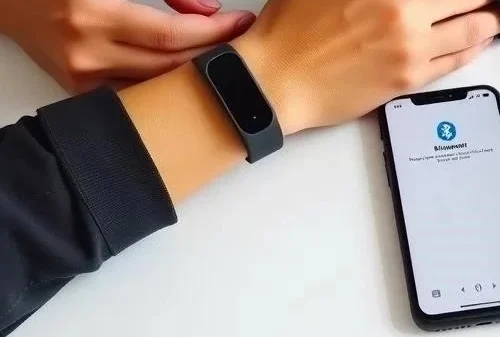
4 Comments. Оставить новый
I appreciate the note about permissions and installing the app from the App Store. Those details make the setup process feel safer and easier to follow.
Clear and practical instructions. Checking the watch’s QR code or manual first is good advice since different versions may use different apps.
The reminder to pair through the companion app is especially useful. It can save a lot of time when Bluetooth settings alone do not complete setup.
The step-by-step pairing guide is helpful, especially the tip to keep the app open until syncing finishes. It covers the basics without making the process seem complicated.