
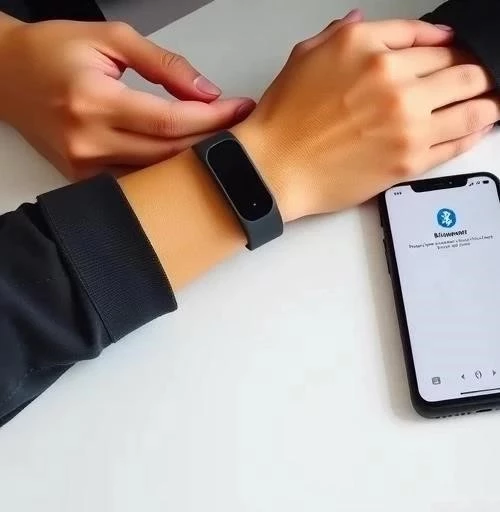
The Mi Smart Band 5 is a tiny companion with a surprisingly busy agenda: it can count steps, time workouts, buzz with notifications, and remind you to get up when your chair has started to feel like home. Before it can do any of that, though, it needs to meet your phone. This guide walks you through the first setup, then helps you tune the band so it feels useful rather than bossy.
Before the first buzz: charge and prepare
- Charge the band. Remove the capsule from its strap and attach the magnetic charging cable to its two contact points. Connect the cable to a USB power source. Wait until the display shows that it is charging; a very low battery may need a little time before the band wakes up.
- Check your phone. Turn on Bluetooth and make sure your phone has an internet connection. Keep the band close to it during pairing. You generally do not need to pair the band from the phone’s Bluetooth settings first.
- Install the companion app. The Mi Band 5 is commonly paired through Zepp Life, the app previously known as Mi Fit. Depending on your country, phone, and current app support, Xiaomi’s Mi Fitness may also offer a compatible route. Check the app’s current device list and use one companion app for the initial pairing.
- Allow the essentials. The app may request Bluetooth or nearby-device access, notifications, and permission to run in the background. These permissions help pairing, alerts, and syncing work. Grant only what you want to use, and review the options later in your phone’s settings.
Pairing: introduce the band to your phone
Open the companion app and sign in or create an account if prompted. Find the option to add a device, choose Band, and select Mi Smart Band 5 if it appears. Follow the instructions on both screens. When the band displays a pairing prompt, tap its touch key to confirm. The app may download firmware or sync settings; keep the devices close and avoid closing the app until the process finishes.
If the app cannot find the band, check that it is charged, awake, and not already connected to another phone or account. If it was previously used, unpair it from the old companion app or reset it from the band’s settings, if accessible. Then restart Bluetooth, reopen the app, and try again. Avoid repeatedly tapping “pair” in the phone’s Bluetooth menu: the companion app should manage the connection.
Make the screen feel like yours
Once connected, open the band settings in the app. The exact menu names can vary by app version, but the usual controls are easy to find. Start with the display:
- Watch face: Choose a built-in face or browse the app’s face gallery. A simple face can make the time easier to read; a more decorative one gives your wrist a miniature poster.
- Brightness: Raise it for bright daylight and lower it indoors or at night. Lower brightness can also help conserve battery.
- Screen timeout: Set how long the display stays awake after you raise your wrist or touch the screen. A shorter interval is usually kinder to battery life.
- Raise-to-wake: Enable this if you want the display to light when you turn your wrist. If it wakes at every theatrical hand gesture, adjust its schedule or sensitivity, or switch it off.
- Band shortcuts and widgets: Arrange the functions you use most—such as weather, heart rate, or workout modes—near the top of the menus, where they are easier to reach.
The Mi Band 5 is controlled by its touchscreen and touch key rather than a row of physical buttons. Swipe through screens, tap to open a feature, and use the touch key or on-screen prompts to go back, depending on the menu. A few minutes of exploring is often faster than memorizing every gesture.
Choose what deserves a vibration
In the companion app, open the notification settings and select which phone apps may send alerts to the band. Calls, messages, calendar reminders, and a handful of important apps make a practical starting set. If you enable everything, the band can become a very small, very persistent office manager.
- Allow notification access on the phone if Android asks for it.
- On iPhone, check Bluetooth and notification permissions, and make sure the relevant app alerts are enabled in iOS settings.
- For missed alerts, check that the companion app is allowed to run in the background. Some phones restrict background activity to save power.
- Use Do Not Disturb or scheduled quiet hours when you want the band to stop buzzing, such as during sleep or a meeting.
Notification controls do not make every app behave identically. The band may show a short preview rather than a full conversation, and the available actions depend on the phone, app, and software version. Treat it as a glanceable alert, not a replacement for your phone.
Health and movement: set sensible expectations
In the app, enter your profile details and choose the activity goals that feel achievable. You can configure step goals, inactivity reminders, and heart-rate monitoring options. The band can also track sleep and workouts, but these readings are estimates intended for general wellness—not medical measurements. Wear it comfortably, with the sensor resting against your skin without painfully tightening the strap.
For a workout, open the activity list on the band and choose the closest mode before you begin. The Mi Band 5 does not have built-in GPS. Outdoor distance and route features may therefore depend on a GPS-connected phone and the companion app’s permissions. Bring your phone if you want those functions and check that location access is available.
Heart-rate checks, sleep tracking, frequent notifications, bright displays, and long workouts can all affect battery life. If the band needs charging sooner than expected, reduce the monitoring frequency, limit app alerts, lower brightness, or disable features you rarely use. Battery performance varies with settings and use, so there is no single perfect schedule for everyone.
Water, comfort, and everyday care
The Mi Band 5 is designed to tolerate ordinary water exposure, but water resistance is not a promise that every water adventure is harmless. Avoid hot showers, saunas, strong jets, and harsh chemicals; heat and pressure can be harder on seals than a quick splash. Dry the band and your skin after swimming or washing, and follow Xiaomi’s care guidance for your particular unit.
Clean the sensor and charging contacts gently with a soft, dry cloth. If charging is unreliable, check that the capsule is seated correctly in its charger and that the contacts are clean. Do not force the magnetic connector into place. Let the band dry completely before charging if it has become wet.
When setup gets stuck
- Pairing fails: Charge the band, keep it beside the phone, enable Bluetooth, and retry from the companion app. Restarting the phone and band can clear a temporary connection problem.
- The band is bound to another account: Ask the previous owner to remove it from their app or account. A factory reset may clear local data, but it may not remove every account binding.
- Notifications disappear: Recheck app permissions, notification access, background operation, and Do Not Disturb settings on both devices.
- Data does not sync: Open the companion app with Bluetooth on and allow a little time for synchronization. Check the internet connection if the app is uploading data to your account.
- The screen seems frozen: Connect the charger, wait briefly, and try again. If the band responds, restart or reset it using its settings. A factory reset erases data stored on the band, so sync first if possible.
A five-minute finishing ritual
- Choose a readable watch face and comfortable brightness.
- Enable only the notifications you genuinely want on your wrist.
- Set your activity goal and decide whether inactivity reminders are helpful.
- Check that the time and date have synchronized from your phone.
- Wear the band for a day, then adjust one or two settings instead of changing everything at once.
That is the secret to a good setup: let the Mi Band 5 be a quiet assistant, not a tiny supervisor. Pair it through its companion app, give it the permissions needed for the features you choose, and tune the display and alerts to your own rhythm. Once the settings fit your life, the band can do its best trick—put useful information within a glance, then politely disappear until you need it.

1 Comment. Оставить новый
A good setup guide should make technology feel less like a tiny bureaucrat and more like a helpful sidekick. This one does that well: clear steps, sensible permission advice, and a useful reminder that app support can vary by region. I especially like the emphasis on keeping the band nearby while it pairs—a small detail that can save a surprising amount of Bluetooth-themed frustration.