
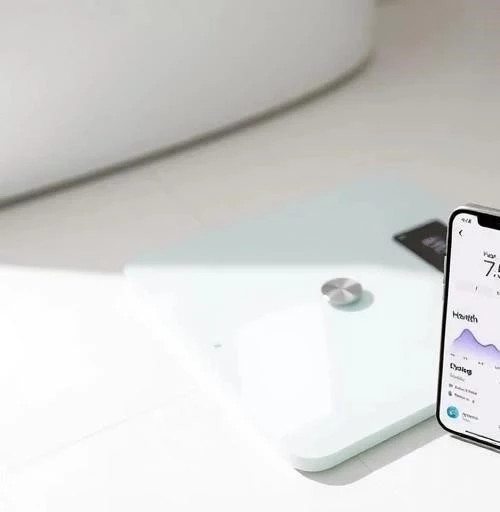
The Xiaomi Mi Body Composition Scale 2 connects to an iPhone over Bluetooth, but pairing it is not usually done in the iPhone’s Bluetooth settings. Instead, you add the scale through a compatible Xiaomi or Zepp Life app, then weigh yourself while the app is available to receive the measurement. This distinction matters: the scale may not appear as a normal accessory in iOS settings, and repeatedly trying to pair it there can make setup more confusing rather than solve it.
Before starting, check the label on the underside of your device. Xiaomi has sold several scales with similar names, including models that measure weight only. The Body Composition Scale 2 is the version intended to estimate additional measurements, such as body-fat percentage. App availability and device support can vary by country and software version, so use the app named in the scale’s manual or shown by the official product support for your region.
What you need
- An iPhone with Bluetooth enabled and a current version of iOS.
- The Xiaomi Mi Body Composition Scale 2, with working batteries installed.
- A compatible app. Depending on the scale’s region and current support, this may be Zepp Life (formerly Mi Fit), Mi Fitness, or Xiaomi Home.
- An account for the app, if it asks you to sign in, and an internet connection for initial setup or cloud synchronisation.
Do not download several apps at once and try to add the scale to all of them. Support differs between models and regions, and a device already bound to one account or app may not be immediately available to another. Start with the app recommended for your exact model. If it does not list the scale, check its help page, the manual’s QR code, and the app’s regional settings before changing apps.
Step-by-step connection
- Prepare the scale. Place it on a hard, flat floor, not on carpet. Insert the batteries in the direction marked in the compartment. Put the scale down and wait a few seconds for it to wake. If it has been used before, remove and reinstall the batteries only if necessary; a factory reset is not normally the first step.
- Install the recommended app. Find it in Apple’s App Store by its official name and check that the developer is legitimate. Open it, sign in or create an account if required, and choose the correct country or region. Region selection can affect which devices appear in the add-device list.
- Allow the required iPhone permissions. Turn on Bluetooth in Settings or Control Centre. When iOS or the app asks for Bluetooth access, allow it. If the app offers notifications, location, or health-data permissions, grant only those you want to use. The exact permission prompts depend on the app version and iOS release.
- Add the scale inside the app. Open the device section—often labelled “Add device,” “+,” or “Devices”—and select the scale category. Choose Mi Body Composition Scale 2 if it is listed. Keep the iPhone close to the scale and follow the on-screen instructions. The app may ask you to step on the scale briefly so it can detect and bind the device.
- Complete the profile. Enter the requested details, such as age, height, and sex, as accurately as possible. These details can affect the app’s estimates and interpretation of measurements. If the app supports more than one user, create a separate profile for each person rather than sharing one profile.
- Test a normal weigh-in. Step off, wait for the display to settle, then stand still on the scale with bare, dry feet. Keep the app open or running nearby for the first test. Once the result appears in the app, check that it is assigned to the right profile.
Should you pair it in iPhone Bluetooth settings?
Usually, no. Bluetooth is the wireless link, but the fitness app handles device discovery, user profiles, and measurement synchronisation. The scale may therefore work in the app without showing as a conventional paired device under Settings > Bluetooth. If you see an unfamiliar scale entry there, do not assume that tapping it is the correct setup method. Follow the app’s pairing flow instead.
Similarly, an iPhone does not need to remain connected to the scale all day. Bluetooth is typically used when the scale wakes and sends a measurement. The app may receive the result immediately or synchronise it later, depending on the model, app, and phone settings. For the first connection, keeping the app open and the phone nearby is the simplest way to rule out background-sync issues.
If the scale does not appear
- Check Bluetooth permission. On the iPhone, open Settings > Privacy & Security > Bluetooth and make sure the chosen app is allowed. Menu wording can vary slightly with iOS versions.
- Check distance and power. Keep the iPhone within a few metres, ensure the batteries are installed correctly, and wake the scale according to the app’s instructions. Replace weak batteries if the display is dim or unreliable.
- Use the right app and region. Confirm that the app supports the exact Scale 2 model in your country. If the device is missing from the list, check the manual or official support information instead of selecting a similar-looking scale.
- Close and reopen the app. Force-quit it, reopen it, and try adding the device again. You can also toggle Bluetooth off and on or restart the iPhone. These steps refresh discovery without erasing your account.
- Check whether it is already bound. If the scale belonged to someone else, ask them to remove it from their account or app first. A device associated with another user may not be available for a new binding until it is unlinked or reset using the model’s documented procedure.
- Avoid duplicate connections. If you have already tried another Xiaomi or Zepp app, close it before retrying. Where appropriate, remove the scale from the old app first. Do not repeatedly reset it unless the manual recommends that action.
Connected, but measurements are missing?
First confirm that the weighing itself completed: stand still, wait for the display to finish, and step off only after the reading is stable. Then open the app and allow time for synchronisation. Check that you are viewing the correct user profile; with multiple household members, a reading can be assigned to another person or left unassigned if the weights are close together.
If weight appears but body-composition figures do not, check the way you are standing and the app’s profile details. The scale’s body-composition estimates use electrical bioimpedance through the feet, so contact conditions matter. Bare, clean, dry feet and a hard, level surface are important. Socks, wet feet, carpet, movement, or poor contact can prevent an estimate or make it inconsistent. Follow the product manual for the exact measurement procedure.
For health data, open the app’s settings and look for an option to connect to Apple Health. This is separate from connecting the scale itself. If you want measurements copied to Apple Health, enable the relevant permission in the Xiaomi or Zepp app and review the permissions under Health > Data Access & Devices. You can choose which categories the app may read or write. Do not expect Apple Health to discover the scale directly; the companion app normally acts as the bridge.
How to get more consistent readings
Weigh yourself under similar conditions each time: on the same hard floor, at roughly the same time of day, and with the scale in the same position. For a useful trend, regular measurements are generally more informative than reacting to a single result. Body weight naturally changes with meals, hydration, clothing, and the time of day.
Body-fat and related values should be treated as estimates, not as direct medical measurements. Hydration, recent exercise, food intake, and other factors can change bioimpedance readings. The scale can help you observe broad patterns, but it cannot diagnose a condition or replace a clinician’s assessment. If a reading is unexpected, repeat the measurement under consistent conditions rather than making a health decision from one result.
Quick checklist
- Install the app recommended for the exact Scale 2 model and region.
- Enable Bluetooth and allow the app to use it.
- Add the device from inside the app—not by relying on iPhone Bluetooth settings.
- Keep the phone nearby, complete the profile, and test a weigh-in on a hard floor.
- If it fails, check batteries, permissions, region, and whether the scale is still linked to another account.
In short: connect the Xiaomi Mi Body Composition Scale 2 through its supported companion app, grant Bluetooth access, and follow the app’s device-adding instructions. Once the first reading synchronises, later weigh-ins should be straightforward, provided the scale has power, the phone or app can receive the data, and each user selects the correct profile.


4 Comments. Оставить новый
The warning against trying several apps at once is well reasoned. Starting with the app recommended for the specific model is a clearer approach and may avoid account-binding or compatibility confusion.
The preparation checklist is practical, especially the reminder to use a hard, level floor and check the batteries. These details help distinguish a setup problem from an issue with the scale’s placement or power.
I appreciate the advice to verify the exact model and consult its manual before choosing an app. Similar product names and regional differences can make otherwise straightforward setup instructions unreliable.
The article makes an important distinction between adding the scale through a compatible app and trying to pair it directly in iPhone settings. That clarification should save readers time and prevent a common setup mistake.