
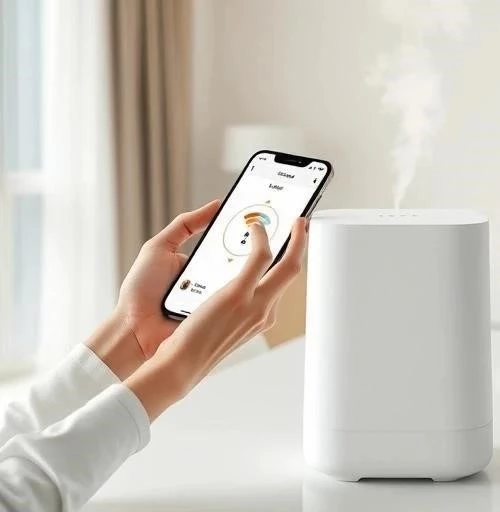
The Xiaomi Smart Humidifier 2 can be operated using its controls and, where supported, connected to the Xiaomi Home (Mi Home) app․ App control may let you check the device, change settings, or use automation features․ The exact options and button sequence can vary by model, app version, and country․ Follow the instructions in the manual supplied with your humidifier if they differ from the steps below․
Before you begin
- Install the Xiaomi Home or Mi Home app from your phone’s official app store․ The name shown may depend on your region․
- Sign in to a Xiaomi account, or create one if needed․ Allow the app to use Bluetooth, local network, and location permissions when requested; these permissions can help it discover nearby devices․
- Connect your phone to a 2․4 GHz Wi-Fi network․ Many Xiaomi smart-home devices do not pair through a 5 GHz network․ If your router combines both bands under one name, check its settings or ask the network administrator for help․
- Place the humidifier near the router during setup․ Keep the device upright on a stable, water-resistant surface․
Prepare the humidifier
Remove any packaging and check that the water tank and base are fitted correctly․ Fill the tank as described in the manual, observing the maximum level and using clean water․ Do not pour water into the air outlet or electrical parts․ Dry the outside of the tank before placing it on the base․ Plug the humidifier into a suitable outlet and switch it on․
Pair it in Xiaomi Home
- Open Xiaomi Home and select the correct home or location․ If prompted, set the app region that corresponds to the device and your account․ A device may not appear if the selected region is incompatible․
- Tap the + button, then choose Add device․ Allow the app to scan for nearby products․ If the humidifier appears in the list, select it and follow the on-screen instructions․
- If it is not detected, choose the humidifier manually from the appliance category or search for “Humidifier 2․” Confirm the model against the label on your device; similarly named Xiaomi models may use different setup steps․
- When asked, select your 2․4 GHz Wi-Fi network and enter its password carefully․ Keep the phone connected to that same network while pairing․ Do not use a guest network that blocks communication between devices․
- Put the humidifier into pairing mode when the app requests it․ Use the Wi-Fi or reset control specified in your model’s manual․ On some versions, this involves pressing and holding a control until the Wi-Fi indicator flashes or an audible prompt is heard․ Do not assume that every model uses the same button or hold time․
- Wait for the app to finish connecting․ Keep the phone close to the humidifier and avoid closing the app or unplugging the device․ Once setup is complete, give the humidifier a recognizable name and assign it to a room․
If pairing does not work
Check that the Wi-Fi password is correct, the signal is strong, and the router is using a supported 2․4 GHz network․ Restart the phone, router, and humidifier, then try again․ Make sure the app is up to date and that Bluetooth and the requested permissions are enabled․ If the device was previously linked to another account or network, remove it from that account if possible, then reset its network settings using the manual’s instructions and repeat the setup․
If the connection still fails, temporarily move the humidifier closer to the router and disable VPN or private-network settings on the phone during pairing․ Router security settings, special characters in a network name, or a restricted guest network can also interfere․ Restore any temporary network changes after setup․ Avoid repeatedly resetting the device without checking the model-specific procedure․
After connection
Open the device page in Xiaomi Home to see which controls are available for your version․ Depending on the model and region, the app may offer power, mist-level, humidity, timer, or schedule settings․ Some functions may require a firmware update or may not be supported in every country․ Keep the humidifier within reliable Wi-Fi range for remote access, and install firmware updates only through the official app․
For safe use, follow the manual’s cleaning and water instructions, unplug the unit before cleaning, and do not immerse the base or power cord․ If the app cannot find a feature mentioned in another guide, check the exact model number and regional manual rather than relying on instructions for a different Xiaomi humidifier․
1 Comment. Оставить новый
The guide clearly outlines the preparations and initial pairing steps, while appropriately noting that app options and setup requirements can vary by region and model.