
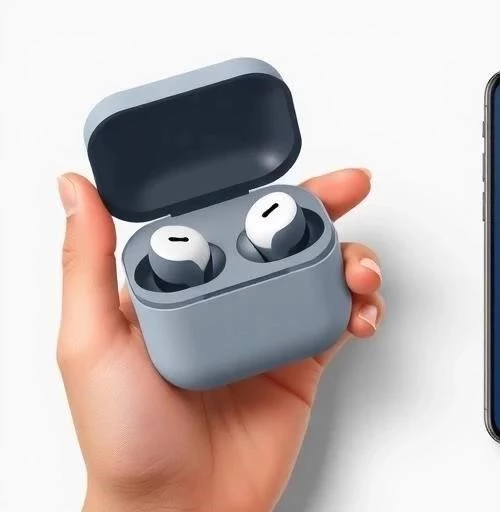
Connecting Xiaomi Bluetooth headphones is usually straightforward, but the exact steps can differ between earbuds, neckband-style headphones and over-ear models. The most reliable approach is to put the headphones into pairing mode first, then select them in your phone or computer’s Bluetooth settings. If you skip pairing mode, the device may not appear in the list—even when the headphones are switched on. This guide explains the standard method, what to do when it fails, and why model-specific instructions matter.
Before you start
Charge the headphones and the charging case, if your model has one. A low battery can prevent pairing or make the connection unstable. Keep the headphones close to the device you want to connect, and turn Bluetooth on on that device. If the headphones have previously connected to another phone, tablet or laptop, disconnect them there or temporarily switch Bluetooth off on that device. Many headphones automatically reconnect to a familiar device, which can stop them from appearing as available to a new one.
It also helps to identify the exact model. Xiaomi and Redmi products do not all use the same controls: some earbuds enter pairing mode when you open the case, some require a button press, and some use touch controls. Check the name on the box, case, product label or Bluetooth list. When in doubt, use the manual for your specific model rather than assuming that instructions for another pair will apply.
Connect Xiaomi earbuds to an Android phone
- Put both earbuds in the charging case and make sure they have power.
- Open the case near the phone. If the earbuds are new, they may enter pairing mode automatically. If they do not, use the case button or the controls described in the model’s manual. A blinking indicator often signals pairing mode, although light patterns vary.
- On the phone, open Settings, then Bluetooth or Connected devices. Turn Bluetooth on and choose the option to pair a new device if needed.
- Wait for the Xiaomi or Redmi headphone name to appear under available devices. Tap it and approve the pairing request. If a confirmation prompt appears, check that the name matches your headphones.
- When the status changes to Connected, play audio to test the sound. For stereo earbuds, check that both sides are working.
Some Xiaomi phones show a quick connection pop-up when a compatible case is opened. This is convenient, but it is not the only way to pair: if no pop-up appears, use the Bluetooth menu. The pop-up may depend on the phone’s software, the headphone model and nearby-device settings. Its absence does not necessarily indicate a fault.
Connect to an iPhone or iPad
Put the headphones into pairing mode using the same model-specific procedure, then open Settings > Bluetooth on the Apple device. Turn Bluetooth on and wait under Other Devices. Tap the Xiaomi or Redmi name to connect. Once paired, the headphones should normally reconnect when they are powered on and within range.
If the headphones are listed under My Devices but will not connect, tap the information icon beside their name and choose Forget This Device. Then put the headphones back into pairing mode and pair them again. Forgetting a device removes its saved connection details from the iPhone; it does not reset the headphones themselves.
Connect to a Windows computer
- Put the headphones into pairing mode and keep them near the computer.
- In Windows, open Settings > Bluetooth & devices, switch Bluetooth on, and choose Add device.
- Select Bluetooth, wait for the headphone name to appear, and click it.
- After Windows reports that the device is connected, select the headphones as the sound output. You can do this in the sound settings or from the speaker icon on the taskbar.
A computer may connect successfully but continue playing sound through its built-in speakers. That is an output-selection issue, not necessarily a pairing failure. Also, some computers show separate entries for stereo listening and hands-free calling. Choose the stereo output for music; the hands-free option may be useful for calls but can reduce audio quality.
How pairing mode works on different models
For many true wireless Xiaomi and Redmi earbuds, opening the charged case makes them discoverable during the first setup. If they have already been paired, they may instead try to reconnect to the last device. A small button on the case may start pairing when held for a few seconds. Other models use a different sequence, so do not rely on a fixed press duration or light colour as a universal rule.
Neckband and over-ear headphones generally use a power or multifunction button. With the headphones off, pressing and holding that button may switch them on and continue into pairing mode; a voice prompt or flashing indicator can confirm the state. If a short press only turns them on, switch them off and follow the model’s manual for the pairing sequence. Avoid holding buttons at random, because a long press may reset the headphones or trigger another function.
If the headphones do not appear
- Check pairing mode. Being switched on is not the same as being discoverable. Re-enter pairing mode and look for the model’s indicator or voice prompt.
- Check other devices. Turn Bluetooth off on a phone or computer the headphones have used before, or disconnect them from that device. They may have reconnected automatically.
- Bring devices closer. Keep the headphones within a few feet of the phone during setup. Move away from crowded wireless equipment if the list still does not refresh.
- Restart Bluetooth. Turn Bluetooth off and on on the phone or computer, then scan again. If necessary, restart the device.
- Check the battery and contacts. Charge the case and earbuds. For earbuds, make sure they sit properly in the case and that protective film, dust or debris is not preventing charging.
- Remove an old pairing. If the headphone name is already saved on the device, choose Forget or Remove device, then pair again from the beginning.
These checks are worth trying before a reset because they preserve existing settings and often solve ordinary connection problems. A factory reset is more disruptive: it clears the headphones’ saved pairing information, so every device may need to be paired again.
Resetting Xiaomi earbuds
If normal troubleshooting does not help, a reset may clear a corrupted or conflicting connection. The reset procedure differs by model. Many earbud models require placing both earbuds in the case and holding its button, while some use touch controls or a particular sequence. Follow the instructions for the exact model and wait for the indicator to confirm the reset. Then remove the old headphone entry from your phone’s Bluetooth list, put the earbuds into pairing mode and pair them again.
Do not treat a reset as the first step if only one earbud is silent. First check that both earbuds are charged, seated correctly in the case and clean around their charging contacts. If one side works but the other does not, the earbuds may need to synchronize with each other again; the model’s reset instructions are especially important in that situation.
Can Xiaomi headphones connect to two devices?
Some models support multipoint connections, but many do not, and the feature can behave differently across products. Do not assume that pairing with a second device means audio can play from both at once. If switching devices is unreliable, disconnect the headphones from the first device before pairing or connecting to the second. Check the product specifications for multipoint support rather than relying on the brand name alone.
Keeping the connection reliable
After successful pairing, the headphones usually reconnect automatically to a previously used device when Bluetooth is enabled and the headphones are powered on. If they keep connecting to the wrong phone, remove or disconnect them from devices you are not using. Keep the headphones charged, install relevant phone or computer updates, and avoid pairing several devices at the same time during initial setup.
In short, the dependable sequence is: charge the headphones, put them into the correct pairing mode, open Bluetooth settings on the target device, select the matching name, and test the audio output. If that fails, disconnect previous devices and remove stale pairing records before considering a model-specific reset. This order is effective because it checks the most common causes first without needlessly erasing the headphones’ saved settings.

7 Comments. Оставить новый
It is helpful that the article does not treat an illuminated indicator as proof that the headphones are ready to pair. Explaining that blinking patterns vary between models encourages readers to check the correct manual.
The advice to check the exact headphone model is especially useful. Xiaomi and Redmi controls can differ, so relying on model-specific instructions is more dependable than assuming every pair enters pairing mode the same way.
The explanation about headphones reconnecting to a previously paired device addresses a common source of confusion. Temporarily switching off Bluetooth on the old device is a straightforward way to help the new one find them.
This is a clear introduction for someone pairing Xiaomi earbuds for the first time. The reminders about model differences and automatic reconnection make the instructions realistic rather than overly generic.
The steps are organized in a sensible order: prepare the headphones, put them in pairing mode, and then look for them in the phone settings. That sequence makes the process easier to follow.
I appreciate that the guide recommends charging the headphones before troubleshooting. A low battery can make pairing unreliable, and checking power first may save time before changing Bluetooth settings.
The guidance to keep the headphones near the phone and disconnect them from other devices covers practical details that can otherwise be overlooked. These small checks can prevent unnecessary troubleshooting.