
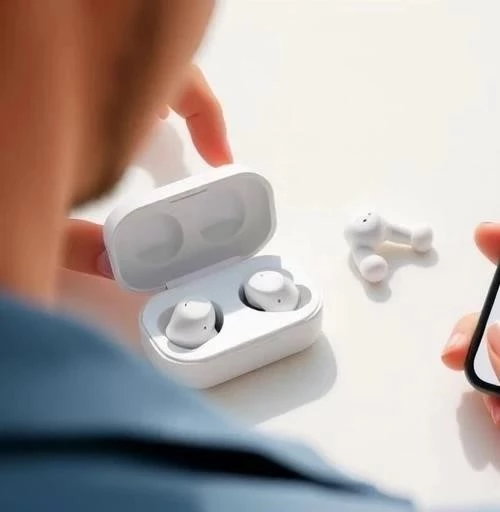
Xiaomi wireless headphones connect to a phone‚ tablet‚ computer‚ or another compatible device using Bluetooth; The exact design and controls vary between models‚ so the instructions supplied with the headphones should take priority where they differ from this general guide. The steps below apply to many Xiaomi and Redmi true wireless earbuds‚ as well as offering basic guidance for Bluetooth headphones with a headband.
Charge the headphones
Before first use‚ charge the headphones and‚ if they have one‚ their charging case. Put each earbud into its matching position in the case and check that it sits securely against the charging contacts. Indicator lights may turn on to show that charging has started; their meaning and color depend on the model. Connect the case to a suitable USB power source using the supplied or a compatible cable. Do not force the connector‚ and keep the charging contacts clean and dry.
For a headband-style model‚ charge the headphones through the port specified in its manual. Avoid using damaged cables or charging equipment‚ and do not charge the device if the port or cable is wet. Battery life varies with volume‚ connection quality‚ noise cancellation‚ and other settings. The companion app or the connected device may show a battery estimate‚ but the display is not always exact.
Pair with a phone or other device
- Prepare the headphones. For many earbuds‚ opening the case or removing the earbuds starts pairing when they have not been connected before. Some models enter pairing mode when you press and hold a case button or a control on the headphones. Look for a flashing indicator or follow the model’s instructions.
- Open Bluetooth settings. On a phone‚ go to Settings and open Bluetooth. Turn Bluetooth on and leave the device on the available-devices screen. Menu names can differ between Android versions‚ iPhones‚ tablets‚ and computers.
- Select the headphones. Tap or click the Xiaomi or Redmi name shown in the list of available devices. If several similar names appear‚ check the label on the case or the manual. Confirm a pairing request if one appears. A PIN is not usually needed; if the device asks for one‚ consult its instructions instead of guessing.
- Check the connection. The headphones should appear as connected in Bluetooth settings. Play a short audio clip at a low volume to confirm that sound comes through both sides. If the headphones do not appear‚ return them to pairing mode and scan again.
After a successful first pairing‚ the headphones will generally reconnect automatically to the last device when Bluetooth is enabled and the headphones are powered on or taken out of the case. If they connect to a different nearby device‚ disconnect them there or switch off Bluetooth on that device‚ then select them from the intended device’s Bluetooth list.
Wear the earbuds comfortably
Insert each earbud gently‚ with the left and right sides in the matching ears. If the package includes several sizes of silicone tips‚ try different sizes until the earbuds feel secure without pressure. A stable fit can improve comfort and sound‚ and may help passive noise isolation. Do not push an earbud deeply into the ear. For a headband model‚ adjust the headband so the earcups rest comfortably over the ears.
Use playback and call controls
Many Xiaomi earbuds use taps or presses on a touch-sensitive area or physical button. Depending on the model‚ controls may play or pause audio‚ skip a track‚ answer or end a call‚ or activate a voice assistant. The action assigned to a single‚ double‚ or long press is not universal. Check the manual or the Xiaomi Earbuds app‚ if your model supports it‚ before relying on a particular gesture.
When using a phone call‚ speak normally and keep the microphones unobstructed. Wind‚ traffic‚ and other background noise can affect call quality. If the other person cannot hear you clearly‚ check that the headphones are selected as the call’s audio device and that the microphone openings are not covered. Some devices let you switch call audio back to the phone from the call screen.
Adjust sound and settings
Start with a comfortable volume on the connected device. If the model supports active noise cancellation‚ transparency‚ equalizer settings‚ or customizable touch controls‚ these options may be available in the Xiaomi Earbuds app or in the device’s audio settings. Features differ by model‚ phone‚ region‚ and software version. Install apps only from an official app store‚ and follow the prompts to grant only the permissions you need.
Keep the headphones’ firmware and the companion app up to date when updates are offered for your model. During a firmware update‚ keep the earbuds and phone close together and ensure the battery has sufficient charge. Do not close the app or interrupt the process unless its instructions say to do so.
Disconnect‚ store‚ and care for the headphones
To stop using the headphones‚ pause playback and return the earbuds to the case; Close the lid if the design requires it; many models switch off or disconnect when stored‚ but this behavior can vary. For a headband model‚ use its power button or Bluetooth settings to disconnect. To connect to another device‚ disconnect from the current one first if automatic switching is unavailable.
Wipe the headphones with a soft‚ dry cloth. Remove ear tips only as described in the manual‚ and clean them separately if the manufacturer permits. Do not rinse the earbuds or case unless the exact model’s water-resistance rating and care instructions allow it. Water resistance does not necessarily mean that a device is safe to submerge‚ and it can be reduced by wear or damage. Keep the charging contacts free of dust‚ earwax‚ and moisture; never scrape them with a sharp metal object.
Troubleshooting common problems
- The headphones do not appear in Bluetooth settings: charge them‚ put them into pairing mode‚ and keep them near the phone. If they are already connected to another device‚ disconnect them there. Turn Bluetooth off and on‚ then scan again.
- Only one earbud plays: check that both earbuds are charged and seated correctly in the case. Reconnect the headphones and test them with another audio source. If the problem remains‚ use the model-specific reset instructions;
- Sound stutters or drops out: move closer to the connected device‚ reduce obstacles‚ and temporarily disconnect other Bluetooth accessories. Restarting Bluetooth or the phone may help.
- The headphones will not charge: check the cable‚ power source‚ and charging contacts. Make sure the earbuds are positioned correctly and that there is no moisture or debris. Let wet components dry fully before charging.
- Pairing or controls behave unexpectedly: remove the headphones from the saved Bluetooth-device list‚ restart the phone‚ and pair again. A factory reset may help‚ but its button sequence differs between models and may erase existing pairing information. Follow the manual rather than applying a reset method intended for another product.
Safe listening
Keep the volume at a level that lets you remain aware of your surroundings‚ especially near roads or in shared spaces. Lower the volume before inserting the headphones‚ and take breaks during extended listening. Stop using them if they cause pain or irritation. For persistent connection‚ charging‚ or sound problems‚ consult the instructions for the exact model or contact Xiaomi support.

6 Comments. Оставить новый
The distinction between earbuds and headband-style headphones makes the charging guidance relevant to several types of devices.
The article appropriately directs readers to their device manual when model-specific controls or indicator lights differ.
The pairing steps are organized in a practical order, from preparing the headphones to selecting them in Bluetooth settings.
The note that battery estimates may not be exact gives readers helpful context about information shown in an app or on a connected device.
The guide explains the basic charging and Bluetooth pairing steps clearly while noting that procedures can vary by model.
The reminders about keeping charging contacts dry and avoiding damaged cables are useful additions to the setup instructions.