
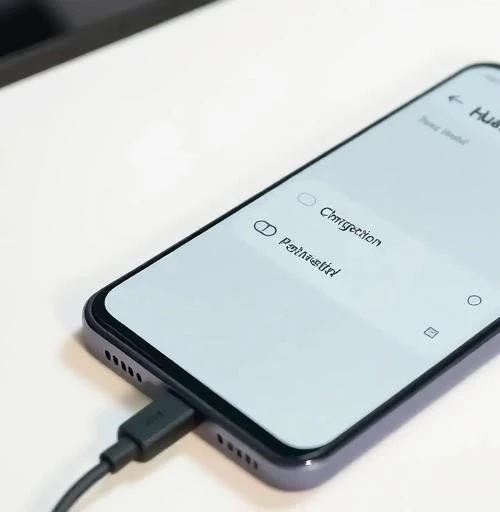
Huawei phones usually activate fast charging automatically when they detect a compatible charger and cable. On many models, there is no switch that simply turns this feature off. The exact controls depend on the phone, its EMUI or HarmonyOS version, and the charger being used. Therefore, the most dependable way to charge more slowly is often to use a suitable standard-power charger rather than look for a setting that may not exist.
Check your battery settings
- Open Settings on your phone.
- Tap Battery.
- Look for More battery settings, Charging settings, or a similarly named menu. Names and locations differ between models and software versions.
- Check whether your phone offers a specific fast-charging control. If you find one, turn it off and reconnect the charger to see whether the charging message or speed changes.
If there is no fast-charging switch, that is normal for many Huawei devices. Do not assume that options such as Smart Charge or Smart Battery Capacity disable fast charging. Smart Charge may learn your routine and delay charging to 100% until you are likely to need the phone; battery-capacity features may manage the charge limit. These can help with charging habits, but they are not necessarily controls for the charger’s power or speed.
Use a standard, compatible charger
When a Huawei phone is connected to a compatible SuperCharge adapter and cable, it may negotiate a higher charging rate automatically. To avoid that mode, try a reputable, certified charger that supports ordinary USB charging but does not advertise Huawei SuperCharge or another high-power fast-charging standard. Use a suitable cable as well; The phone and charger negotiate the power they can safely provide, so a standard charger will generally charge more slowly.
Check the adapter’s label and instructions before using it. Avoid damaged, counterfeit, or unverified low-quality chargers: a slower charger is not automatically a safe charger. A computer USB port may charge more slowly, but its output can vary, and charging may be inconveniently slow. Do not use a charger or cable that becomes unusually hot, is visibly damaged, or causes repeated charging interruptions.
Try another cable, but do not rely on it as a setting
Some fast-charging systems require a compatible cable as well as a compatible adapter. A different good-quality cable may prevent the phone from entering a proprietary fast-charging mode, but results vary. The cable must still be rated for the charger and device; a poor or damaged cable is not a safe method of limiting power. If the phone continues to show a fast-charging message, use a standard-power adapter or check the phone’s manual for model-specific guidance.
Check what the charging indicator says
After connecting the charger, look at the lock screen or battery page. Huawei devices may display wording such as Fast charging or SuperCharge, though the wording varies. If that indicator disappears with a different adapter, the phone is likely charging in a standard mode. An indicator alone does not tell you the exact wattage, and the charging rate can change during a session. Phones commonly reduce power as the battery fills or if the device becomes warm.
Why you may not be able to disable it in software
Charging speed is negotiated between the phone, adapter, and cable. Many Huawei models are designed to select an available charging mode automatically, and the manufacturer may not expose a user setting to override that process. A menu found in a guide for another Huawei model may therefore be absent on yours. Software updates can also change menu names or available options. Search Settings for “fast charging” or “charging” if your version provides a search box, and consult the manual for your exact model rather than relying on instructions for a different device.
If your goal is to reduce heat or protect battery life
Using a compatible standard-power charger can reduce charging speed, but charging habits and temperature matter too. Keep the phone out of direct sunlight and away from hot surfaces while charging. If it becomes noticeably hot, disconnect it, let it cool naturally, and check the adapter and cable. Avoid covering the phone with bedding during charging. You can also use Smart Charge or a charge-limit feature if your model offers one; these manage charging behavior, but they do not necessarily turn off fast charging.
Slower charging may be useful when you have plenty of time, but it is not a guaranteed way to extend battery life by a specific amount. Battery aging is affected by several factors, including heat, usage, and time. Choose a certified charger that meets the phone’s requirements, and do not try to alter the phone, charger, or cable to force a particular power level.
Quick answer
- Check Settings > Battery and the additional charging menus for a fast-charging switch; many Huawei models do not provide one.
- Do not confuse Smart Charge or battery-capacity options with a fast-charging toggle.
- If no switch is available, use a reputable standard-power USB charger and compatible cable instead of a SuperCharge setup.
- Stop using any charger or cable that is damaged, unusually hot, or unreliable.
In short, whether you can disable fast charging directly depends on the Huawei model and software. If the option is missing, changing to a safe, standard charger is the practical alternative; forcing a setting through unsafe accessories is not worth the risk.

9 Comments. Оставить новый
The article gives a reasonable fallback when no fast-charging switch is available: use a compatible standard-power charger. It also correctly emphasizes that slower charging equipment still needs to be safe.
The explanation of Smart Charge is valuable. It clarifies that a feature designed to manage charging habits does not necessarily disable fast charging.
A practical guide for anyone trying to slow down charging without changing phone settings unnecessarily. The recommendation to inspect the adapter label is sensible.
The charger-negotiation explanation helps readers understand why a phone may fast-charge automatically. The advice to avoid damaged or counterfeit accessories is an important safety point.
I like that the instructions distinguish between different Huawei software versions instead of presenting one menu path as universal. That makes the guidance easier to trust.
This is a useful explanation of why a fast-charging option may not appear in every Huawei phone’s settings. The distinction between charging controls and battery-management features is especially helpful.
The advice to check the charger and cable makes sense because charging speed depends on the equipment as well as the phone. I also appreciate the reminder to use reputable accessories.
Clear and measured advice. It explains what settings to check, what battery features may actually do, and why a standard charger can be a practical alternative.
This article avoids assuming that every Huawei model has the same menus. Pointing out that setting names vary by software version makes the instructions more realistic.