
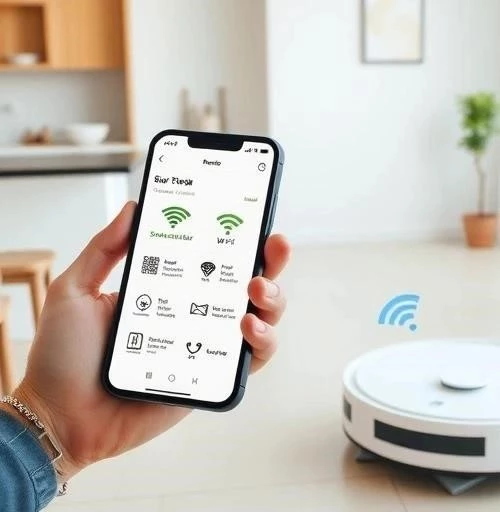
Your Xiaomi Mi Robot Vacuum-Mop Pro is ready to patrol the floors. First, though, it needs an introduction to your home network. Connecting it to the Mi Home (also called Xiaomi Home) app lets you start and pause cleaning from your phone, check its status, and use the controls available for your model and app version. The process is usually straightforward; the trickiest part is often persuading a modern phone, a dual-band router and a little round robot to agree on the same Wi-Fi details.
This guide takes you from unboxing to a successful connection, then walks through common snags. App screens and button names can vary by region, software version and exact product variant, so treat any on-screen prompts and the manual supplied with your robot as the final authority.
Before you begin: prepare the landing zone
- Charge the robot. Put the charging dock against a wall on a level floor, connect its power cable, and place the vacuum on the contacts. Give it enough charge to complete setup reliably.
- Check your Wi-Fi. The robot generally needs a 2.4 GHz Wi-Fi network. Many routers combine 2.4 GHz and 5 GHz under one network name; setup may still work, but if it fails, temporarily give the 2.4 GHz band a separate name or switch off band steering during pairing.
- Have the password ready. Check the exact network name and password, including capital letters and punctuation. A phone can remember an old password even when you have forgotten it.
- Install the official app. Download Mi Home/Xiaomi Home from your phone’s official app store. Avoid look-alike apps and unofficial downloads.
- Turn on useful phone permissions. Depending on your phone and app version, local network, Bluetooth, location or nearby-device permissions may help the app discover and configure the robot. Allow the permissions requested during setup.
For the first pairing attempt, keep your phone close to the robot and dock. Connect the phone to the same home network you want the vacuum to use. If you have a guest network, VPN, mesh system or unusually strict router security, keep those details in mind: they can affect device discovery or block communication between devices.
Step 1: sign in and choose the right region
- Open Mi Home/Xiaomi Home and sign in to your Xiaomi account, or create one if you do not have one.
- When asked for a country or region, choose the region appropriate for your robot’s version and the market where it was sold. The available device list and services can differ between regions.
- Allow the app to use the permissions it requests for adding a nearby smart-home device.
Why does region matter? A vacuum intended for one market may not appear in another region’s device list, or its setup may fail even though your Wi-Fi password is correct. Start with the region suggested by the box, manual or seller. If the app cannot find the model, check the product label and regional guidance before experimenting with account settings. Changing regions can affect other devices already linked to your account, so it is not a harmless first troubleshooting step.
Step 2: put the vacuum into pairing mode
Switch on the robot and make sure it is awake. In the app, tap the + button or choose Add device. You can select the Mi Robot Vacuum-Mop Pro from the vacuum-cleaner category, or let the app search for nearby devices. Follow the instructions displayed for the exact model it identifies.
If the app says the vacuum’s Wi-Fi needs to be reset, use the reset combination shown on that screen or in the manual. On many Mi Robot Vacuum-Mop Pro versions, this means pressing and holding the Power/Clean and Home/Dock buttons together until the robot announces that its Wi-Fi is being reset or its Wi-Fi indicator changes. Button labels, voice prompts and the length of the press can vary between versions. Do not guess at a factory reset: resetting the network connection is different from erasing the robot’s settings.
If you do not hear a prompt, check that the robot is powered on and not in the middle of another task. Try the model-specific instructions again, holding the buttons steadily rather than tapping them. A phone’s sound is not required for the robot’s voice prompt, but its volume can make the message easier to hear.
Step 3: send it your Wi-Fi details
- When the app asks, select your home Wi-Fi network and enter its password carefully. Confirm that the selected network is the 2.4 GHz network if your router displays separate bands.
- Keep the phone connected to that network. If your phone warns that the robot’s temporary setup network has no internet, follow the app’s instructions and allow the connection to continue. Some phones automatically jump back to the home network; if setup stalls, return to the app and reconnect to the device network when prompted.
- Wait while the app transfers the network details and registers the vacuum. Keep the app open and the phone near the robot until the progress indicator finishes.
- When setup succeeds, give the robot a clear, recognisable name, such as “Kitchen helper,” or leave its default name. The app should then show it as online or ready.
Some versions of the app offer a QR-code or Bluetooth-assisted route; others guide you through a temporary Wi-Fi connection. Follow the method shown for your device rather than searching for a QR code that may not exist on your particular unit.
Step 4: check that the connection really works
Tap the robot’s tile in the app. Confirm that its status loads, then try a basic command such as starting or pausing cleaning. If the app displays a map, battery level or dock status, allow a little time for the information to update. A new robot may need to explore before its map becomes useful; an empty map immediately after pairing does not, by itself, mean the Wi-Fi connection failed.
Once the connection is stable, explore the controls actually offered by your model and app version. These may include scheduling, cleaning modes, map or room controls, and notifications. Options can differ by firmware and region. Set up just the basics first; there is no need to plan the robot’s entire cleaning career before it has completed its first trip around the room.
If connection fails: diagnose the small things first
The app cannot find the vacuum
- Move the phone closer and make sure the robot is powered on.
- Check that Bluetooth, local-network or nearby-device permissions requested by the app are enabled. On some phones, location permission is also needed for Wi-Fi discovery.
- Reset the robot’s Wi-Fi connection using the correct button instructions, then repeat Add device in the app.
- Check the app’s selected region and confirm that the exact model is supported there.
- Update the official app, then close and reopen it. If the vacuum is already listed, remove only the stale device entry if the app recommends doing so; avoid deleting other smart-home devices.
The app finds it, but the Wi-Fi step fails
- Confirm that the network is 2.4 GHz and that the password is correct. Re-enter it instead of trusting autofill.
- Temporarily simplify the router setup: try a normal home network with WPA2 security, disable a guest-network isolation setting, and avoid a network that requires a web login page. Do not leave your router less secure than necessary; restore appropriate settings after testing.
- If your router combines both Wi-Fi bands, try a separate 2.4 GHz network name or temporarily disable automatic band steering. Reconnect your phone to that network before restarting pairing.
- Check that the router is not blocking new devices through MAC filtering, access control or a device limit. A reboot of the router can also clear a temporary connection problem.
- Keep the phone online through the setup flow. If it switches away from the robot’s temporary network, follow the app’s prompt to return to it rather than restarting the whole process immediately.
The setup completes, but the vacuum shows offline
Give it a minute, then refresh the device page. Check that the robot is within range of the router and that the router has internet access. If you changed your Wi-Fi name or password, the vacuum may need its Wi-Fi settings configured again. A power cycle of the robot and router can help, but do not repeatedly factory-reset the vacuum: that is rarely the first fix for an ordinary network dropout.
The robot works, but maps or controls seem missing
First confirm that the device is online and that the app is showing the correct vacuum. Features can depend on the exact Pro version, firmware, region and app release. Update the app and check for a robot firmware update when the device is connected. If an option described online is absent, it may not be supported by your specific version; an unfamiliar menu is not necessarily a setup failure.
What not to do during troubleshooting
- Do not share your Wi-Fi password with anyone offering to “pair it remotely.” Setup should happen through your own official app and home network.
- Do not reset everything as a first move. A Wi-Fi reset clears the network pairing; a factory reset may erase more settings. Use the least disruptive option that addresses the problem.
- Do not assume every Xiaomi vacuum uses the same button combination. Similar-looking models can have different controls. Check the label on the robot, the manual or the instructions shown in the app.
- Do not force the phone to stay on a network with no internet if the app says otherwise. Follow the setup prompts; phone behaviour differs between Android and iOS and between software versions.
A quick connection checklist
- Install and open the official Mi Home/Xiaomi Home app; sign in.
- Select the region appropriate for the robot’s market version.
- Connect your phone to home Wi-Fi, preferably 2.4 GHz, and keep it close to the robot.
- Tap + or Add device, then select or discover the Mi Robot Vacuum-Mop Pro.
- Reset the robot’s Wi-Fi only if prompted, using the model-specific button instructions.
- Enter the correct Wi-Fi password, follow any temporary-network prompts, and wait for registration to finish.
- Open the device page and test a basic command.
Ready for its first digital lap
When the vacuum appears online, the connection is complete: the phone can now send commands through the home network and the app can report the robot’s status. If pairing did not work on the first try, focus on the usual suspects in order: region, 2.4 GHz Wi-Fi, password, phone permissions, and the robot’s Wi-Fi reset procedure. Most connection problems are not signs of a broken vacuum; they are simply two devices speaking slightly different networking dialects.
Set the dock somewhere accessible, clear loose cables and small obstacles from the floor, and start with a short supervised clean. Your little round housemate can now get on with its new job—and you can enjoy the rare luxury of giving a chore a schedule instead of doing it yourself.



7 Comments. Оставить новый
I appreciate that this starts with the dock and a charged battery instead of assuming the robot arrives ready to conquer the house. Practical, calm, and pleasantly free of wizardry.
The reminder about permissions is a small detail with a big payoff. It turns the usual “why can’t the app see it?” mystery into a solvable checklist.
Clear, patient, and easy to follow. I especially like the image of the robot needing an introduction to the home network; it gives a routine setup a bit of charm.
The advice to check the exact Wi-Fi name and punctuation is wonderfully unglamorous—and exactly the sort of detail that prevents a half-hour of baffled button pressing.
This makes home-network setup feel less like a maze and more like laying stepping-stones for a very determined little explorer.
A surprisingly useful guide to the tiny diplomacy summit between a phone, a router, and a round robot. The 2.4 GHz advice may save more first-day friendships than any welcome mat.
A good setup guide knows when not to pretend every screen looks the same. Pointing readers back to their exact model and app prompts is refreshingly honest.