
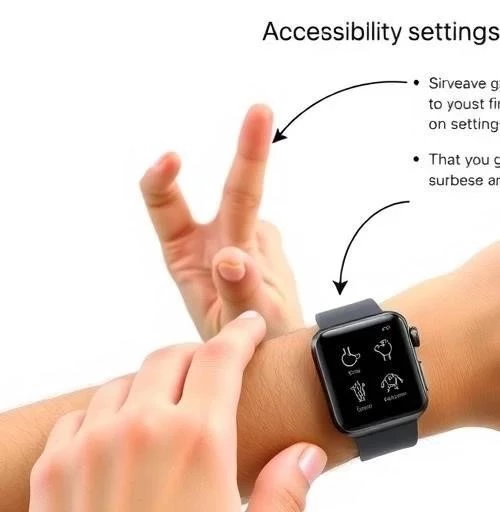
Your Apple Watch can answer a call without a tap, pause a timer with a pinch, and navigate its screen while your other hand is busy. Think of gestures as a tiny, invisible remote control: you give a signal, and the watch responds. There are two features to know about—AssistiveTouch, which offers a set of hand gestures, and Double Tap, a simpler feature on supported models. Here’s how to set them up and make them feel natural.
Option 1: Enable AssistiveTouch
AssistiveTouch is designed to let you control Apple Watch with movements such as pinching your fingers together or clenching your fist. Depending on your watchOS version and settings, gestures can move through items, select a highlighted item, open an action menu, or perform a chosen action.
- On Apple Watch, open Settings.
- Tap Accessibility, then AssistiveTouch.
- Switch on AssistiveTouch.
- Open Hand Gestures and turn the feature on if it is shown separately.
You can also configure it from your iPhone: open the Watch app, choose My Watch, tap Accessibility, then find AssistiveTouch. The wording and available controls can vary slightly with your watchOS version.
Learn the basic hand signals
AssistiveTouch commonly uses four gestures: pinch, double pinch, clench, and double clench. A pinch usually moves to the next item, while a double pinch moves back. A clench selects an item, and a double clench can open an action menu. These are starting points, not universal laws: you can customize what each gesture does.
To change the assignments, return to the AssistiveTouch settings and explore Hand Gestures and Activation Gesture. The activation gesture is the cue that wakes or engages gesture control; the watch may guide you through it during setup. You can also adjust options such as the motion pointer, scanning behavior, or the action menu, depending on your model and software. If the default mapping feels backward, change it rather than forcing your fingers to learn an awkward routine.
Option 2: Turn on Double Tap
Double Tap is a separate feature available on supported Apple Watch models. It lets you tap your index finger and thumb together twice on the hand wearing the watch to carry out the highlighted primary action—for example, answering a call, stopping a timer, or playing and pausing audio. It is not the same as AssistiveTouch: Double Tap is intentionally streamlined, while AssistiveTouch offers broader navigation.
On a compatible watch, open Settings and look for Gestures or Double Tap; Switch it on and review the available options. You may also find the controls in the iPhone Watch app under Gestures. If the setting doesn’t appear, check that your watch model and watchOS version support it, and install available software updates.
Make gestures work reliably
- Wear the watch snugly. Its sensors need a clear reading of your wrist and hand movement.
- Practice slowly. Make a distinct pinch or clench, pause, and watch for the screen response before speeding up.
- Try a real task. Test with a timer or incoming call when convenient, so you learn what the selected gesture does in context.
- Check settings if nothing happens. Confirm the feature is enabled, review gesture assignments, and restart the watch if it still seems unresponsive.
Gestures may not behave identically in every app or situation. Some actions depend on what is currently on screen, and availability can vary by model and software. AssistiveTouch and Double Tap also have different requirements, so a missing option does not necessarily mean your watch is broken.
Your wrist, your shortcuts
For a quick hands-free response, start with Double Tap if your watch supports it. If you want to move through more of the interface without touching the display, choose AssistiveTouch and customize its signals. Spend a minute learning the feedback—often a highlight, pointer, or subtle vibration—and the watch begins to feel less like a screen on your wrist and more like a companion that understands a small motion. The best gesture is the one you can make comfortably, consistently, and without interrupting what your hands are doing.
5 Comments. Оставить новый
A strong accessibility guide with a refreshingly human touch. I like that it encourages readers to change an awkward default rather than treat it as a test of patience. That small permission may be the most useful gesture here.
I enjoyed the balance between practical setup directions and the bigger idea of making a device fit different bodies and habits. The customizable gestures turn the watch from a one-size-fits-all gadget into something more personal.
The “tiny, invisible remote control” image makes accessibility feel wonderfully tangible. I especially appreciate the reminder that gesture assignments can be changed—technology should learn your rhythm, not demand that your hands learn its rules.
The watch comes across less like a miniature screen and more like a quiet stagehand, ready to help when your other hand is occupied. Clear steps, vivid framing, and sensible caveats make this easy to approach.
This guide turns a handful of finger movements into a practical little choreography. The distinction between AssistiveTouch and Double Tap is useful, and the note about settings varying by software version keeps the instructions grounded.