
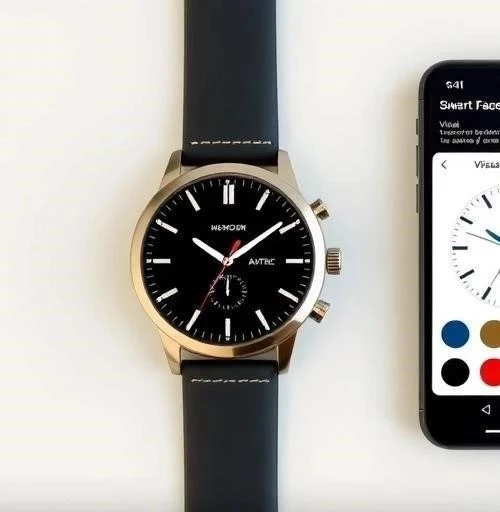
A custom watch face can make a Galaxy Watch 3 more personal and easier to use: the time, date, battery level, and other useful details can be arranged to suit your routine․ The best approach depends on how much freedom you want․ You can quickly customize a face already on the watch, or design a new one on a computer․ The important first step is choosing tools that support the Watch 3’s software․
Know which platform you are designing for
The Galaxy Watch 3 runs Samsung’s Tizen-based watch software, not Wear OS․ That distinction matters: Samsung’s Watch Face Studio is intended for Wear OS devices and does not, by itself, make a face installable on the Watch 3․ Look for a Tizen-compatible workflow, such as the legacy Galaxy Watch Studio for Tizen, and check that the version you use supports your computer’s operating system․ Tool availability can change, so verify the software’s current status before installing it․
This compatibility check is not a technicality․ Spending time on a design in the wrong editor may leave you with an image or project that the watch cannot install․ Start with the target device, then choose the editor․
Option 1: Customize a face on the watch
- Wake the Galaxy Watch 3 and touch and hold the current watch face․
- Swipe through the available faces and tap one you like․
- Tap Customize, if that option is shown․ Swipe between editable areas, then use the controls to change colors, hands, or information fields․
- Save or confirm the selection, then check the result on the watch․
This is the quickest option because it requires no design software or file transfer․ It is also limited to the choices built into that face․ If you want a completely original layout, custom artwork, or a particular combination of elements, use a computer-based editor instead․
Option 2: Build a face with a Tizen-compatible editor
Plan the layout
Decide what the face must show before opening the editor․ For example, a clean everyday design might include a large digital time, date, battery level, and step count․ A traditional design might use analog hands with only one or two small data fields․ The screen is small, so adding more information is not automatically better: crowded elements are harder to read and can obscure one another․
Prepare your graphics
Create a background and any icons or decorative elements in an image editor․ Use the canvas dimensions and file formats required by your chosen Tizen tool; do not assume that dimensions for a newer Galaxy Watch will match․ Keep text and important details away from the edge, where they may be difficult to see․ Choose strong contrast, and preview the design at watch size rather than judging it only on a large monitor․
Assemble the face
Open the compatible editor and start a Tizen watch-face project for a round display․ Import the background, add digital or analog time components, and arrange any supported data fields․ Set fonts, colors, and alignment, then preview different states if the editor offers them․ Use a restrained palette and make the time the most prominent element․ A face that looks attractive but makes the time difficult to read is poorly designed․
Test it on the watch
Follow the editor’s instructions to connect the watch and computer, commonly through the same Wi-Fi network or a supported development connection․ Enable developer options or debugging only when the tool requires it, and follow its pairing and signing steps․ Some workflows require a developer certificate before a project can be built or installed․ Keep the watch unlocked and nearby, and do not install files from sources you do not trust․
Build the project and use the editor’s run or installation command․ If the watch does not appear, check that both devices are connected to the same network, that debugging is enabled as instructed, and that the editor recognizes the correct device․ After installation, select the face on the watch and inspect it in ordinary use․ Check readability outdoors, the placement of data fields, and whether the design remains useful when the screen is dimmed․
Using a third-party face app
Apps such as Facer or WatchMaker may offer designs or creation features, but compatibility depends on the app’s current support for Tizen and the Galaxy Watch 3․ Confirm that the listing explicitly supports your model before paying or building a design around it․ A service made for Wear OS may not work on this watch, even if it supports newer Samsung watches․ Third-party apps can be convenient, but a Tizen-specific workflow is the safer choice when reliable installation is the priority․
Practical design and troubleshooting tips
- Prioritize legibility: use clear type, adequate contrast, and a time display large enough to read at a glance․
- Limit complications: include only information you actually check․ Extra fields can clutter the screen and may affect battery life․
- Check power use: bright, detailed graphics and frequent updates can consume more energy․ Test battery life over a normal day and simplify the design if needed․
- Keep a backup: save the editable project and original images․ This makes revisions easier if you change colors, fix alignment, or reinstall the face․
- Use trusted downloads: avoid unknown installation packages, and review permissions before installing companion software․
Which method should you choose?
For a quick change, customize a face already installed on the Galaxy Watch 3․ For a genuinely personal design, use a Tizen-compatible desktop editor and test the result directly on the watch․ That route takes more effort, but it gives you control over layout and artwork․ In either case, compatibility and readability should come before decoration: a face is successful when it works on the actual Watch 3, displays useful information clearly, and remains comfortable to use throughout the day․


6 Comments. Оставить новый
The step-by-step watch instructions make the simplest customization route approachable. I also like that the article sets realistic expectations by explaining that built-in faces may not offer the freedom of a custom design.
The advice to plan what information the face should display before opening an editor is sensible. A clear list of priorities can help keep the design readable instead of crowding it with details that are rarely needed.
The distinction between Tizen and Wear OS is the article’s most useful point. Checking compatibility before designing can save time and prevent the disappointment of creating a face that cannot be installed on the Galaxy Watch 3.
It is helpful that the article notes software availability and operating-system support can change. Readers should verify the current status of legacy tools before relying on them, especially when starting a new project.
This is a useful guide for avoiding a common compatibility mistake. One additional practical consideration is to test the finished face on the watch, since a layout that looks good in an editor may be harder to read at a glance.
I appreciate that the article covers both built-in customization and computer-based design. The on-watch option is practical for quick changes, while a Tizen-compatible editor is better suited to people who want more control over the layout.