
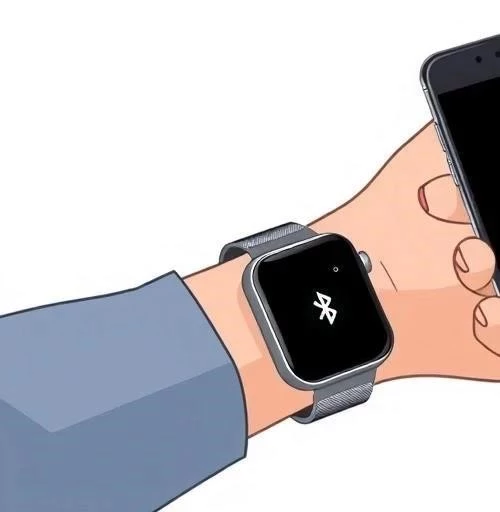
Connecting a Mi Watch Lite is straightforward, but the order of steps matters․ The watch is designed to be set up through Xiaomi’s companion app, not paired like ordinary Bluetooth headphones․ Using the app lets the phone and watch exchange setup details, synchronize activity data, and configure notifications․ Follow the steps below for an Android phone or iPhone․
Before you begin
- Charge the watch․ Give it enough power to complete setup without switching off partway through; Keep it near your phone during pairing․
- Check compatibility․ Update your phone’s operating system if possible․ The exact minimum requirements can vary by software version and region, so check the app-store listing if the app will not install․
- Install the companion app․ Search your phone’s official app store for Xiaomi’s wearable app․ It may appear as Xiaomi Wear, Xiaomi Wear Lite, or Mi Fitness, depending on region and app updates․ Choose the app that identifies Mi Watch Lite as a supported device; avoid unofficial download sites․
- Prepare Bluetooth and permissions․ Turn on Bluetooth and allow the app to use any permissions it requests for device discovery and synchronization․ Android may also request location permission for nearby-device discovery․ This does not mean the watch must be paired directly from the phone’s Bluetooth settings․
Pairing step by step
- Open the companion app and sign in to a Xiaomi account, or create one if you do not have one․ Signing in helps the app save settings and associate the watch with your account․
- Choose the option to add a device․ Depending on the app version, it may be labelled Add device, +, or Pair․ Select Mi Watch Lite from the device list․ If the app offers a scan option, follow its instructions․
- Keep the watch awake and close to the phone․ If it is showing a setup screen or QR code, leave that screen visible while the app searches․ When prompted, select the watch in the app․
- Check the pairing request on both screens․ Confirm that the code or confirmation prompt matches, then approve it on the phone and watch․ This step helps ensure you are connecting to your own watch rather than a nearby device․
- Wait for setup and synchronization to finish․ The first connection may take a few minutes․ Keep Bluetooth on, leave the app open if requested, and do not restart either device during the process․
After pairing, open the app’s device settings to choose which notifications, health features, and display options you want․ Grant notification access only if you want alerts on your wrist․ Menu names vary between app versions, so use the app’s on-screen prompts rather than relying on a particular menu location․ Some phone functions may require additional permissions or may not be supported in every region․
If the watch does not connect
- Confirm the app and device․ Make sure you selected Mi Watch Lite, not a similarly named model, and that the app is an official Xiaomi app that supports it․
- Bring the devices closer․ Keep them within a short distance and switch Bluetooth off and on again․ Also check that the watch has enough battery․
- Allow discovery permissions․ Review the app’s Bluetooth, nearby-device, and, where required, location permissions in the phone’s settings․ On some phones, battery-saving restrictions can interrupt setup; temporarily allow the app to run in the background․
- Remove an incomplete pairing․ If the watch was previously connected to another phone, open the companion app on that phone and unpair it if possible․ A watch generally cannot maintain an active connection to two phones at once․
- Restart, then retry․ Restart the phone and watch, reopen the app, and repeat the add-device process․ If the watch still appears linked to an old setup, use its settings to restore factory settings only as a last resort․ A reset can erase data stored on the watch․
If the watch appears in the phone’s Bluetooth list but the app cannot finish setup, remove or forget that entry and start pairing again from inside the companion app․ Direct Bluetooth pairing can create a partial connection without completing the app setup․ Likewise, reinstalling the app should be a later step, because it may require you to sign in again and restore your preferences․
Check that setup is complete
When connected, the app should show the Mi Watch Lite as paired and should be able to synchronize its data․ Check that the time is correct and, if desired, enable one notification as a test․ If data does not update immediately, open the app and allow synchronization to complete before troubleshooting further․
The most reliable approach is to use the official companion app, approve its required permissions, and confirm the pairing request on both devices․ This avoids incomplete Bluetooth connections and gives you control over what information reaches the watch․ For persistent errors, consult Xiaomi’s current support information for your region, since app names and setup screens can change with software updates․

4 Comments. Оставить новый
This is an organized, approachable guide for Android and iPhone users. It explains the role of the companion app and permissions without implying that every phone or app version has identical menus.
The setup instructions clearly explain why pairing should begin in the companion app rather than in the phone’s Bluetooth settings. That distinction can prevent a common source of frustration for first-time users.
The preparation checklist is practical: charging the watch, keeping it nearby, and enabling the necessary permissions can all help avoid interruptions during setup. The reminder to use official app stores is also sensible.
The advice to check the app-store listing for compatibility is useful because app names and device support can vary by region. It makes the guidance more reliable than assuming every user will see the same app.