
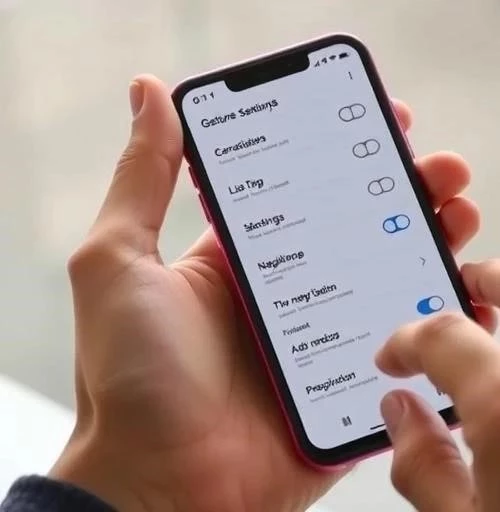
Gesture navigation replaces the traditional Android buttons with swipes, giving you more screen space and a different way to move around your phone. The exact menu names depend on your Xiaomi model and whether it runs MIUI or HyperOS, but the setup is usually similar.
Enable full-screen gestures
- Open Settings on your Xiaomi phone.
- Tap Home screen. On some versions, the option is under Additional settings or System navigation.
- Choose System navigation, then select Gestures or Full-screen gestures.
- If a tutorial appears, follow it to practise the basic swipes. You can usually switch back to Buttons from the same screen.
If you cannot find the setting, open Settings and use the search field. Try searching for “system navigation,” “full-screen display,” or “gestures.” Menu paths can vary with your phone model, software version, and region.
Learn the main gestures
- Go home: Swipe up from the bottom edge of the screen.
- Open recent apps: Swipe up from the bottom and pause briefly in the middle. Release when the app cards appear.
- Go back: Swipe inward from either the left or right edge. You do not need to reach a particular button.
- Switch between apps: Swipe sideways along the bottom edge. This can be quicker than opening the recent-apps view.
Practise each movement slowly at first, then repeat it with a smooth, deliberate swipe. A very short swipe may not register, while holding too long after swiping up can open recent apps instead of returning home.
Adjust gesture options
On supported phones, the navigation settings include extra controls. You may be able to hide or show the gesture indicator at the bottom, change back-gesture sensitivity, or choose whether a swipe from the screen edge triggers the back action. The available options differ by software version.
If edge swipes interfere with a game or an app’s side menu, look for a back-gesture sensitivity control and lower it, if available. Some versions also let you disable gestures near the keyboard. Test changes in the apps where you notice the problem.
Use the gesture tutorial and switch layouts
Many Xiaomi devices provide a short demonstration on the navigation screen. Reopen it whenever you need a reminder. If gestures feel uncomfortable, choose the three-button layout instead; changing the navigation mode does not delete your apps or personal data.
Troubleshooting
A swipe does nothing: Check that Gestures is selected and start the movement from the very edge or bottom of the display. Remove a case temporarily if its raised lip blocks your finger.
The back gesture activates accidentally: Adjust sensitivity if the setting is offered, or begin your swipe slightly farther from the edge. Remember that either side can work as the back area.
The menu looks different: Install available system updates, then search Settings for “navigation.” Xiaomi changes labels and locations across MIUI and HyperOS releases, so instructions for another model may not match exactly.
Before you finish
Try going home, returning to the previous screen, and switching apps several times. Once those movements feel natural, gesture navigation can make everyday use faster and leave more room for content. If your device is shared, show other users the basic swipes so they can navigate it comfortably too.

3 Comments. Оставить новый
Clear and practical guide. The gesture instructions are easy to follow, and the note about menu names varying by software version is especially helpful.
A concise overview for anyone new to full-screen gestures. The advice about adjusting back-gesture sensitivity could prevent accidental swipes.
I appreciate the troubleshooting tips for finding the setting through Settings search. The explanation of switching between apps is useful too.