
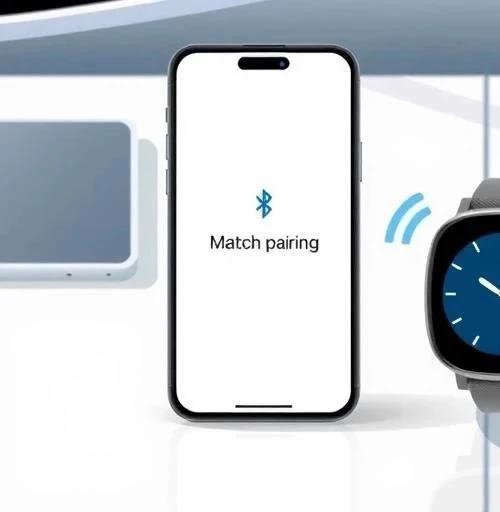
Connecting a T500 smartwatch is usually straightforward‚ but the order matters; Most T500 watches pair through a companion app as well as through the phone’s Bluetooth settings. Pairing only in the Bluetooth menu may connect calls—or make the watch appear connected—without enabling notifications‚ health data‚ or other app features; Since T500 watches are sold by different manufacturers and may use different software‚ check the instructions or QR code supplied with your particular watch rather than assuming every model uses the same app.
Before you begin
- Charge the watch and keep it close to your phone during setup.
- Turn on Bluetooth and‚ on Android‚ allow location access if the app requests it. Some Android versions use this permission to discover nearby Bluetooth devices.
- Check the watch‚ packaging‚ or manual for a QR code or the name of the recommended companion app.
- Install the app from the Apple App Store or Google Play. Avoid unfamiliar download sites and apps that request unrelated permissions.
There is no single guaranteed app for every product labelled “T500.” Names such as FitPro‚ HryFine‚ or WearFit Pro may be associated with particular versions‚ but the correct choice depends on the watch’s firmware and seller. A QR code in the device’s own setup screen or printed manual is generally a better guide than a random app recommendation. If the code does not open an official app-store page‚ verify the app name with the seller before installing anything.
Pair the watch through its app
- Open the companion app‚ create an account if required‚ and grant the permissions needed for Bluetooth discovery and notifications. The exact permission prompts vary by phone.
- Go to the app’s device section. It may be labelled Device‚ Add device‚ Bind device‚ or Search.
- Select the T500 or the matching device name from the list. If several devices appear‚ compare the name shown on the watch or in its settings. Keep the watch awake while searching.
- Approve the pairing request on both devices if prompted. Wait for the app to confirm that the watch is connected; initial synchronisation can take a short time.
Starting the connection from the companion app is important because the app manages functions such as activity syncing and message alerts. If your phone has already paired with the watch directly‚ remove that old entry from the phone’s Bluetooth list‚ then retry from the app. Do not repeatedly pair and unpair while the app is still searching; give each attempt time to finish.
Enable calls and notifications
Some T500 versions use a second Bluetooth connection for calls and audio. After the app connection succeeds‚ open the phone’s Bluetooth settings and look for another T500-related name‚ often one with a suffix or a slightly different label. Pair it only if your model supports calling and you want to answer calls or use its speaker. A second entry is not necessarily an error: one link may handle app data while another handles audio.
For alerts‚ return to the companion app and enable notifications for calls and the apps you want to use. Then check your phone’s settings to ensure notification access is allowed for the companion app. On iPhone‚ approve Bluetooth and notification prompts and check that the desired apps can send notifications. On Android‚ allow notification access where requested and make sure battery-saving settings are not stopping the app from running in the background. Menu names differ by phone brand and operating-system version.
If the watch will not connect
- It does not appear in the scan: Charge and wake the watch‚ move it closer‚ switch Bluetooth off and on‚ and restart both devices. Confirm that another phone is not already connected to it.
- The app says “connected‚” but data does not sync: Check that you selected the correct companion app‚ allow its requested permissions‚ and refresh the device page. If needed‚ unpair the watch and set it up again through the app.
- Calls work‚ but notifications do not: Verify notification access in both the app and phone settings. Check that the relevant alerts are enabled and that Do Not Disturb is not suppressing them.
- Pairing repeatedly fails: Remove saved T500 entries from Bluetooth settings‚ close the app‚ restart the phone and watch‚ and retry nearby. As a last resort‚ use the watch’s factory-reset option and repeat setup.
Resetting erases some settings and may remove unsynchronised data‚ so try the simpler steps first. Also check that the app and phone software are up to date. If the watch still cannot be found‚ compare its model information with the manual or ask the seller which app and pairing procedure apply to that exact version. Similar-looking T500 devices may use incompatible apps.
How to confirm setup
A successful connection should be shown in the companion app‚ and the watch should appear as connected there after you reopen the app. Test one feature at a time: synchronise a measurement‚ change a watch setting‚ then send a test notification. If you enabled calling‚ place a brief test call and check the watch’s audio connection separately. This helps identify whether the issue is with the app link‚ notification permissions‚ or Bluetooth audio instead of repeating the entire setup.
In short: identify the correct app for your specific T500‚ pair from inside that app‚ and grant only the permissions needed for the features you intend to use. Add a separate Bluetooth audio pairing only if calling is supported. This approach is more reliable than connecting every listed device entry indiscriminately and makes common setup problems easier to diagnose.
5 Comments. Оставить новый
The reminder that T500 watches may use different apps is helpful, since the model name alone does not reliably identify the software. Advising readers to check the supplied manual or QR code is more responsible than presenting one app as universally compatible.
I appreciate the cautious advice about app permissions and unofficial download sites. Because a companion app may request access to personal information, encouraging readers to verify the developer and review permissions adds an important safety perspective.
The setup guidance is practical, especially the suggestion to keep the watch close and awake while searching. It would also be useful to mention that restarting Bluetooth or the devices can be a reasonable troubleshooting step if the watch does not appear.
The article is clear about how setup can vary by phone and watch version, which helps set realistic expectations. A brief note that menu labels may differ between app versions would make the instructions even easier to follow.
The article makes an important distinction between pairing through the companion app and pairing only through the phone’s Bluetooth menu. That clarification could save readers from thinking the watch is fully set up when notifications or health-data syncing are still unavailable.