
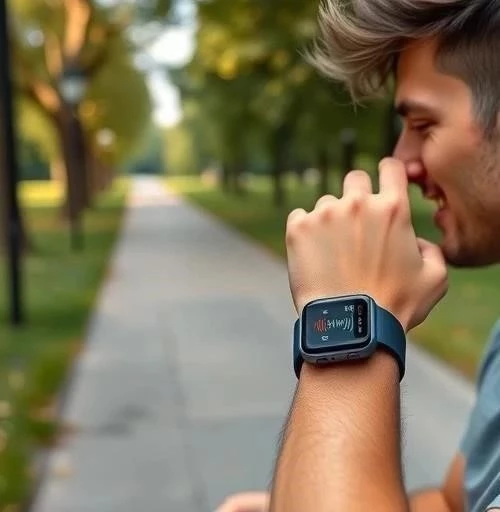
You can call from an Apple Watch while your iPhone is elsewhere, but the watch needs a way to reach a network. Depending on your model and setup, that connection comes from cellular service, Wi-Fi, or a nearby iPhone acting as a relay. The key point is that a watch cannot make an ordinary call when it has no network connection at all. Choose the method that matches your watch and circumstances.
First, check which Apple Watch you have
GPS + Cellular models can connect directly to a mobile network when cellular service is activated. This is the most reliable option for calling when you are away from both your iPhone and Wi-Fi; The watch needs a compatible carrier and an eligible plan; having a cellular-capable watch alone does not provide service.
GPS-only models do not have a mobile connection of their own. They can still make calls in some situations: while connected to a known Wi-Fi network, or through a nearby iPhone using Bluetooth. Wi-Fi calling availability depends on your carrier and settings. Check your model in the Watch app or on the back of the watch before choosing a setup.
Option 1: Use cellular service
- Keep your Apple Watch and iPhone paired, and open the Watch app on the iPhone.
- Tap My Watch, then Cellular (or Mobile Service in some regions).
- Choose Set Up Cellular and follow your carrier’s instructions to add the watch to an eligible plan. You may need to sign in to your carrier account.
- Wait for activation. On the watch, open Control Center and check that the cellular indicator shows a connection when Wi-Fi or the iPhone is unavailable.
In many cases the watch shares the iPhone’s number through the carrier’s service, rather than operating like a separate phone with an unrelated number. Plan rules, charges, and international roaming differ by carrier, so confirm them before relying on the watch abroad. Cellular use can also consume more battery than Wi-Fi.
Option 2: Call over Wi-Fi
A GPS or GPS + Cellular watch can use Wi-Fi when it is away from the iPhone, provided it can join a compatible network. For ordinary calls to phone numbers, Wi-Fi Calling must be supported by your carrier and configured for your account. On the paired iPhone, open Settings > Phone > Wi-Fi Calling and turn it on if the option is available. Follow any prompts, including an emergency address request. Some carriers also require Wi-Fi Calling on other devices to be enabled.
After setup, connect the watch to Wi-Fi. If the iPhone is off or out of range, try making a call from the watch’s Phone app. A Wi-Fi connection does not guarantee that every carrier will route regular calls from the watch; availability depends on the carrier, region, account, and software; FaceTime audio is another possibility when the watch has internet access, but it requires the person you call to be reachable through FaceTime.
Make a call from the watch
Press the Digital Crown and open Phone. Choose a contact, tap a recent call, or use the keypad to enter a number, then tap the call button. You can also raise your wrist and ask Siri to call a contact. To answer an incoming call, tap the answer button; use the Digital Crown to adjust volume. The watch’s speaker and microphone work for a basic call, and compatible Bluetooth headphones can provide a more private option.
If a call will not connect, check the connection indicator, make sure Airplane Mode is off, and confirm that Wi-Fi or cellular service is available. Verify that the plan is active and that Wi-Fi Calling is enabled where required; Restarting the watch can help; if cellular setup remains unavailable, contact the carrier, since plan eligibility and activation are managed by them.
Can you set up a watch without your own iPhone?
With Apple Watch For Your Kids (formerly Family Setup), a family member can use a supported cellular Apple Watch without owning an iPhone. A family organizer sets it up using their iPhone, and a compatible carrier must support the feature and provide service. This is different from simply taking a normally paired watch away from its iPhone: Family Setup has its own requirements and some features may differ.
What to expect
For dependable calls on a walk or run, a cellular model with an activated plan is the clearest solution; Wi-Fi can work indoors or in familiar locations, while a GPS-only watch generally needs Wi-Fi or a nearby iPhone. Before leaving your phone behind, place a test call and check that the watch is connected. Keep in mind that emergency calling and location information can vary by country, network, and connection method; do not assume a watch will have service everywhere.

4 Comments. Оставить новый
The step-by-step cellular setup is helpful, especially the reminder that owning a cellular-capable watch does not automatically include service. The note about carrier eligibility and possible costs also encourages readers to check their plan before relying on the feature.
The advice about carrier rules, roaming, and battery use adds useful context beyond the setup instructions. The supplied text ends partway through the Wi-Fi section, though, so readers would need the remaining guidance to understand that option fully.
I appreciate that the article covers Wi-Fi and a nearby iPhone as alternatives, rather than presenting cellular service as the only way to call. Its explanation of model differences gives readers a practical starting point for checking their own setup.
The article clearly explains the main limitation: an Apple Watch needs a network connection to place a call when the iPhone is elsewhere. Distinguishing cellular models from GPS-only models makes the advice useful for readers deciding what their watch can do.