
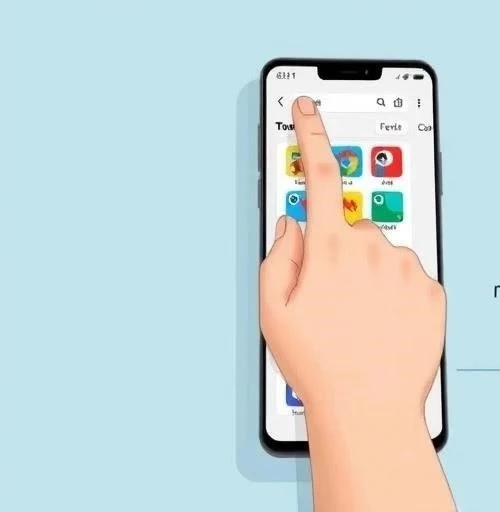
The Recent Apps screen—also called the app switcher—shows the applications you have opened and lets you return to them, close them, or use certain multitasking tools. On Xiaomi phones, its appearance and available controls depend on the installed system, the Xiaomi launcher, and sometimes the model. MIUI and HyperOS versions do not all offer the same options, so there is no single setting that changes every recent-apps menu. The most reliable approach is to check the built-in Home screen settings first, then adjust the available card and navigation options.
Change the layout of recent-app cards
- Open Settings and tap Home screen. On some phones, this section may be called Home screen & Recents or be found under Additional settings.
- Look for Arrange items in Recents, Recents, or a similarly named option.
- If your phone offers a choice, select the card arrangement you prefer, such as vertical or horizontal scrolling.
- Open the app switcher again to check the result.
The exact labels and choices vary by launcher release. If you cannot find a Recents layout control, your software may not support changing it through Settings. This is not necessarily a fault with the phone: Xiaomi can revise or remove launcher options between updates, and a menu shown in a guide for another model may not exist on yours.
Choose how you open the app switcher
Navigation settings change how you reach Recent Apps, rather than redesigning its cards. Go to Settings > Home screen > System navigation, or search Settings for “System navigation.” Choose between buttons and full-screen gestures if both are available. With gesture navigation, swipe up from the bottom and pause briefly to open the recent-apps view. With button navigation, tap the square or Recents button. The gesture can feel quicker once learned, while buttons may be easier to use consistently; choose the method that suits your habits.
If gestures do not behave as expected, check the on-screen instructions in the navigation settings. Some models also let you hide the gesture indicator or adjust gesture-related options. Those controls affect navigation, not the design of the recent-app screen.
Use the controls on an app card
Many Xiaomi versions display extra commands when you press and hold an app preview in Recents or tap its small icon. Depending on the app and system version, you may see options such as Lock, Split screen, or App info.
- Lock: helps prevent the app from being removed when you use a clear-all command. It does not guarantee that Android will keep the app running indefinitely; the system can still manage memory or stop a process.
- Split screen: opens the app alongside another compatible app. This option may be unavailable for some applications or on some software versions.
- App info: opens the app’s system page, where you can manage permissions, storage, notifications, and other settings.
To close an individual app, swipe its card away. A Clear all control, when present, dismisses recent cards, but its position and behavior differ across versions. Closing a card is not the same as uninstalling the app, and it does not necessarily erase saved data. Be cautious about repeatedly clearing apps to “speed up” the phone: reopening them can require more work from the system, and routine force-closing is rarely a useful substitute for diagnosing a real performance problem.
Adjust previews and appearance
Some Xiaomi software versions provide privacy or appearance controls for recent-app previews. Search Settings for Blur app previews, App preview, or privacy-related options. If supported, blurring can make information in a card less readable when someone glances at the screen. Availability and per-app controls differ, so check the actual options on your device rather than assuming that a setting shown on another Xiaomi phone will be present.
Themes may change icons, colors, or other parts of the interface, but they do not always replace the system’s Recent Apps design. Download themes only from trusted sources, and do not assume that a third-party launcher can fully control the app switcher: Android often keeps Recents tied to the system launcher. Changing launchers may alter the Home screen without changing the native recent-apps menu.
If the setting is missing or the menu looks wrong
First check Settings > About phone for your MIUI or HyperOS version, then look for system and launcher updates using the phone’s built-in updater. Menu names can change after an update. You can also restart the phone if the switcher is temporarily unresponsive. If the layout option is absent, there may simply be no supported built-in way to change it on that particular combination of model and software.
Avoid installing unknown “Recents customizer” apps or modifying system files just to force a different layout. Such tools may request powerful permissions, stop working after an update, or cause instability. If you consider an advanced modification, research compatibility with your exact model and software version, understand the recovery risks, and back up important data first. For most users, the safest customization is limited to the options Xiaomi exposes in Settings.
In short
Start with Settings > Home screen and look for Recents or card-arrangement controls. Use navigation settings to change how you open the switcher, and use each card’s menu for supported actions such as locking or split screen. Because Xiaomi changes these features across devices and software releases, the options visible on your own phone are the best guide to what can be changed safely.
8 Comments. Оставить новый
The article clearly explains that recent-apps options vary by Xiaomi model and software version. Starting with Home screen settings is a practical way to avoid assuming that every phone has the same controls.
The navigation explanation is especially practical. Describing both the gesture and button methods helps readers choose an approach based on what feels comfortable rather than implying one is universally better.
I appreciate the distinction between changing the layout of app cards and changing how the app switcher opens. Those are different settings, and the article makes that difference easy to understand.
The article avoids treating a missing setting as a phone fault, which is reassuring and accurate given how Xiaomi software options can differ. The troubleshooting guidance is measured and easy to follow.
The step-by-step layout instructions are straightforward, and the reminder to reopen the app switcher to check the result makes the process feel complete rather than leaving readers to guess.
A concise and useful overview. It explains what can be customized, where to look, and why the instructions may not match every Xiaomi phone, without promising options that may not be available.
This is a useful guide because it gives readers a clear first place to look in Settings, while acknowledging that some versions may not provide a layout control at all.
The note about menu labels changing between MIUI, HyperOS, and launcher releases is helpful. It sets realistic expectations for readers who cannot find an option shown in instructions for another device.