
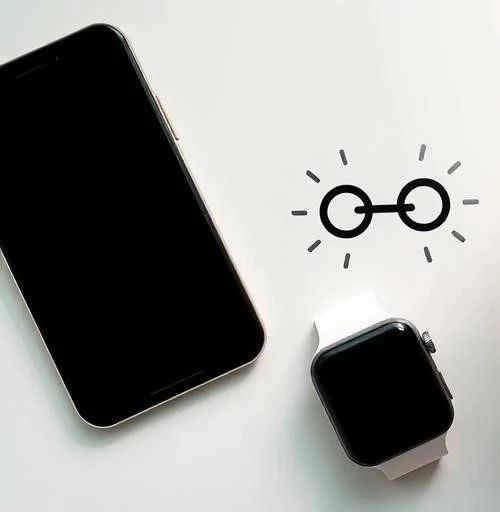
There are two different things people may mean by “disconnect”: temporarily stopping the connection, or permanently unpairing the watch. Choose the method that matches your goal. A temporary disconnection keeps your setup and data in place; unpairing removes the pairing and prepares the watch to be used separately, transferred, or sold.
Temporarily disconnect the devices
If you only want the iPhone and Apple Watch to stop communicating for a while, you do not need to erase or unpair the watch.
- Use Airplane Mode on the watch. Press the side button to open Control Center, then tap the Airplane Mode button. On some watchOS versions, you may need to swipe up from the watch face to open Control Center. This disables wireless connections according to the watch’s settings. If Wi-Fi or Bluetooth remains enabled in Airplane Mode, switch it off separately in Settings on the watch.
- Turn off Bluetooth on the iPhone. Open Settings > Bluetooth and switch Bluetooth off. Using Settings is clearer than tapping Bluetooth in Control Center: that button may only disconnect accessories temporarily, rather than completely turn Bluetooth off.
- Move the devices apart or power one off. This is a simple option when the separation is brief. The watch may still connect through Wi-Fi or cellular if those services are available, so distance alone is not a guaranteed full disconnection.
When you want to reconnect, turn Airplane Mode off and enable Bluetooth on the iPhone. Keep the devices near each other and give them a moment to reconnect. A temporary connection loss does not normally erase the watch or remove it from your Apple Account.
Unpair the Apple Watch from the iPhone
Unpairing is the recommended method if you are switching to another iPhone, giving the watch to someone, or selling it. When the paired iPhone is available, use the Watch app rather than simply erasing the watch. The iPhone can create a backup of the watch’s information and remove the pairing correctly.
- Keep the iPhone and Apple Watch close together and make sure both have power.
- On the iPhone, open the Watch app and tap My Watch.
- Tap All Watches at the top of the screen.
- Tap the information button next to the watch you want to disconnect.
- Choose Unpair Apple Watch, then confirm. If the watch has cellular service, choose whether to keep or remove the cellular plan. If you are transferring or selling the watch, remove the plan unless you intend to use it with that watch yourself. Contact your carrier if you are unsure about the plan or its transfer.
- If prompted, enter the Apple Account password associated with the watch. This disables Activation Lock as part of the unpairing process.
Allow the process to finish; it may take several minutes. The iPhone may save a watch backup that can be used when setting up a compatible watch later. The watch itself is erased and returns to its setup screen. If you are keeping it, you can pair it again or pair it with a different iPhone. To set it up with a new iPhone, follow the on-screen instructions and restore a backup if one is offered.
If you no longer have the paired iPhone
You can erase the watch directly, but erasing it is not the same as properly unpairing it. On the watch, open Settings > General > Reset > Erase All Content and Settings, then confirm. Depending on the watch model and watchOS version, the menu wording may vary. You may need to enter the watch passcode.
An on-device erase does not necessarily remove Activation Lock. Before giving the watch away, remove it from your Apple Account using Find My or the account’s device list, and follow the prompts to remove the device. The next owner may otherwise be asked for the Apple Account credentials previously linked to it. If you cannot access the account, resolve that issue before transferring the watch.
Before you disconnect
- Make sure you know the passcode and Apple Account credentials used with the devices.
- Check cellular-plan choices before confirming an unpair, especially if you will keep using the plan.
- If you are selling the watch, verify that it shows the initial setup screen and is no longer linked to your account.
- If unpairing fails, restart both devices, bring them close together, and try again. Keep them charged and connected to a stable network where possible.
In short: use Airplane Mode or Bluetooth settings for a temporary break. Use the Watch app’s Unpair Apple Watch command for a clean, permanent separation. That distinction helps preserve the right data, avoid unnecessary erasing, and prevent Activation Lock problems for the next user.



8 Comments. Оставить новый
I appreciate the warning that moving the devices apart may not fully disconnect them because Wi-Fi or cellular could keep the watch connected. That detail makes the instructions more reliable.
The distinction between temporarily disconnecting and unpairing is useful because these actions have different consequences. The article makes clear that a brief connection break does not require erasing the watch.
The article appropriately recommends using the Watch app when unpairing with the iPhone available. Mentioning the backup is important for anyone concerned about preserving watch information.
This is a practical guide for readers who are unsure whether they need a temporary disconnection or a full unpairing. The separate sections make it easier to choose the right option.
Including the possibility that Airplane Mode may leave Wi-Fi or Bluetooth active under some settings is a helpful qualification. It makes the suggested steps more accurate across different configurations.
The advice to turn off Bluetooth through the iPhone’s Settings is well explained. Clarifying that Control Center may only disconnect accessories temporarily helps prevent confusion.
The reconnection guidance is concise and reassuring: users are told what to switch back on and are reminded that a temporary loss of connection does not normally erase data or remove the watch from their account.
The explanation is straightforward and avoids treating every connection issue as a reason to erase the watch. That distinction could save readers unnecessary setup work.