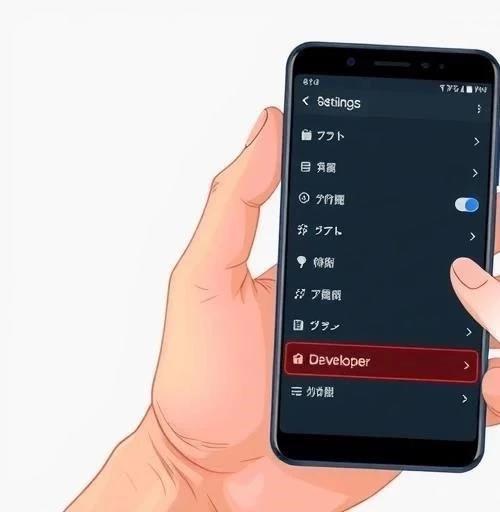
Developer options are a hidden Android settings menu intended mainly for testing, troubleshooting, and app development. You can enable them without installing an app or rooting your phone. The steps are similar on most Xiaomi, Redmi, and POCO devices, although menu names can vary between MIUI and HyperOS versions.
Before you begin
Keep in mind that some options can change how your phone behaves. Enabling the menu itself is safe; changing unfamiliar settings is not always harmless. For example, USB debugging allows a trusted computer to communicate with your device. Turn on only the features you need, and avoid changing settings just to experiment.
Turn on the menu
- Open Settings.
- Tap About phone. On some versions, this appears near the top of Settings; on others, it may be inside My device.
- Find MIUI version and tap it repeatedly, usually seven times. On a HyperOS phone, tap the OS version entry instead. Use the version tile or label, not the Android version field.
- If prompted, enter your screen-lock PIN, pattern, or password. A message should confirm that you are now a developer, or tell you how many taps remain.
If you cannot find the version entry, check all the cards on the About phone screen or use Settings search for “MIUI version” or “OS version.” Labels and layouts differ by model and software release, so an exact match to another phone’s screen is not guaranteed.
Find and use Developer options
Return to the main Settings screen and open Additional settings > Developer options. On some releases the menu is listed directly in Settings, so search for “Developer options” if it is not where expected. The menu is enabled separately from individual features: open it, then switch on only the setting you need.
For a computer connection, locate USB debugging and enable it only when necessary. Read the confirmation carefully; When you connect the phone, approve the computer’s authorization prompt only if you recognize and trust that computer. Disable debugging afterward, especially before connecting to an unfamiliar machine.
If it does not appear
- Make sure you tapped the MIUI or HyperOS version entry, not another item such as Android version.
- Repeat the taps steadily and check for an on-screen confirmation; a security prompt may be required.
- Restart Settings or the phone, then search for “Developer options.” If the phone is managed by an organization, an administrator may restrict access.
To hide the menu again, open Developer options and switch off its main toggle if your software provides one. The menu may disappear from Settings; if it remains visible, that does not mean debugging is active. Check that USB debugging and any other features you enabled are switched off. Names can change with updates, but the version entry in About phone remains the usual route.