
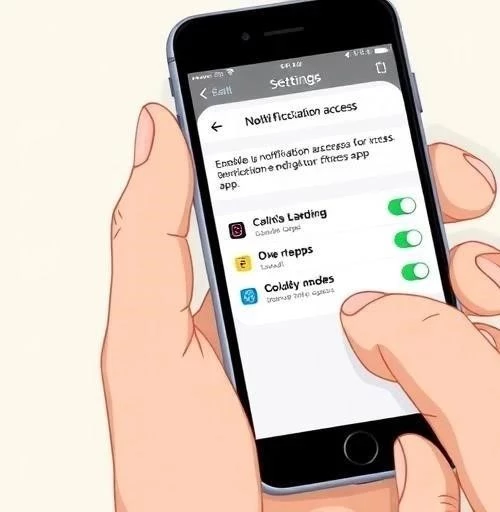
Huawei Health can show phone notifications on a paired watch or band‚ but pairing alone does not grant all the permissions it needs. You may need to enable notifications in Huawei Health‚ allow the app to read notifications in your phone’s settings‚ and choose which apps can send alerts to your wearable. The exact menu names vary by phone‚ Android version‚ and Huawei Health release. Follow the steps below‚ checking the wording on your device if it differs.
Before you begin
- Make sure Huawei Health is installed and updated. If you use an Android phone‚ install it from a source supported in your region‚ such as Huawei AppGallery or the official Huawei website.
- Pair your watch or band with the phone in Huawei Health. Confirm that the wearable appears under Devices and shows as connected.
- Turn on Bluetooth on the phone and keep the wearable within range.
- Check that the phone itself receives notifications from the apps you want to use. A wearable cannot display an alert that the phone does not receive.
Enable notifications in Huawei Health
- Open Huawei Health.
- Tap Devices and select your connected watch or band.
- Open Notifications‚ App notifications‚ or a similarly named option.
- Turn on the main notification switch. If a permission prompt appears‚ choose Allow or continue to the phone’s settings and grant the requested access.
- Select the apps whose alerts you want to receive on the wearable. Depending on the model and app version‚ you may see a list of apps or options for calls‚ messages‚ and other notifications.
Do not enable every app automatically if you only need a few. Selecting the important ones can reduce interruptions and make alerts easier to manage.
Give Huawei Health notification access on Android
Android separates ordinary app notifications from notification access‚ a special permission that lets an approved app read notifications so it can forward them to a connected device. Huawei Health may ask for this permission when you turn on wearable alerts. If you dismissed the prompt‚ open the phone’s Settings and look for one of these routes:
- Settings > Apps > Special app access > Notification access
- Settings > Notifications > Notification access
- Use the Settings search box and search for Notification access.
Find Huawei Health in the list and switch on its access. Read the system explanation‚ then confirm if you are comfortable granting it. On some phones‚ the permission may be listed under a different name or placed in a security or privacy section. If Huawei Health is not listed‚ update the app‚ reopen its notification settings‚ and try again.
Allow Huawei Health to send notifications
Notification access and permission to display notifications are not always the same setting. Also check Settings > Apps > Huawei Health > Notifications and allow notifications for the app if that option is available. On some Android versions‚ you may also need to allow relevant notification categories. Keep Huawei Health’s required background activity enabled; restricting it can prevent alerts from reaching the wearable when the app is not open.
Check Android battery and background settings
If alerts work only while Huawei Health is open‚ the phone may be stopping the app in the background. In Settings‚ open Huawei Health’s battery or app-launch controls. If your phone offers options such as Allow background activity‚ Unrestricted‚ or Manage manually‚ allow the app to run in the background and enable any relevant auto-launch or secondary-launch settings. Menu labels differ by manufacturer.
Battery optimization can save power‚ but overly strict limits may interrupt the Bluetooth connection or notification service. Avoid force-stopping Huawei Health‚ and do not swipe it away if your phone treats that action as closing the app. If you use a phone cleaner‚ task manager‚ or power-saving mode‚ check that it is not restricting Huawei Health. You can still use normal battery-saving features; change settings only if you are troubleshooting missed alerts.
Allow notifications on iPhone
On an iPhone‚ open Settings > Notifications‚ select an app you want to forward‚ and allow its notifications. Choose the alert styles you want to see‚ such as Lock Screen or Notification Centre‚ and check that Focus or Scheduled Summary is not delaying them. Then open Huawei Health‚ go to Devices‚ select the wearable‚ and enable its notification options. iOS may show a permission prompt during setup; accept it if you want alerts forwarded.
Keep Bluetooth enabled and make sure the wearable is connected in Huawei Health. The available forwarding options can differ between iPhone and Android and between wearable models. If a particular app cannot be selected‚ check the device’s compatibility information and the latest Huawei Health instructions for your model.
Choose what appears on your wearable
After permissions are granted‚ return to the wearable’s notification page in Huawei Health and enable the individual apps you want. Review the wearable’s own settings too: some models have a do-not-disturb schedule‚ sleep mode‚ theatre mode‚ or a setting that silences alerts while you are wearing the device. These modes can make a correctly configured connection seem broken.
Notification content may be hidden when the phone is locked‚ depending on your phone’s privacy settings. If you see an alert without its message‚ check the app’s lock-screen preview settings. Be mindful that allowing notification access can expose message previews on a wearable‚ so select only the apps and content you are comfortable seeing there.
Troubleshooting: notifications still do not arrive
- Test the phone first. Send yourself a message or trigger an alert and confirm that it appears on the phone.
- Check both permission layers. Confirm that Huawei Health has notification access where required‚ and that the relevant apps are allowed in the wearable’s notification list.
- Confirm connection and modes. Open Huawei Health to check the connection‚ then turn off Do Not Disturb‚ sleep‚ or theatre mode temporarily.
- Restart the connection. Toggle Bluetooth off and on‚ restart the phone and wearable‚ and reopen Huawei Health.
- Update software. Install available updates for Huawei Health and the phone. Check for wearable firmware updates in the device page.
- Review background limits. Remove restrictive battery settings for Huawei Health if alerts stop when the app is in the background.
- Re-pair only as a last resort. If nothing else works‚ follow Huawei’s instructions to disconnect and pair the wearable again. Check whether the process will erase any unsynced data before removing the device.
On some Android phones‚ a system update can reset special permissions. If notifications suddenly stop‚ revisit the notification-access and battery settings rather than assuming the wearable is faulty. Menu paths and available features vary‚ so use Settings search or your phone maker’s support guide when the labels above do not match.
Quick checklist
- The wearable is paired and connected in Huawei Health.
- Notification forwarding is enabled for the wearable.
- Huawei Health has the required notification permissions on the phone.
- The desired apps are selected and can show notifications on the phone.
- Background restrictions and quiet modes are not blocking alerts.
Once these settings are in place‚ send a test notification and wait briefly for it to appear on the watch or band. If calls work but app messages do not‚ revisit the individual app selections; if nothing arrives‚ check connection and phone permissions first.



2 Comments. Оставить новый
Helpful guide. I appreciate the practical tip to select only the apps I want on my wearable, rather than enabling every notification.
The step-by-step instructions are clear, especially the reminder that notification access is separate from pairing. Mentioning that menu names vary should help readers using different Android versions.