
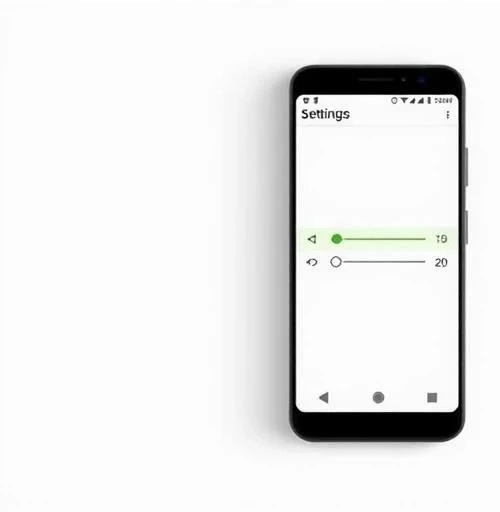
If you want the familiar Back, Home and Recent apps controls at the bottom of your Redmi 4X display, first check which navigation options your MIUI version provides․ The Redmi 4X was designed with separate touch-sensitive buttons below the screen․ Consequently, many official firmware versions do not include a switch that replaces those hardware keys with a permanent on-screen navigation bar․ This is a limitation of the phone’s software, not necessarily a fault with your device․
Check the built-in settings first
- Open Settings․
- Tap Additional settings, then look for Button and gesture shortcuts or Buttons․ The wording and location can vary by MIUI version and language․
- Review the available choices․ You may be able to swap the functions of the Recent and Back keys, choose what happens when you press or hold a key, or adjust other button shortcuts․
- If you see a setting specifically called Full screen display, Navigation bar or On-screen buttons, open it and follow the prompts to select the navigation style․ Restart the phone if MIUI asks you to․
Do not assume that an option called “Full screen gestures” enables screen buttons․ On phones that support it, that setting usually hides the navigation bar and replaces the controls with swipes․ On many Redmi 4X builds, the full-screen or navigation-bar menu is absent because the device uses its physical touch keys․ If you cannot find an explicit on-screen navigation option, changing the button shortcuts will not create a software bar․
Workarounds if the option is missing
Use a navigation-bar app
A third-party navigation app may display an on-screen control strip without modifying system files․ Install one only from a trusted store, check its recent reviews and permissions, and read its setup instructions carefully․ Such apps commonly need Accessibility access or permission to display over other apps․ These permissions are powerful: an accessibility service may observe or control parts of your screen, so do not grant access to an app you do not trust․ An overlay can also cover buttons in other apps, behave differently after an update, or stop working when MIUI restricts its background activity․
Advanced method: rooted system modification
Some older Android devices can be made to show a system navigation bar by changing the system property qemu․hw․mainkeys to 0․ This is not a normal Redmi 4X setting and is not guaranteed to work with every MIUI build․ It generally requires root access and editing a protected system configuration file․ A wrong edit can cause boot problems, break updates or reduce device security․
Do not attempt this unless you understand root access and have a reliable backup and recovery plan․ Never replace a system file with an unverified download․ If you proceed, use instructions written for your exact Redmi 4X model and firmware, and confirm that you can restore the original file before rebooting․ Rooting or modifying the system may also affect support or warranty coverage․
If the physical keys are the problem
If you want screen controls because the capacitive keys no longer respond, test whether the issue is limited to one app: return to the home screen and try both keys there․ Restart the phone and check for a system update․ If the keys remain unresponsive, a reputable overlay app may provide temporary controls, but it does not repair the hardware․ Back up important data and contact a qualified repair service if the problem persists․
Bottom line
Start with Settings > Additional settings and look for an option explicitly enabling an on-screen navigation bar․ If it is not present, the standard Redmi 4X firmware may not support that feature through a simple toggle․ A carefully chosen overlay app is the least invasive workaround; rooting and editing system files is an advanced, higher-risk option․ The phone’s built-in touch keys can usually be remapped, but remapping them is different from adding buttons to the display․

7 Comments. Оставить новый
The advice is clear and cautious: look for an explicit navigation-bar option, and do not mistake gesture controls for on-screen buttons. That distinction makes the troubleshooting steps easy to follow.
The warning about full-screen gestures is useful because the setting can sound like it would add screen buttons when it generally does the opposite. This clarification helps prevent confusion.
This is a helpful, device-specific explanation rather than a generic Android tutorial. It would be even more useful if it named a few MIUI versions known to include or omit the relevant options.
The security advice for third-party navigation apps is important and well reasoned. Accessibility and overlay permissions can be powerful, so checking the developer, reviews, and requested access is a practical precaution.
The article sensibly recommends checking built-in settings before looking for another solution. It also sets appropriate expectations that button shortcuts can change hardware-key behavior but cannot necessarily create a navigation bar.
The article clearly explains why the Redmi 4X may not offer an on-screen navigation bar. Distinguishing a software limitation from a device fault is especially helpful for readers who might otherwise assume their phone is malfunctioning.
I appreciate that the instructions acknowledge MIUI versions can place settings in different locations. That makes the guidance more realistic than giving one fixed menu path that may not match every device.